
The easiest way to start, is to get familiar with the Webcare Portal.
Once you are signed in (with the username and supplied password provided by your organisation), you will be directed to the home page.
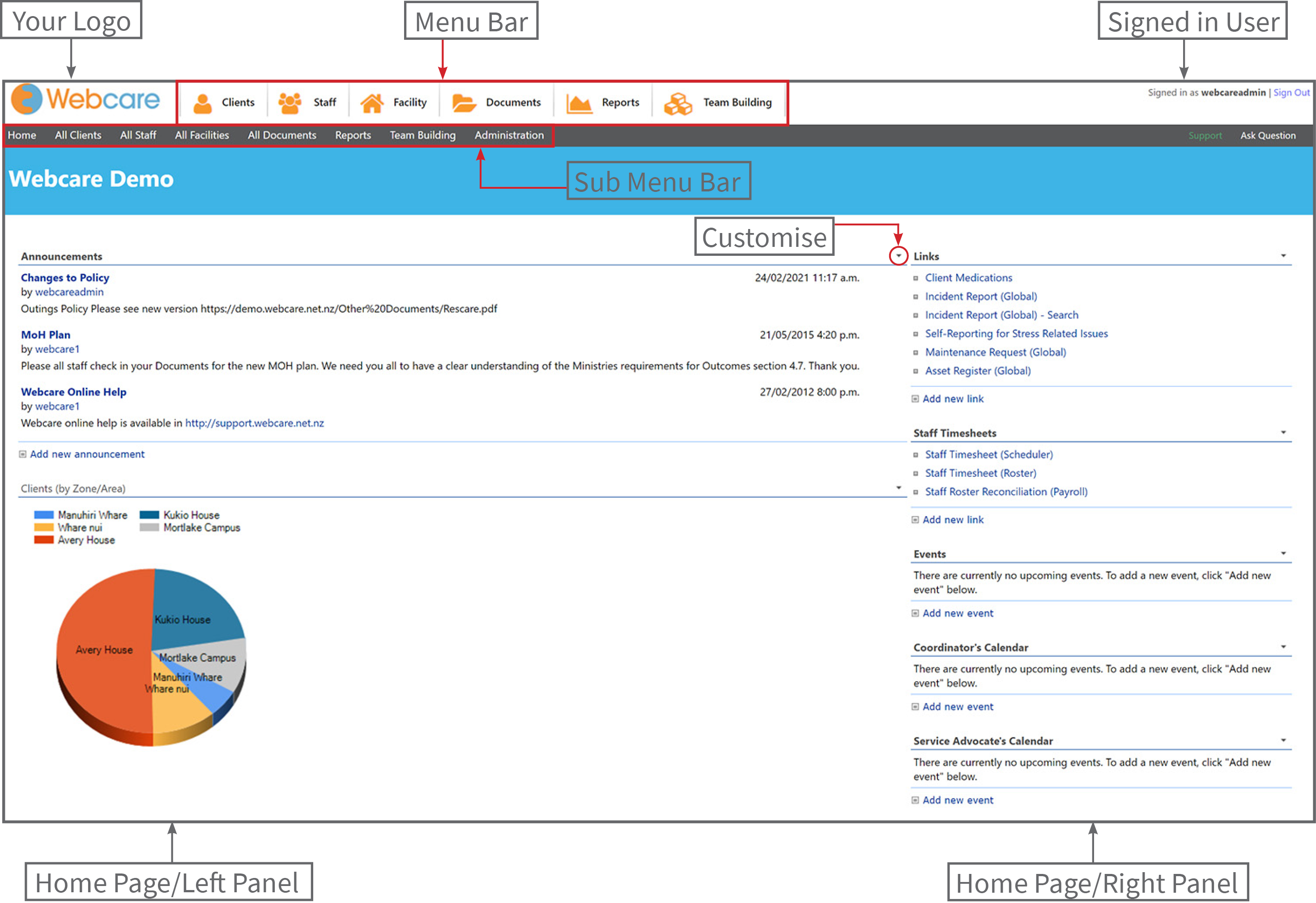
The Webcare portal is divided into three main sections:
- Heading: Contains your logo, menu bar, submenu bar and information about the signed-in user
- Home Page/Left Panel: Contains the main information such as home page and client/staff information. The information shown in this left panel is customisable.
- Home Page/Right Panel: Usually shows quick access features such as Links, Events and Calendars. This right panel is also customisable.
Customising the Home Page
To customise the left or right panel, simply click on the arrow on the section you want to change.
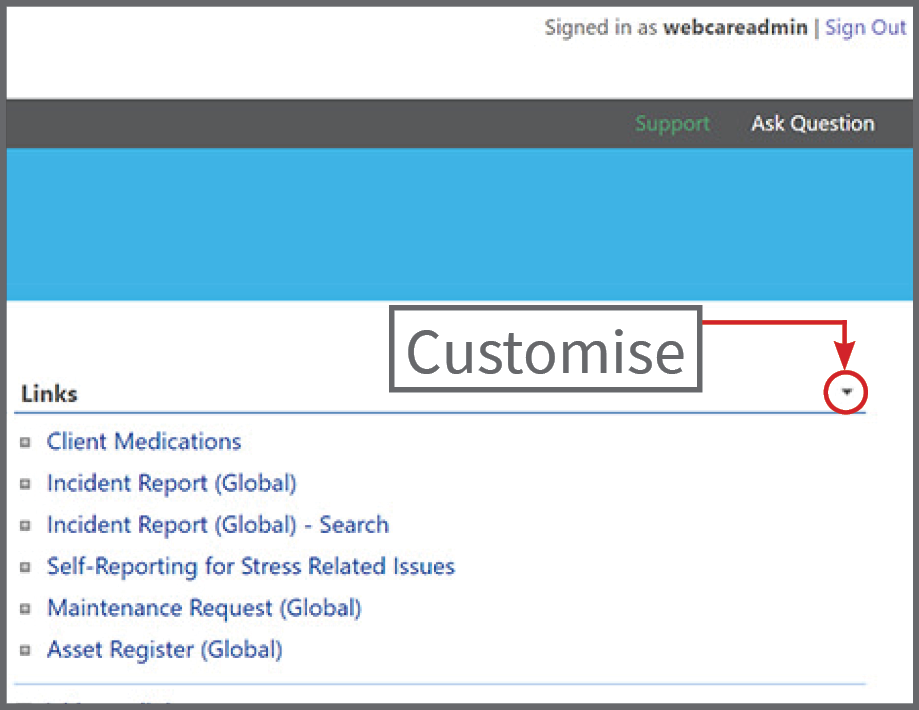
You will see in the below example that the boxes are now highlighted.
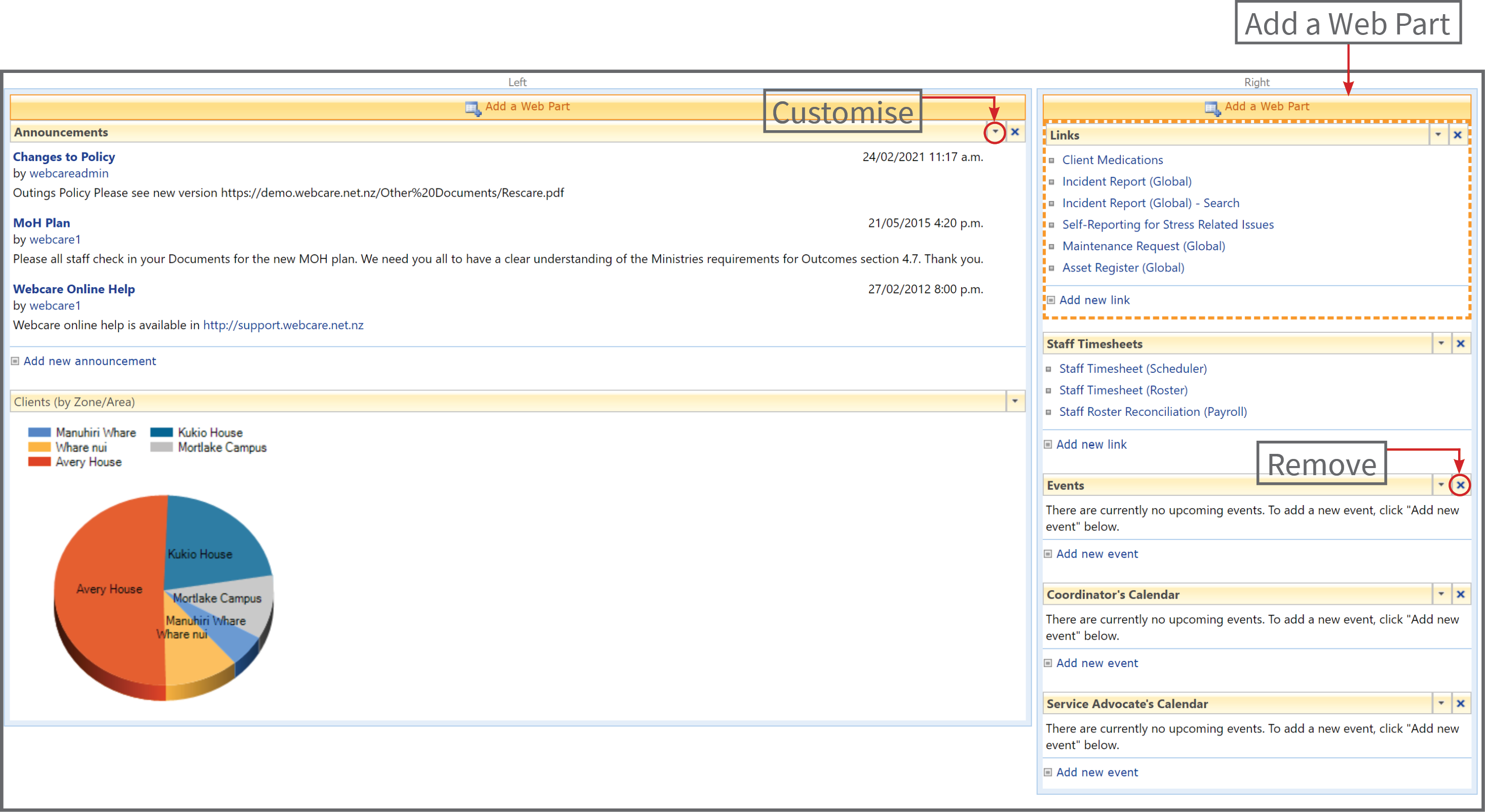
The side you are changing is surrounded by a dotted border, in the example below it is the Right Panel.
Click on the 'X' to remove a section.
Click on the arrow to customise the Left or Right panel.
Select Add a Web Part to add a new section.
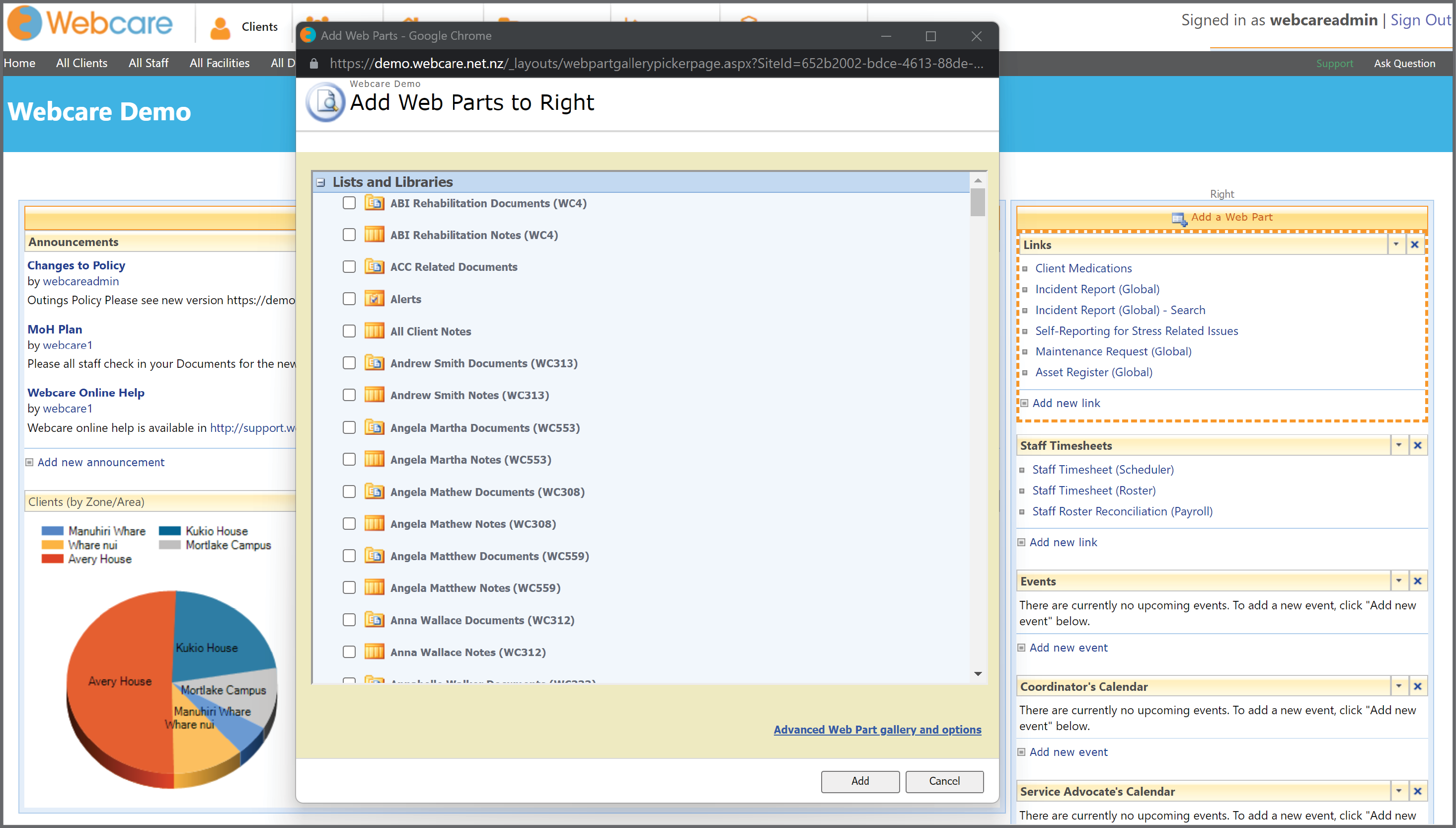
When you have clicked on the Add a Web Part button, a box called Add Web Parts to Right will pop up and give you a list of options to add to the right panel.
Tick the boxes, then click Add. You can add one or multiple sections.
To exit out of the customising panel, select Home on the Submenu bar.