This article contains information regarding;
- Adding Webcare on your favorites bar - This is for adding Webcare in your internet tool bar
- Creating a shortcut on your computer desktop - This is to directly open Webcare from your desktop on your computer
Adding Webcare as a favorite (shortcut) on your Internet toolbar
The type of internet search engine you are using, will change how you add to the favorites bar, however, they are relatively similar. Once you have opened Webcare on the internet, if your browser has a star in the right hand corner, this is a quick way to add to favorites.
 For Internet Explorer
If using Internet Explorer, click on the star and this will give you option to "Add to favorites".

Following clicking on the star, click on the down arrow next to "Add to favorites" and this will give you the option to either "Add to favorites" or you can click "Add to favorites bar". Add to favorites bar will make Webcare instantly visible when you access internet explorer. This is helpful especially if it is a highly visited site and/or required quickly and easily. If you have "added to favorites", click on the star again to see Webcare in a list of all of the sites you have added to favorites.
An alternative way to add to favorites, is to click on "Favorites" on the tool bar and either select "Add to favorites" or;

.Add to favorites bar.

 Firefox
For Firefox the add to favorites star may look like this;

 Chrome
For Chrome the star to add to favourites may look like this;

 Microsoft Edge
For Microsoft Edge the star to add to favourites may look like this;

Add Webcare to your desktop
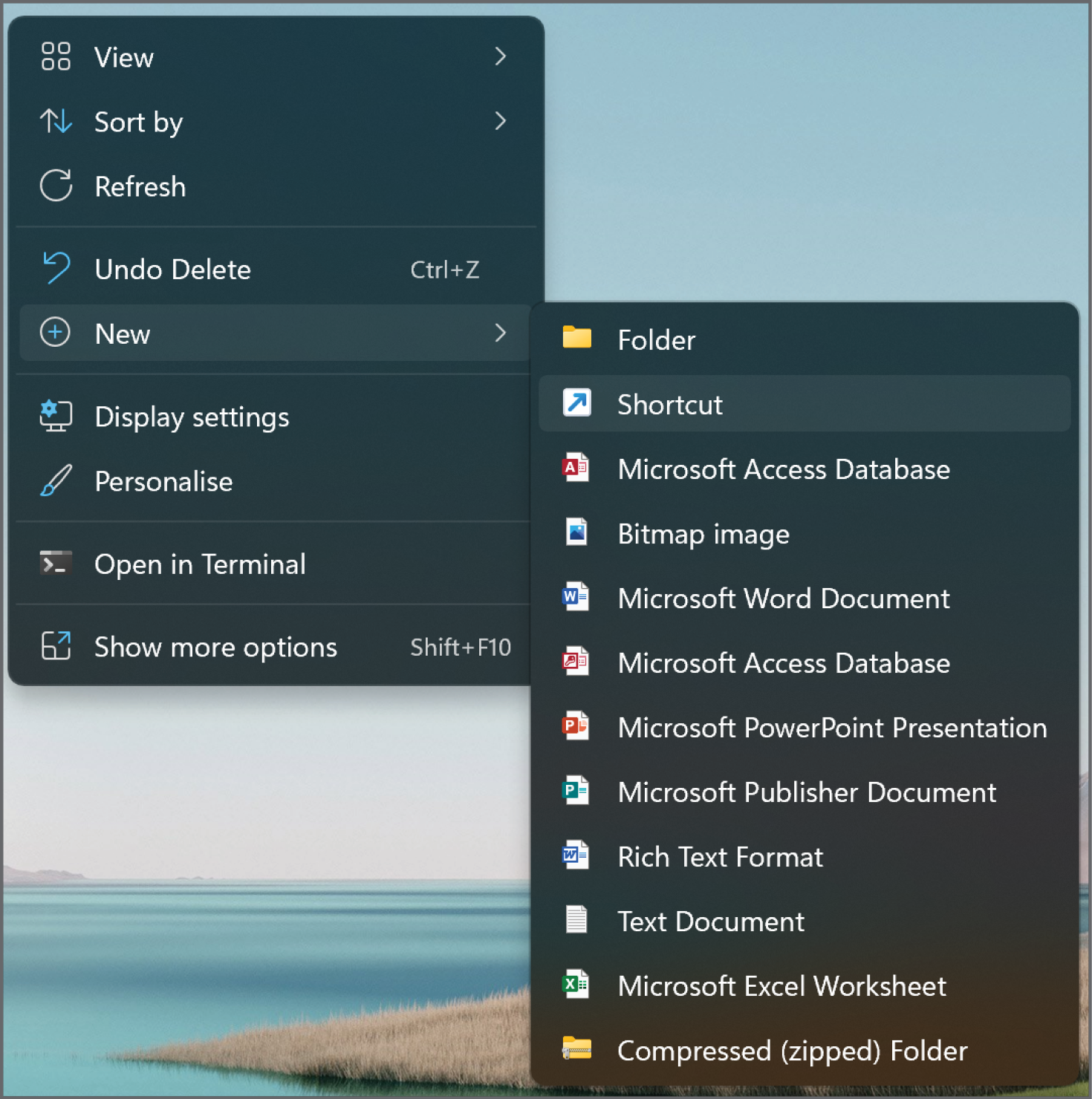
On your desktop right click on your mouse, scroll down to "New" and select 'Shortcut".
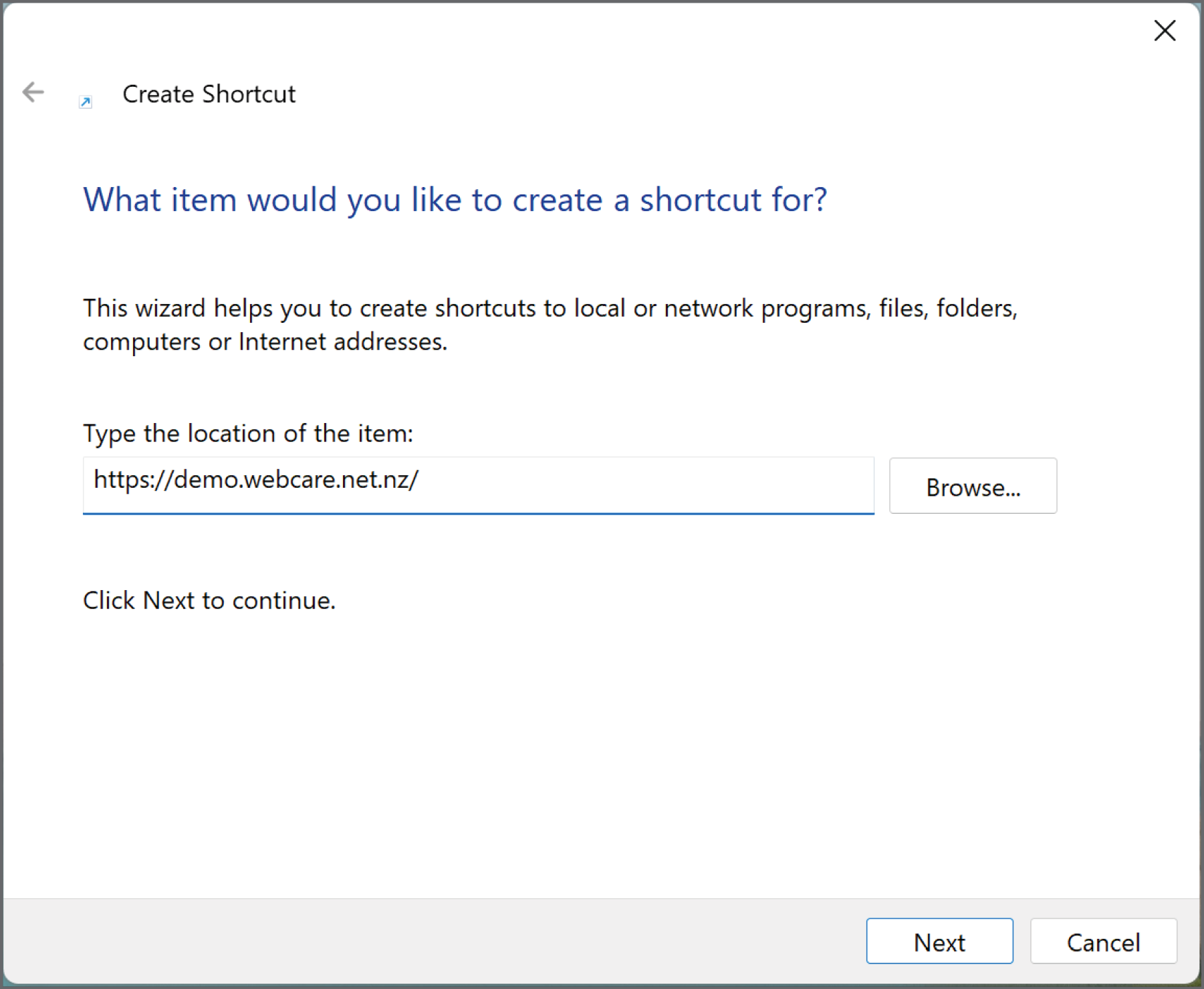
To create the shortcut type the URL or internet address of your Webcare site (or copy and paste directly from your internet address bar). Here we have used the Webcare demo site. Click on Finish.
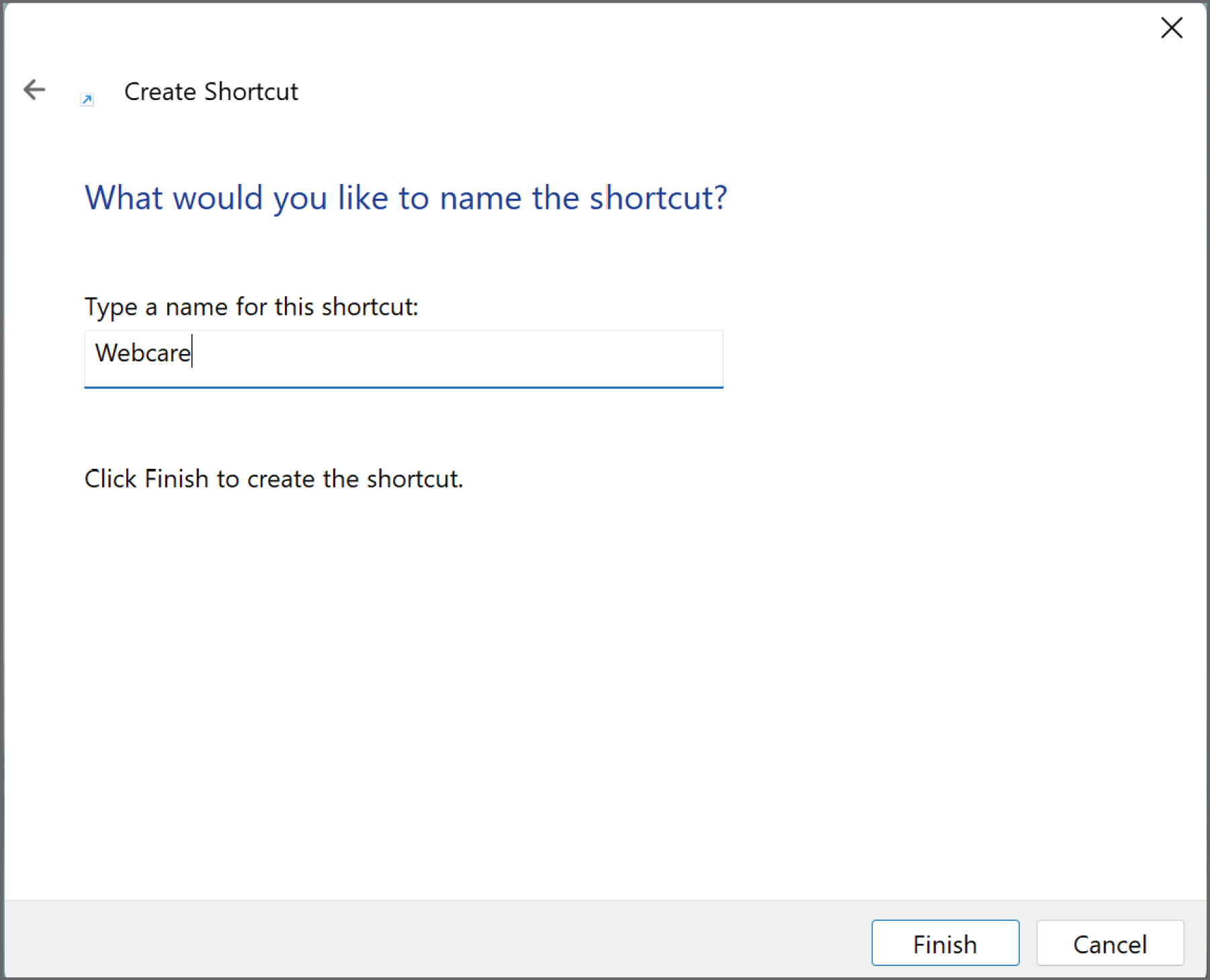
This will be the name of the shortcut as you see it on your desktop. Type Webcare to name your shortcut Webcare. Click "Finish" to complete creating the shortcut.
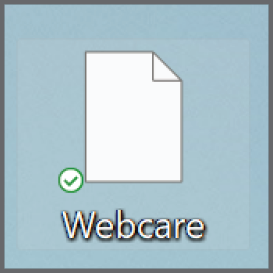
Once you have created the shortcut it will look like this on your desktop:
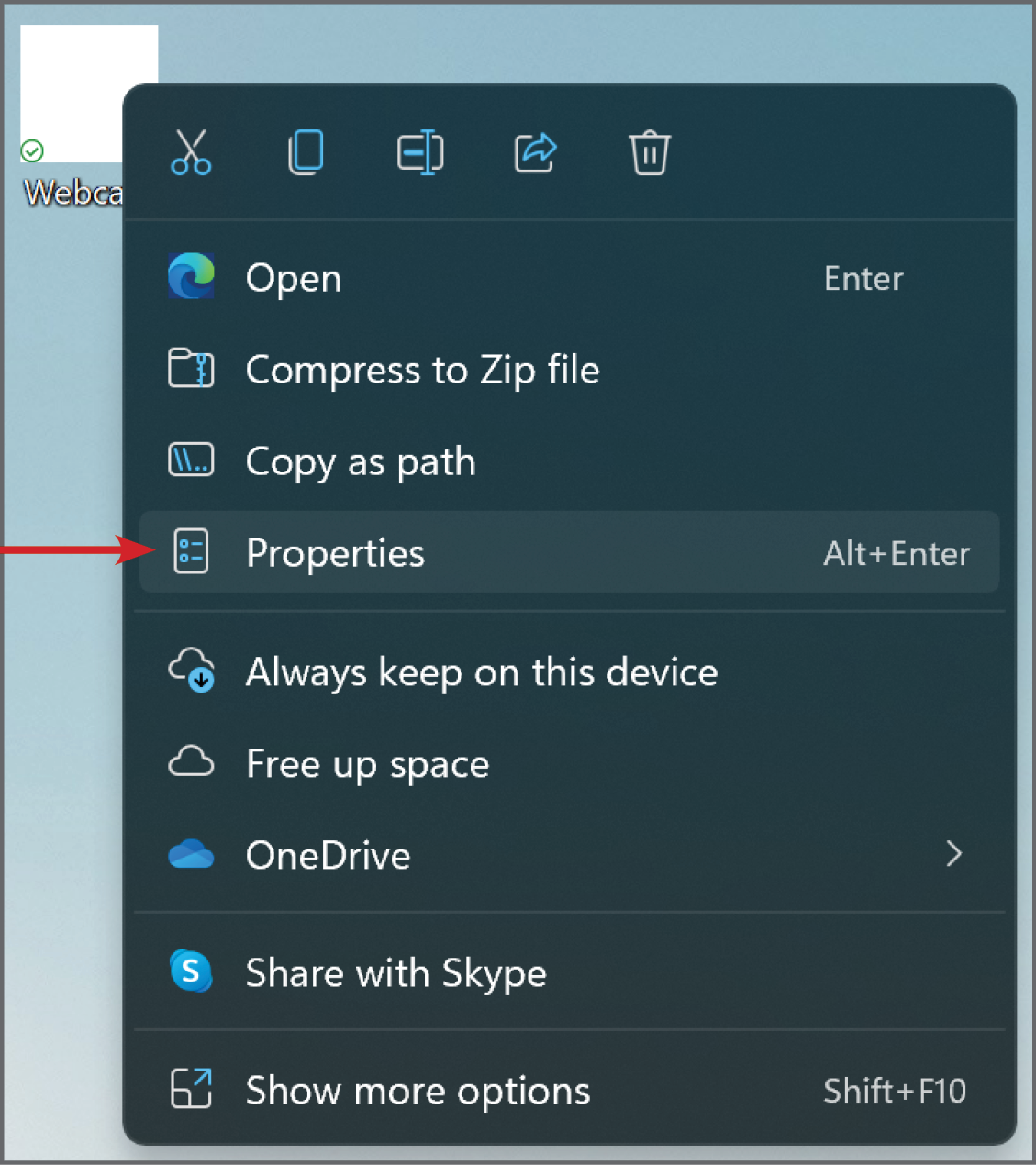
To change how the shortcut looks on your desktop, right click on the shortcut and click on "Properties".
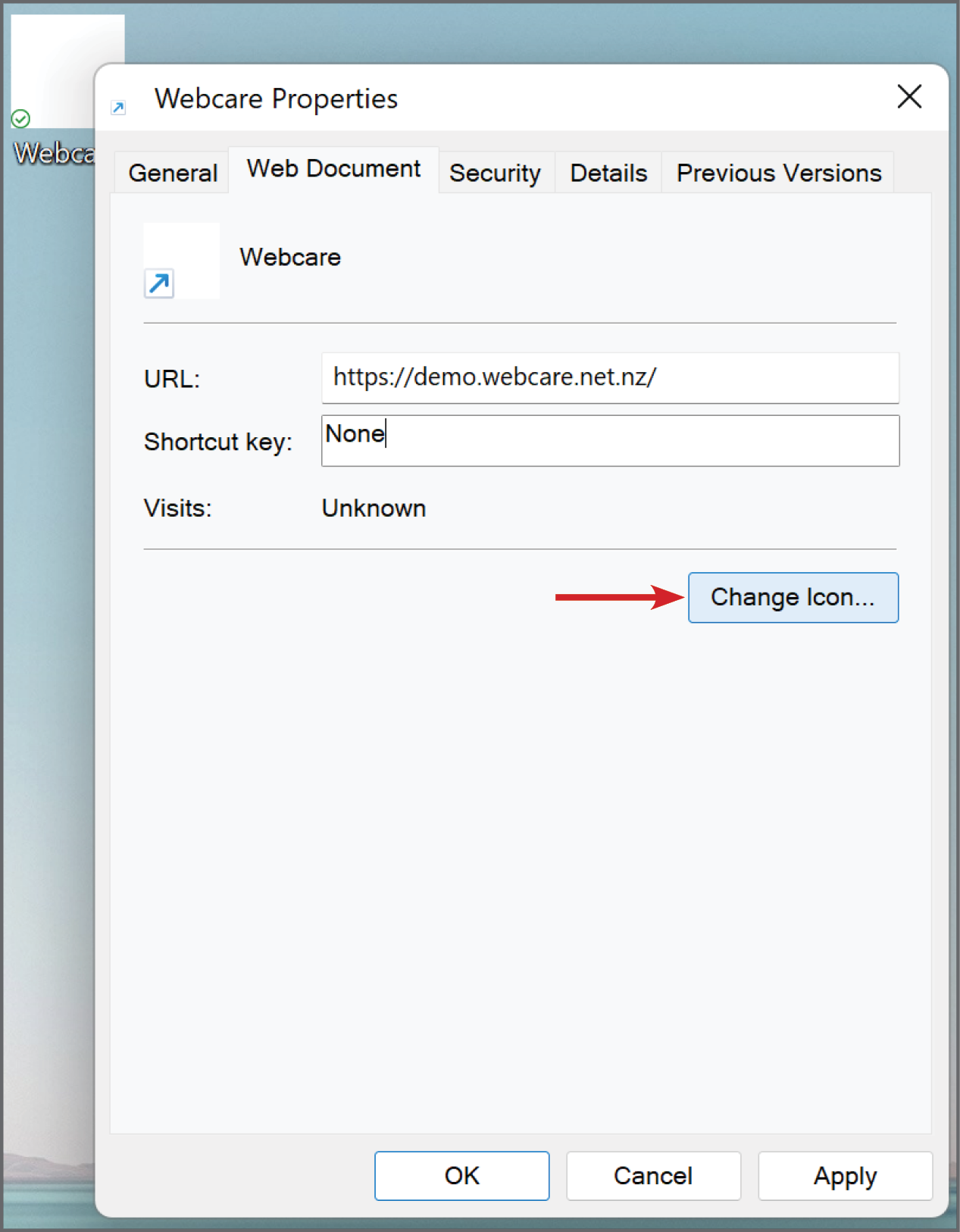
Click on "Change icon".
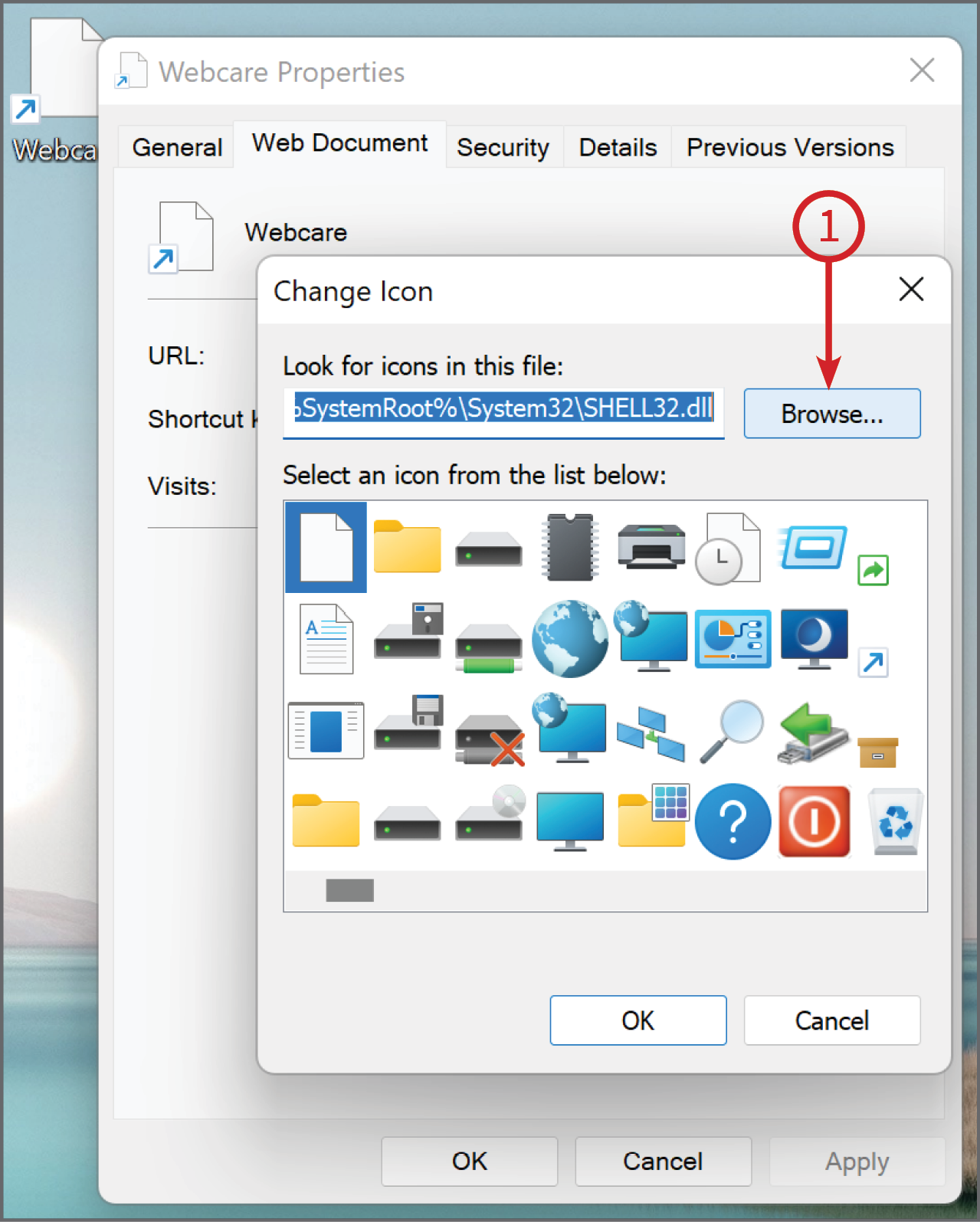
Click on "Browse" (1) and select the Webcare logo (click here to download Webcare logo)
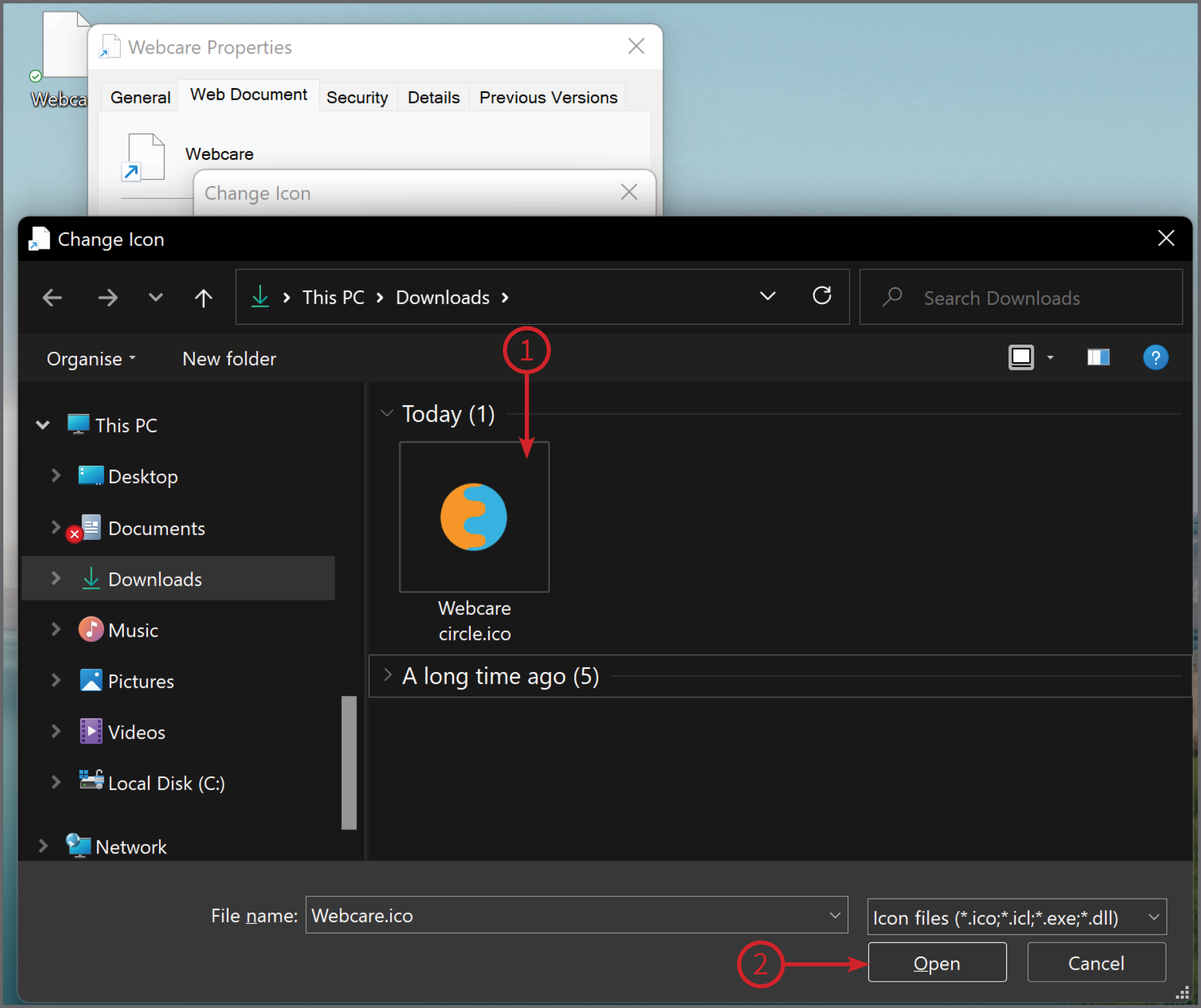
You need to have previously saved the Webcare logo. Save it somewhere obvious to you.
It may be easiest to temporarily save it to your desktop or downloads folder.
(click here to download Webcare logo)
Once you have selected the Webcare logo from where you have saved it (1), click "Open" (2).
If the icon is correct, click "OK".
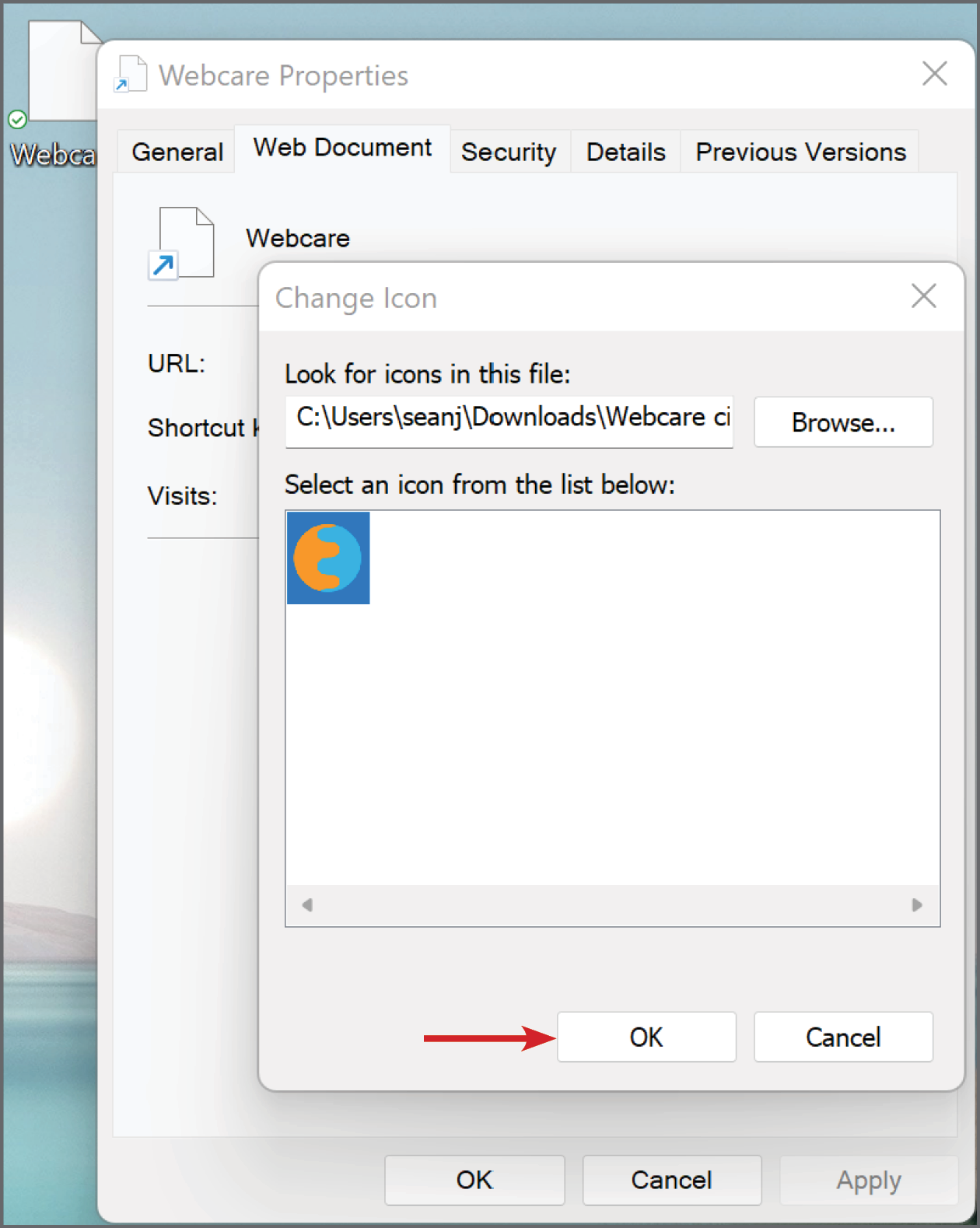
Click "Apply" then "OK"
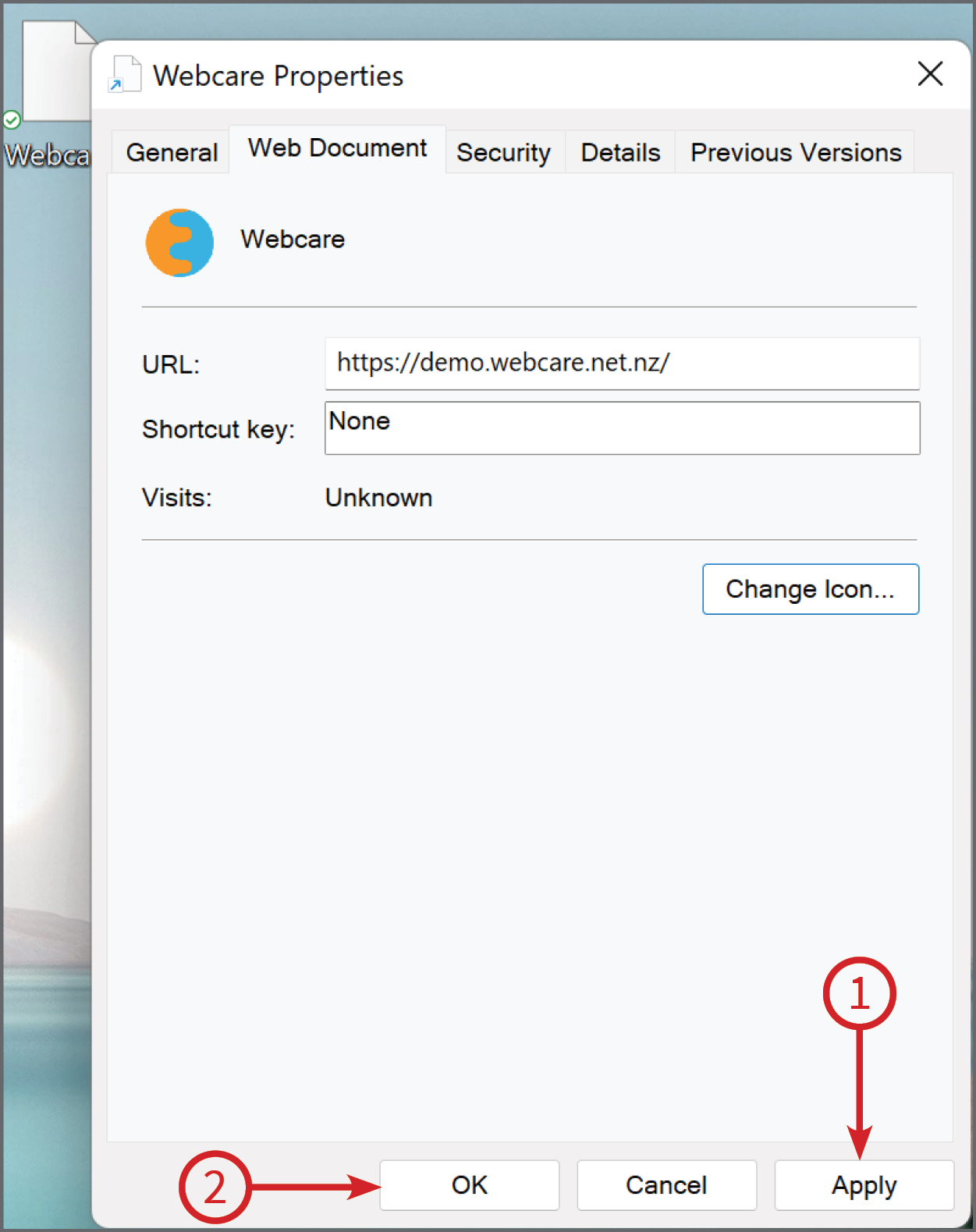
The finished product will look like this on your desktop: