
Prerequisites
To connect the Webcare Events calendar with your Outlook:
- The host machine (i.e. desktop, notebook, etc.) must have a compatible client application installed. For instance, Microsoft Outlook (2003 or higher),
- The web browser should support ‘Export to Outlook’ feature. For instance, Internet Explorer (8.0 version or higher), and
- Webcare is added as a trusted site.
Steps
Follow the following steps to connect the Webcare Events calendar with Outlook:
- Remember to check Sign me in automatically during log-in.

- Select Team Building > Events. Under Actions select Connect to Outlook.
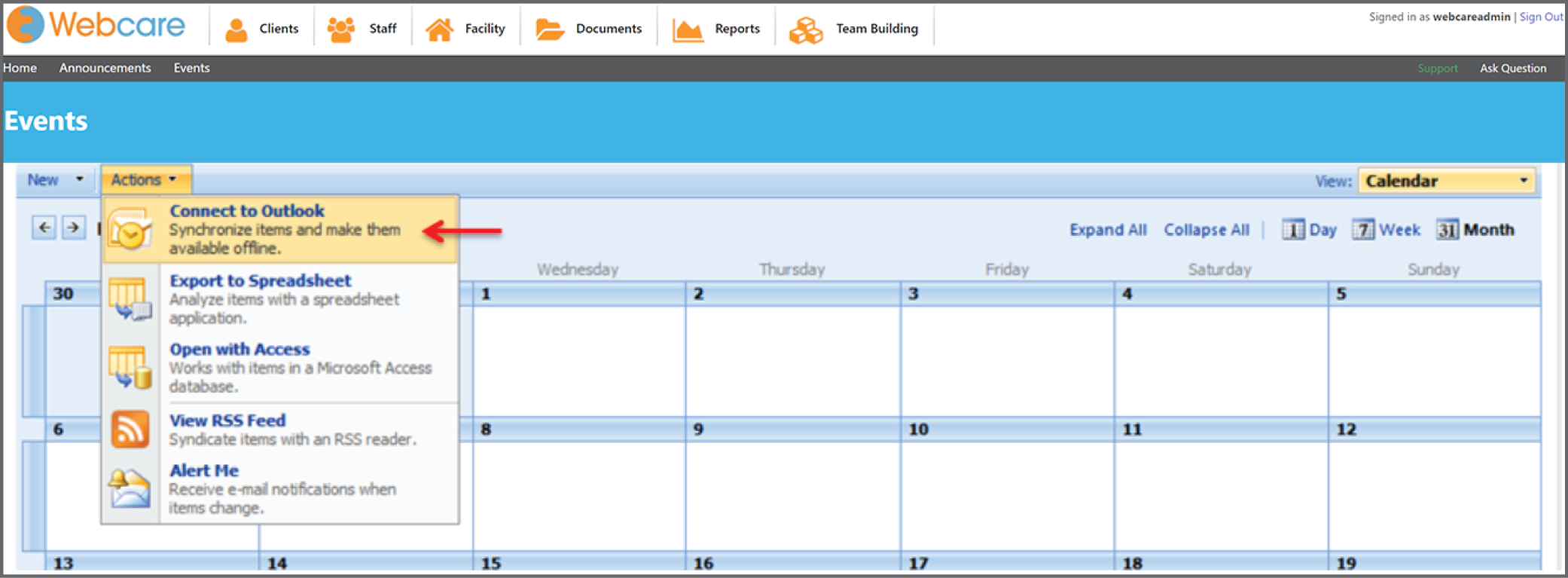
- The Internet Explorer will ask your permission to a program (i.e. Microsoft Outlook) on your computer. Click Allow.

- Internet Explorer Security may ask further confirmation that a website wants to open a web content using this program. Click Allow.

- The Microsoft Outlook application should open automatically and the Events calendar will show under Other Calendars. In the snapshot, the calendar name is Webcare – Events, however, it will be Your_Organisation – Events, in your case.

Troubleshooting
In case your Outlook is not synchronising with Webcare calendars (e.g. any changes made in Webcare Events calendar is not showing in your Outlook) then follow these steps to set an automatic send/receive in your Outlook.
Please note that only Outlook 2010 supports two-way synchronisation (i.e. any changes made in your Outlook is synced with Webcare calendar, and any changes made in Webcare calendar is synced with your Outlook). Previous versions of Outlook only support one-way sync (i.e. any changes made in Webcare calendar is synced with your Outlook).
Outlook 2010
To schedule Auto Send/Receive in Outlook 2010, click on the File tab then Options.
