
You can add a new Progress Note from the Client Details menu or from within Progress Notes.
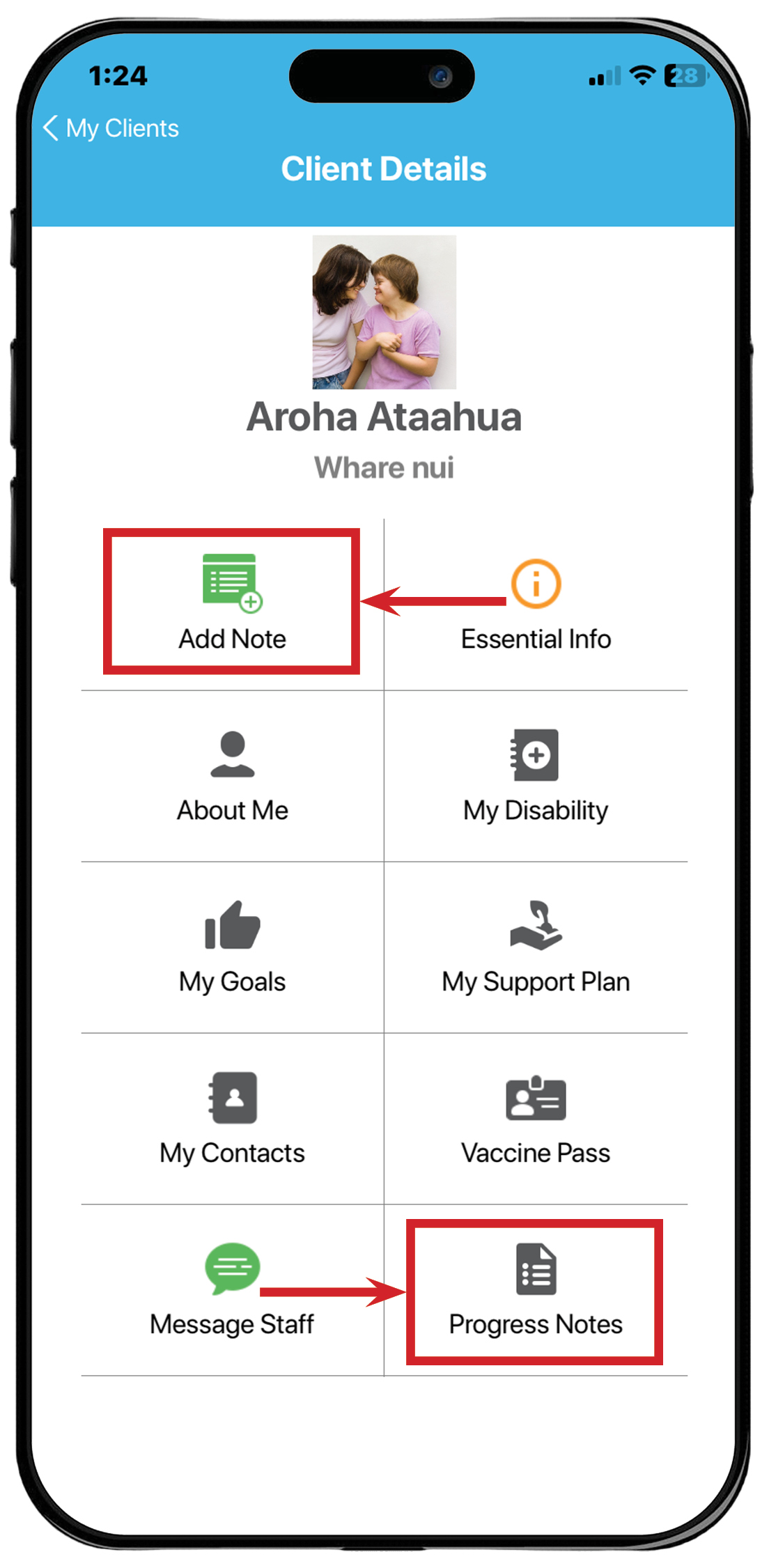
When you select Progress Notes on the client details menu, you will see the list of progress notes already added for your client. Click on a Progress Note in the list to see the details.
Below is a screenshot of a list of Progress Notes and the Progress Note Details page:
To add a new Progress Note, click on the green plus icon ' + Add Progress Note'
at the top of the list. Or you can select it on the Client Details landing page.
The below screenshot is the form that you will be taken to:
Choose the date for the Progress Note and then select the Category - as you would in the core system, once selected click 'Done' (You can select multiple categories):
Select the Label that would apply to your progress note, once selected click 'Done' (You can select multiple labels):
Add the Progress Note:
You have the option of making the Progress Note goal-related. Please note that progress notes can be written without goals or milestones. If this is the case, click on the green 'Submit Progress Note' button at the bottom of the page.
If you want to add goals to the new progress note, tick the 'Is Goal Related' box. You can then choose one or multiple goals from the list. Once selected, click 'Done'.
Once a goal/s have been selected, you can assign a milestone to the Progress Note from the list.
You can select one or multiple milestones, then click 'Done'.
Finally you can also attach a photo of the goal achieved:
Once all of the data has been entered, you click on the green button at the bottom of the screen - 'Submit Progress Note'.
This saves the Progress Note and all data is sent to the main core system, with your final Progress Note and details available for viewing.