
Staff Login Report
To view the login status for each staff member, go to Administration > Security > Staff Login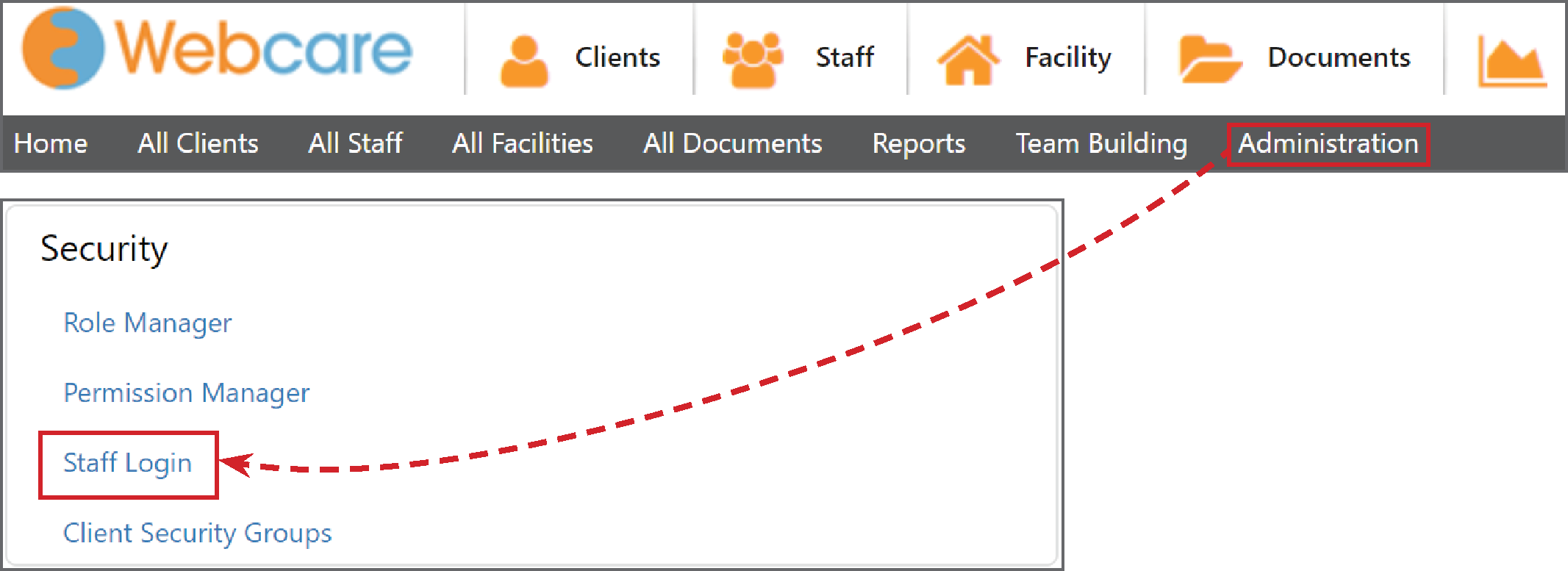
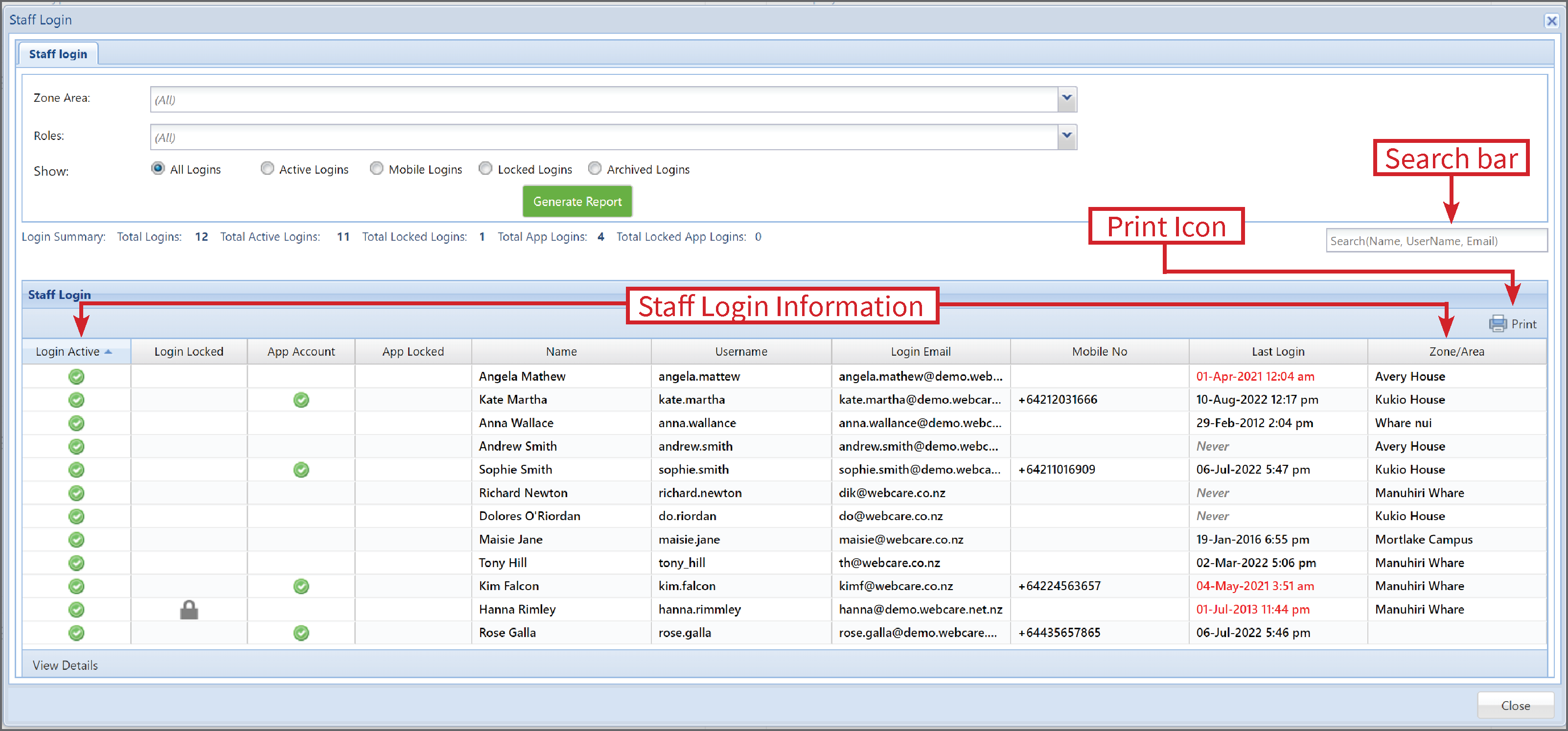
This will bring up the Staff Login Generate Report box.
- Leave blank for All Zones/Areas or select one/multiple.
- Leave blank for All Roles or select one/multiple.
- Select the type of login you would like to show in the report. All, Active, Mobile, Locked or Archived.
- Click on Generate Report when you finished your selection.
Once Generated, the Staff Login data will load. You can immediately see who has an active login, if their account is locked, if their mobile account is active, username, email, mobile number etc.
Like all reports in Webcare, you can sort the data by clicking on the a column title and sort by ascending or descending. You are also able to click on Columns and select which columns you would like to see in the report.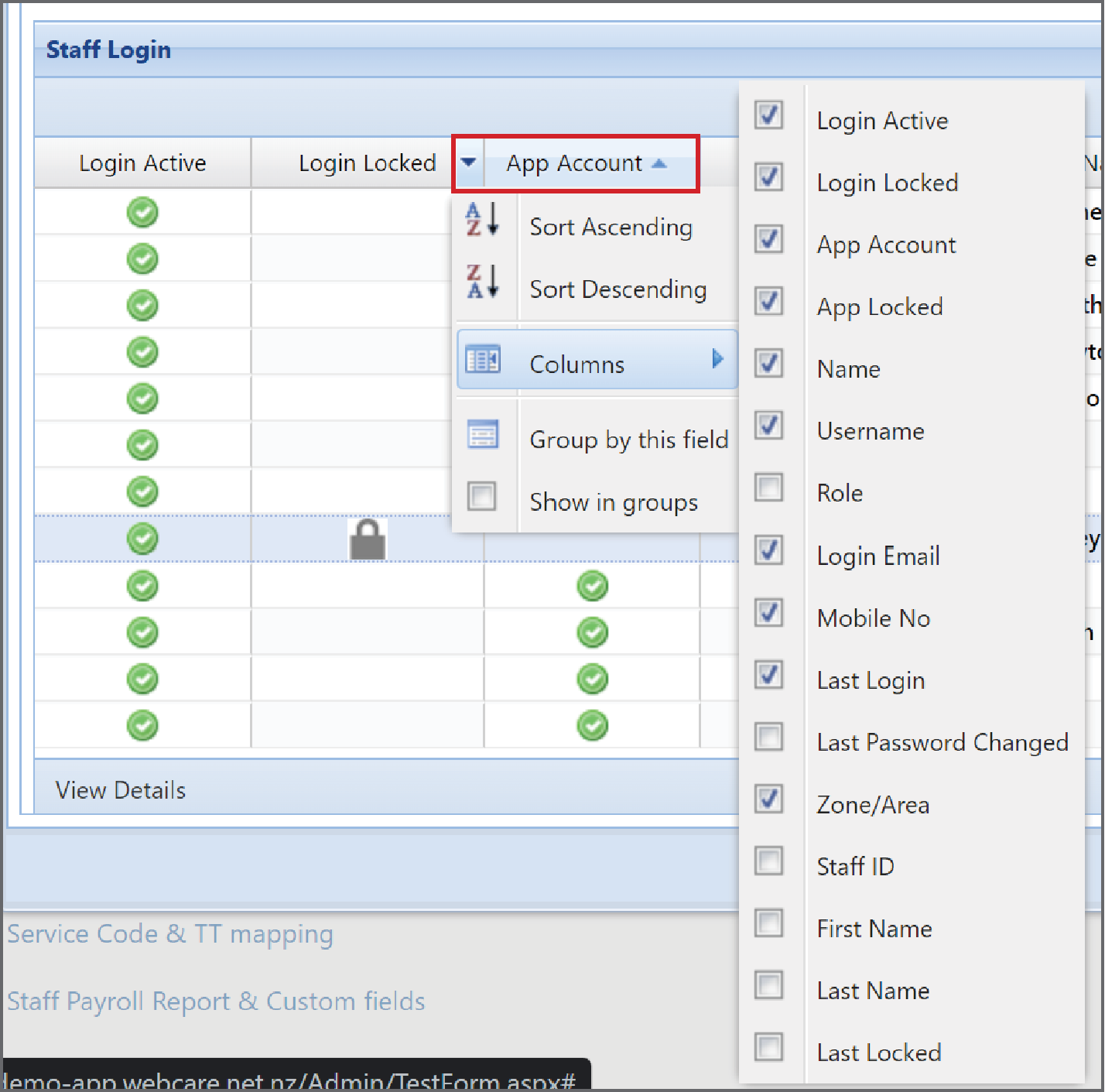
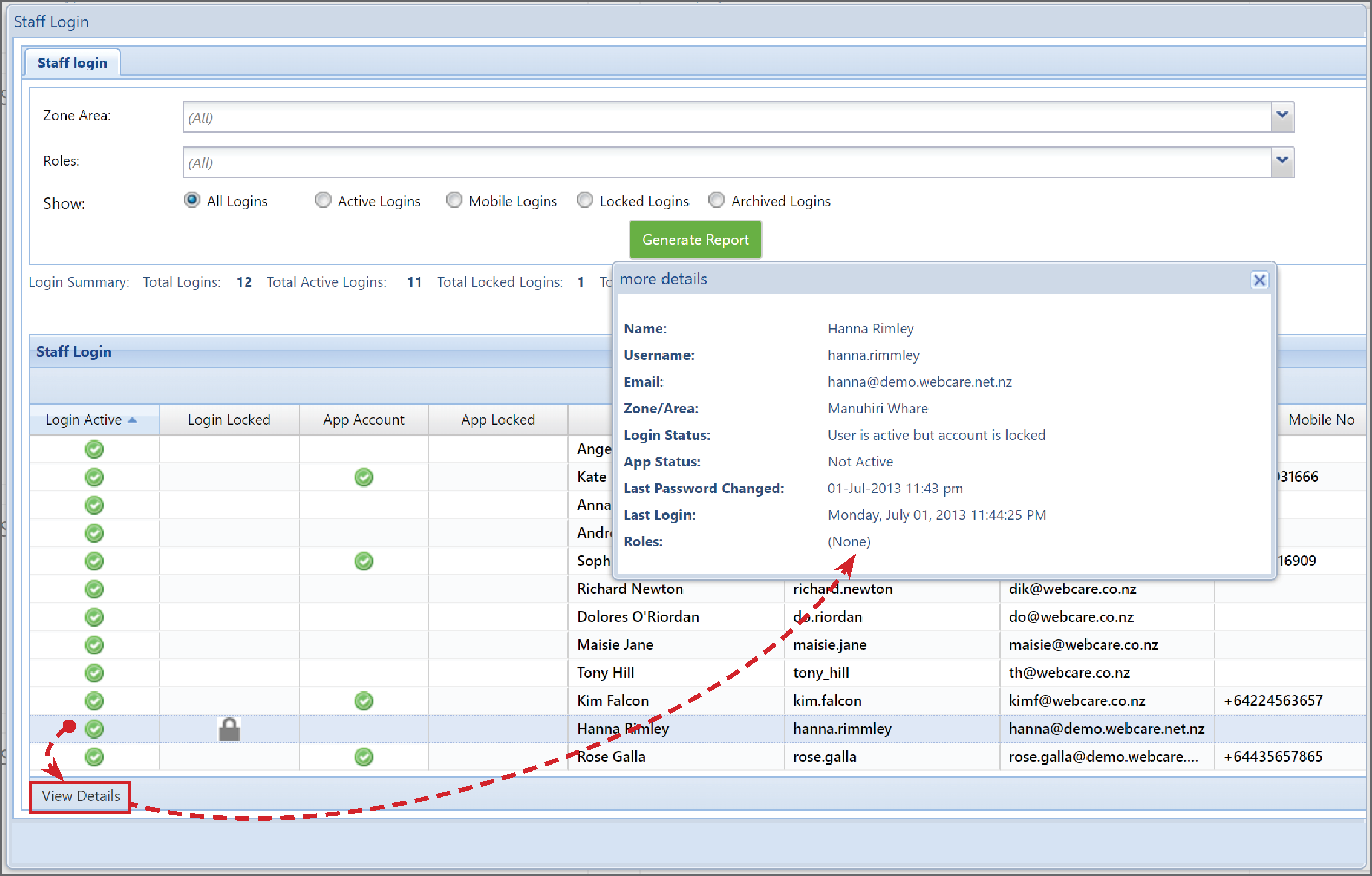
If you would like to more information about a staff members login, select the Staff member, then click on View Details. This will bring up a box with more details.
Once you are satisfied with the data, you can Print the report.
If you see you need to adjust a staff members login, eg a staff members account is locked, see this article Manage Staff Logins.