Adding a New Vacancy in Supported Employment
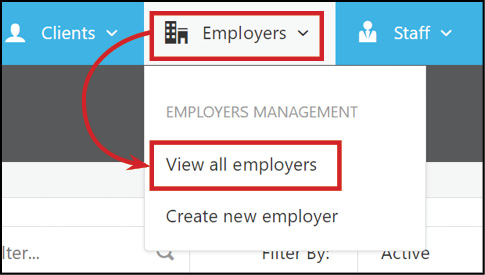
To add a new vacancy in your Supported Employment Software, you need to go to Employers on the menu bar and select View all employers from the drop-down menu.
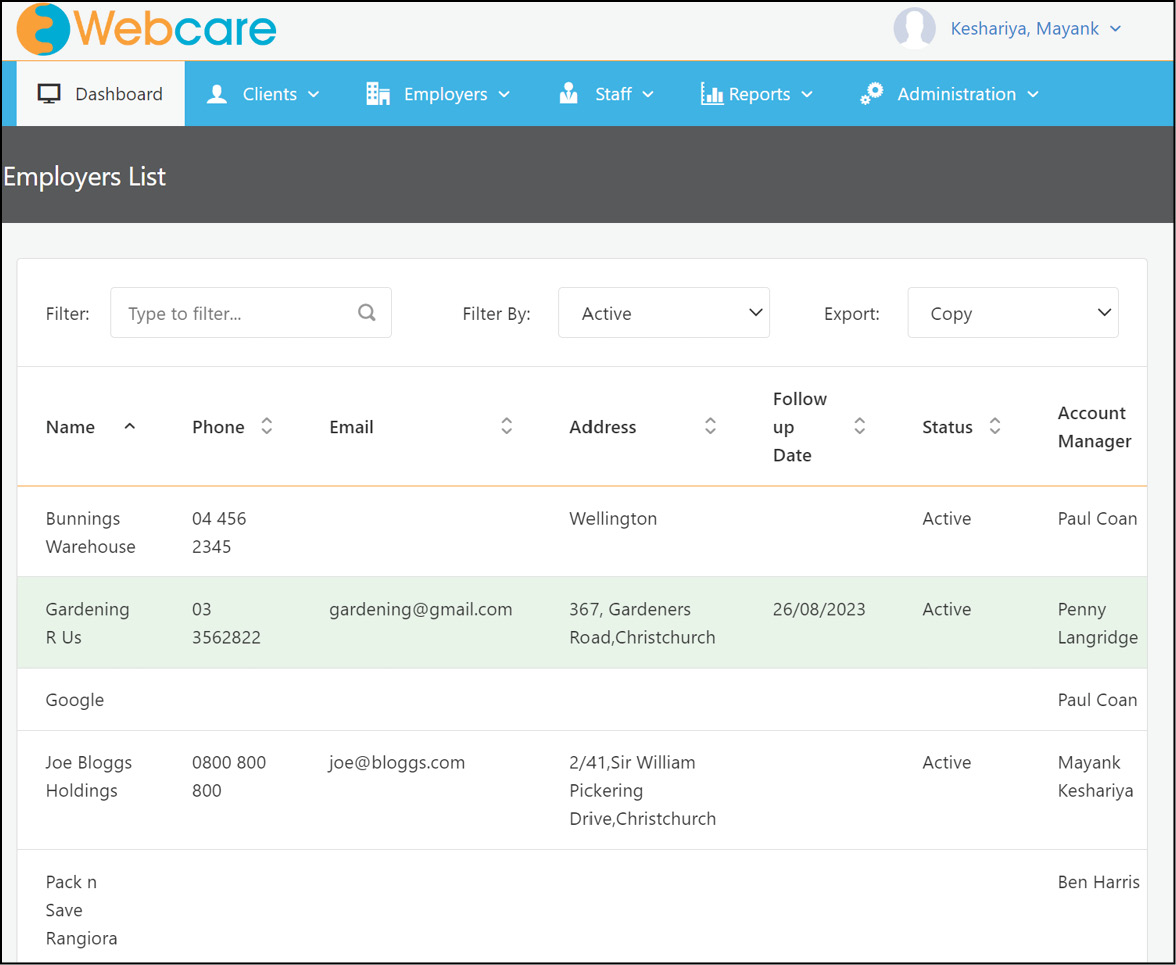
Select the employer from the employers list.
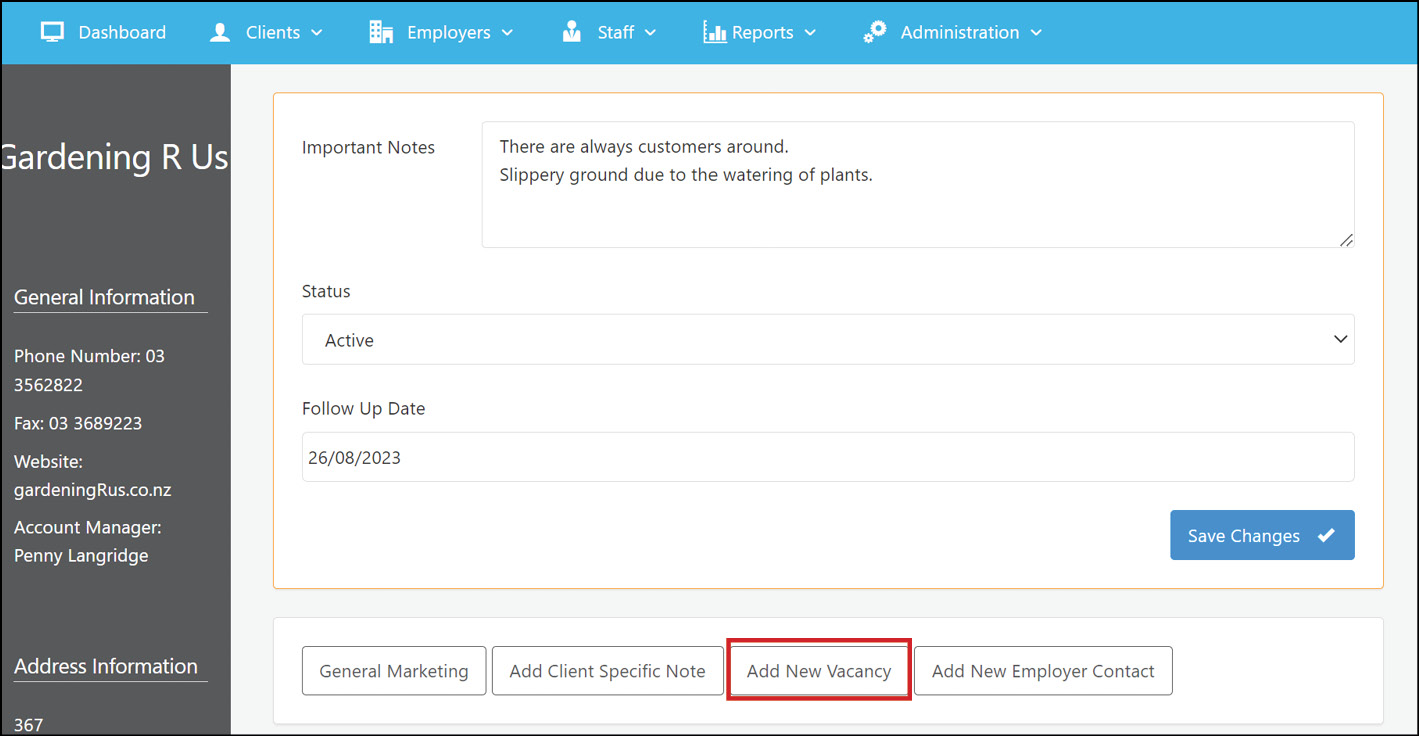
Select Add New Vacancy from the Employers Profile.
The New Vacancy box will open.
Please Note: The Hours per Week, Hourly Rate and Hours Worked sections need to be a numerical value only. (e.g. 15, not 15 hours)
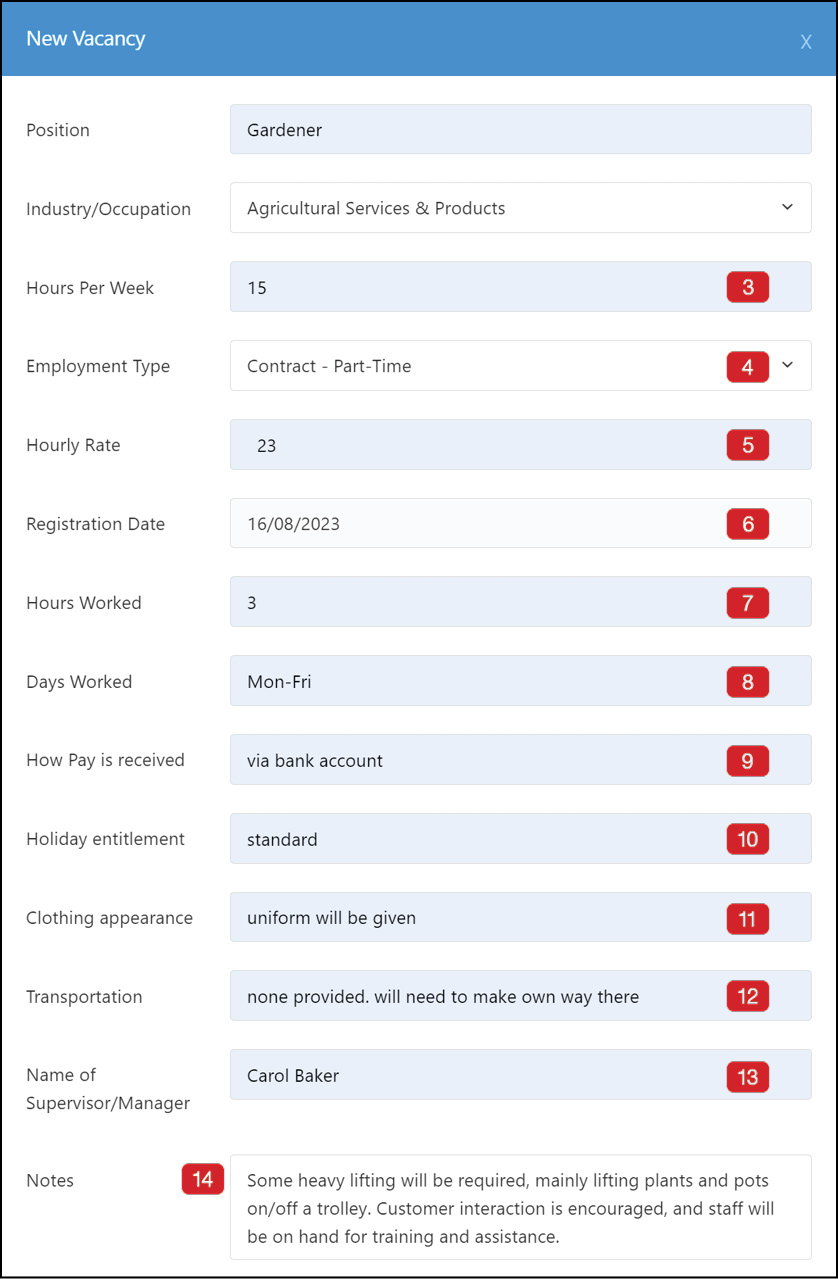 |
- Enter what position the new vacancy is for.
- Select the industry that best describes the position.
- Enter the amount of hours the position is for per week.
- Select from the drop-down menu what type of employment the vacancy is for.
- Enter the hourly rate.
- Enter the date the position was registered.
- Enter the number of hours per day the position is for.
- Enter the Days your client will be required to work these hours on.
- Enter how the employer will pay the wages to your client.
- Enter the amount of Holiday Entitlement.
- Record the clothing appearance expectations.
- Will there be any available transportation provided with the position?
- Enter the name of the Supervisor/Manager.
- Add any notes that may be relevant to the position and helpful for your client to know.
|
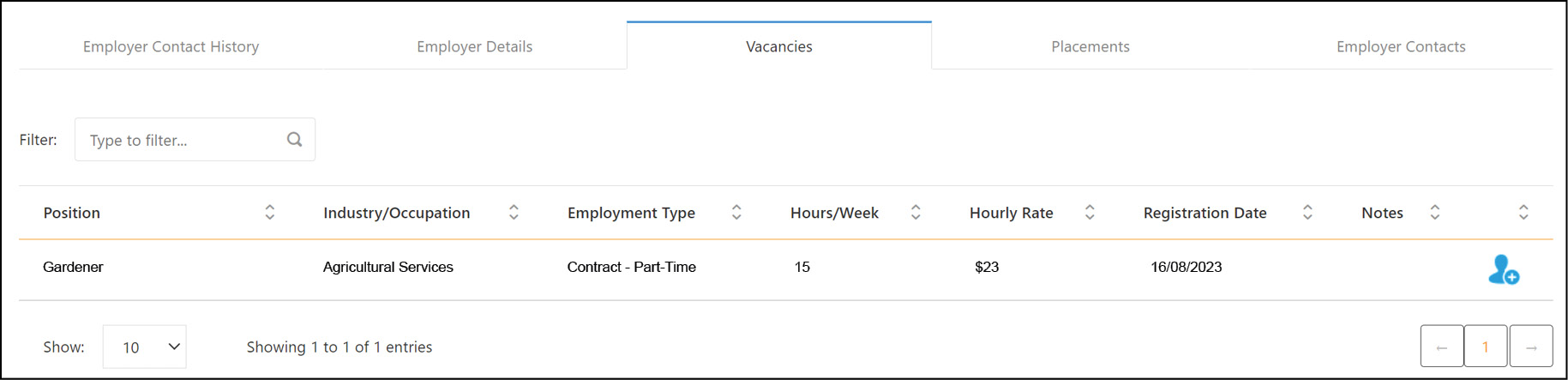
When you have entered all of the relevant information, click on Save. The new vacancy will be ready for placement:
To find out how to make a placement, click here.
Back to top
