One of the most useful features of Webcare is the ability to generate Email-based alerts.
These alerts can be related to a particular Staff/Client, for example, generate an alert if an Incident report is added, or it can be related to general team building features such as generate Email alert if a new Announcement is added, or an event is changed in the Events calendar.
Before you set up an alert you first have to ensure that you have created a view for the alert you wish to receive. To learn how to set up a view - click here
Select Announcements, the current Announcements list will be displayed.
In the Announcements list, click Actions and then click Alert Me.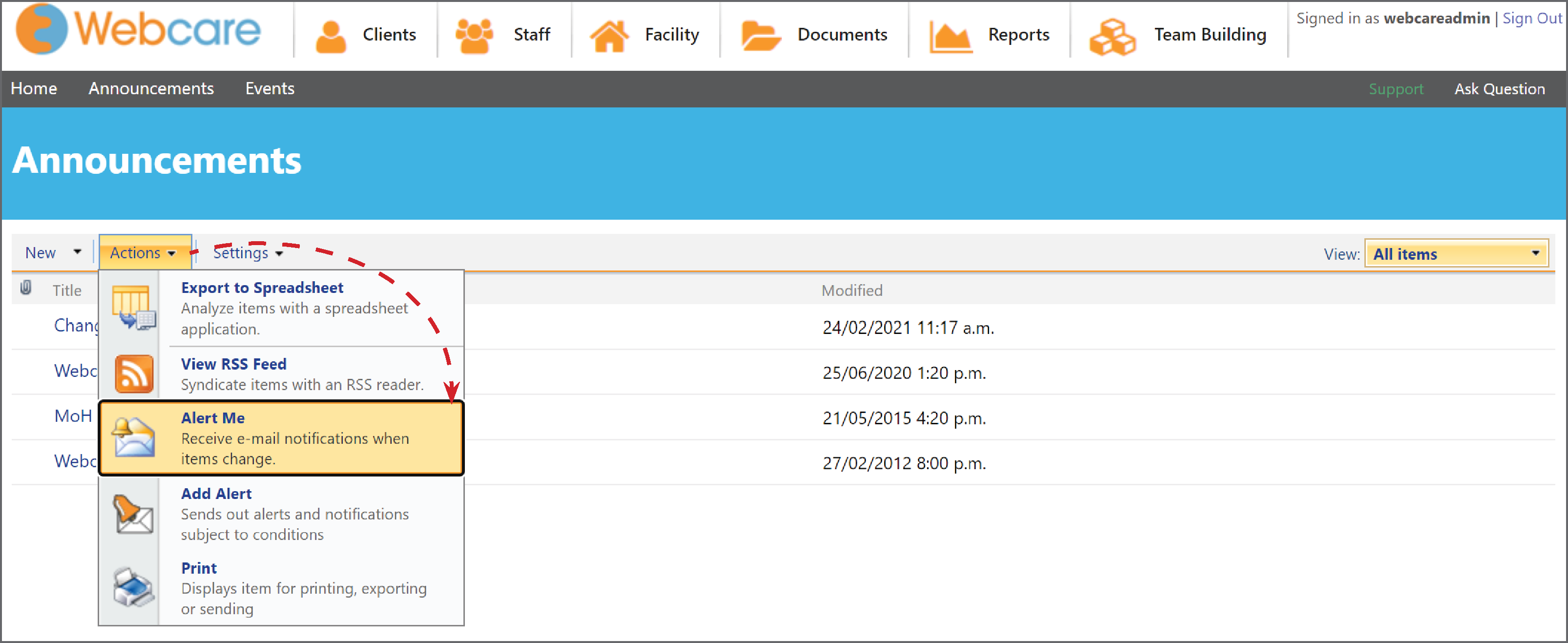
A New Alert window will show the options for generating an alert.
Add an Alert Title - This is what will be in the Subject line of your Alert Email. Make it specific to what you are creating an alert for.
The Send Alerts To is the email address where the alerts will be sent. This email is added by your Administrator (when creating your Login and cannot be changed).
If you are the administrator you are able to add extra email address'. You will have an address book icon to select staff email address' from.
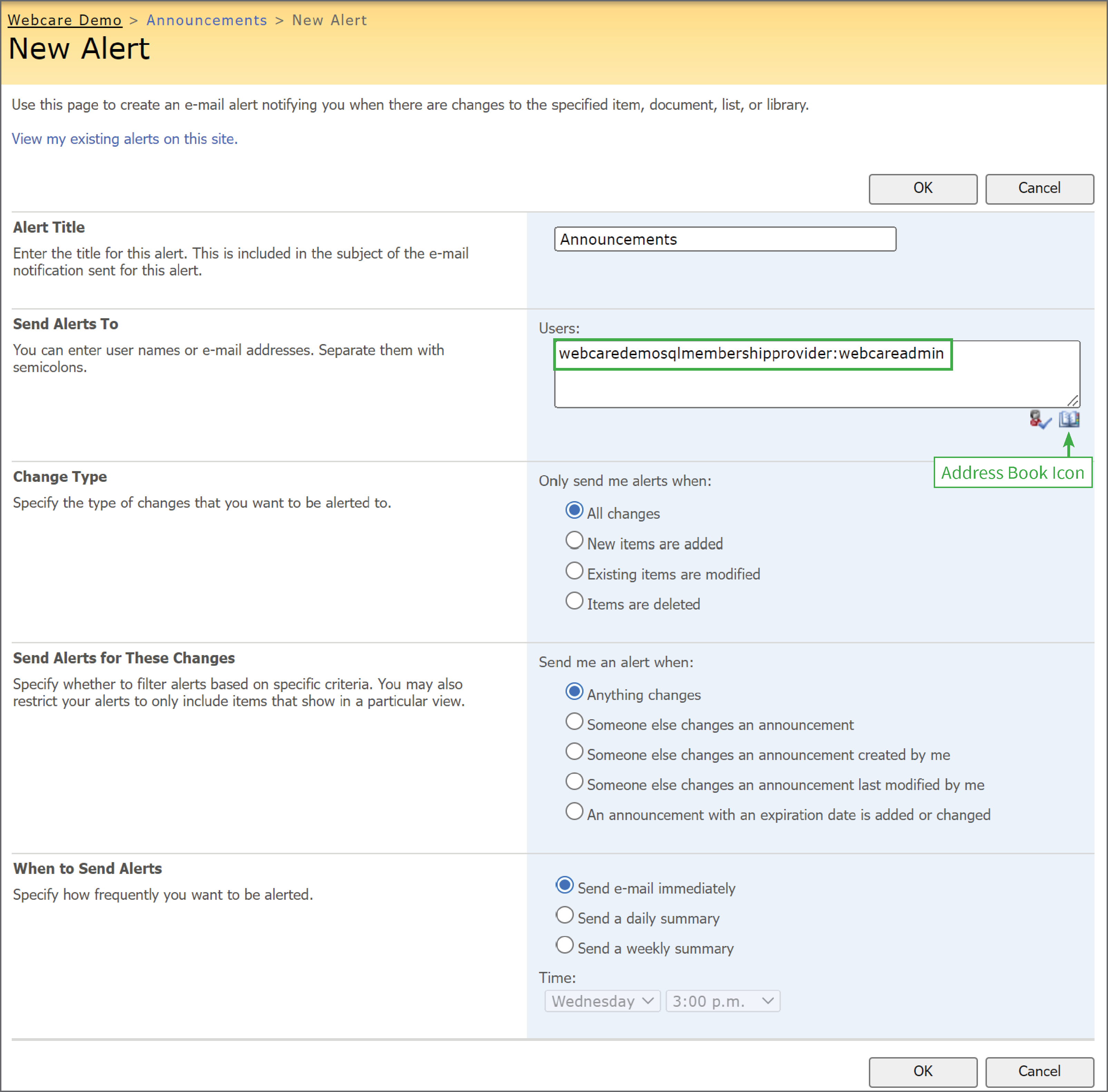
Change Type specifies the types of changes when an alert should be generated. The options to generate an alert are:
- All changes - when anything is changed in the list including any new items added, deleted or modified,
- New items are added – only when a new item is added,
- Existing items are modified – only when an existing item is updated,
- Items are deleted – only when any existing item is deleted.
Send Alerts for These Changes specifies the criteria when sometimes an alert do not need to be generated.
- Anything changes – generate alert when anything is changed in the list,
- Someone else changes an announcement – generate alert only if someone (expect you) has changed anything in the list,
- Someone else changes an announcement created by me – generate alert only when someone has changed anything in the announcement you have created,
- Someone else changes an announcement last modified by me – generate alert only when someone has changed anything in the announcement you updated last,
- An announcement with an expiration date is added or changed – generate alert only when an announcement’s expiration date is created or changed.
When to Send Alerts specifies the frequency of alerts sent to you.
- Send e-mail immediately – send an email as soon the alert is triggered,
- Send a daily summary – send one email daily as a summary of all the Change Type which matches your criteria. The time can be selected under Time dropdown box.
- Send a weekly summary – send one email weekly as a summary of all the Change Type which matches your criteria. The Day and Time can be selected under Time dropdown box.
Press OK.
Incident Report Alert
If creating an Alert for an Incident Report. The set up is the same, except for the Alert for Changes options box.
You can see below there is a drop down box to allow you to select a specific View you have created and to be notified if there are new items that appear in this view.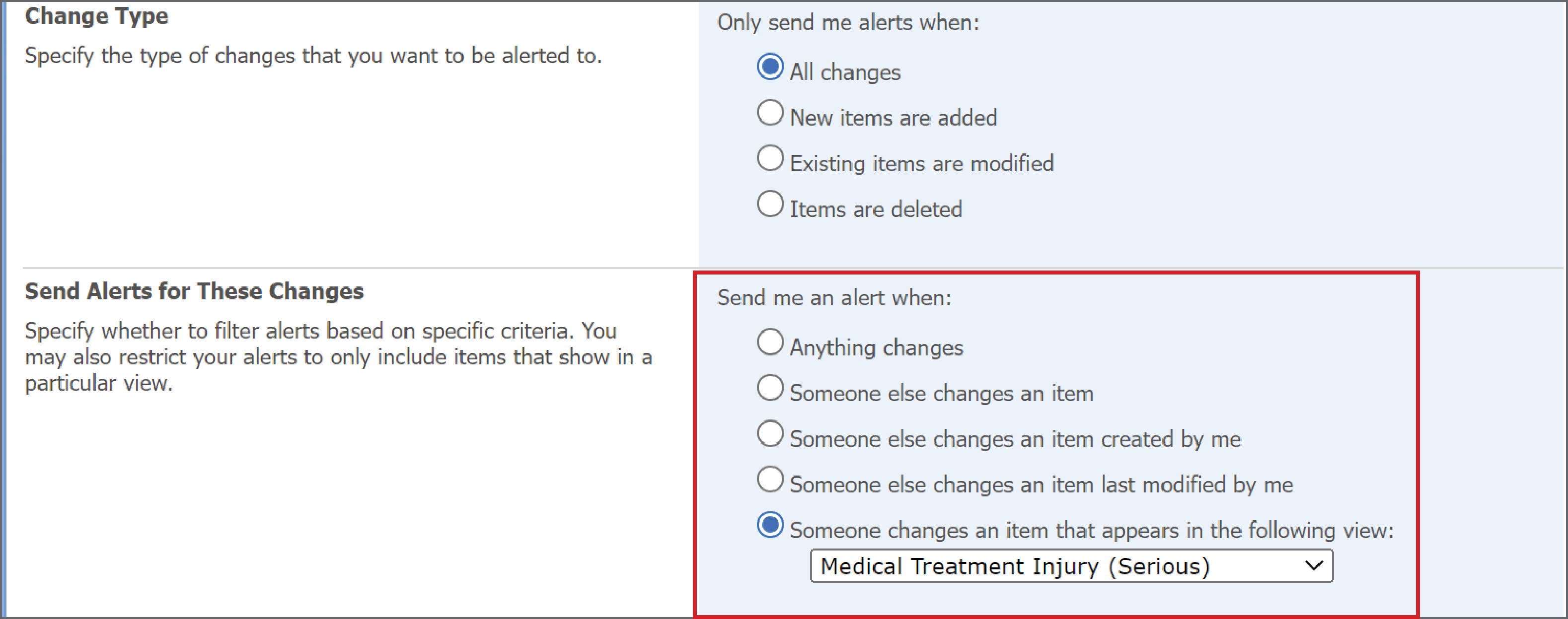
View existing Alerts
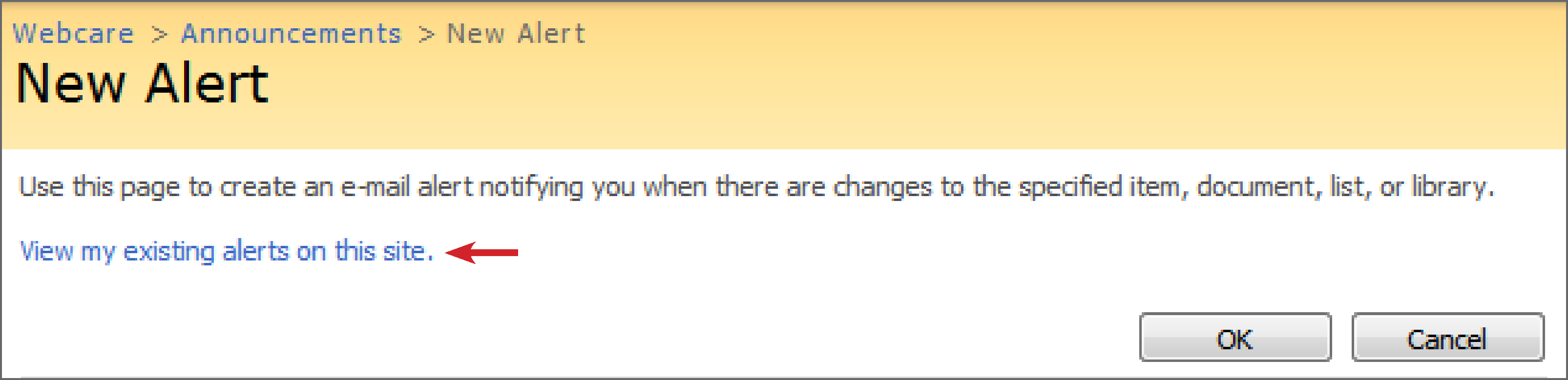
To view your existing alerts, click View my existing alerts on this site on the New Alert page.