This guide will lead you through the steps to creating a report specifically for Oranga Tamariki.
If the reports shown in this guide are not in your Webcare system, you do not have access to this module.
Generating an OT Report - Event Table Report - Caregiver Table Report - Child Table Report
Adding a CYRAS ID
Generating an Oranga Tamariki Report
All reports generated for Oranga Tamariki will not have the names of clients or caregivers. A lot of the data will be numbered IDs to ensure privacy. It is important to note that these IDs cannot be changed.
Select Reports from the main menu bar.
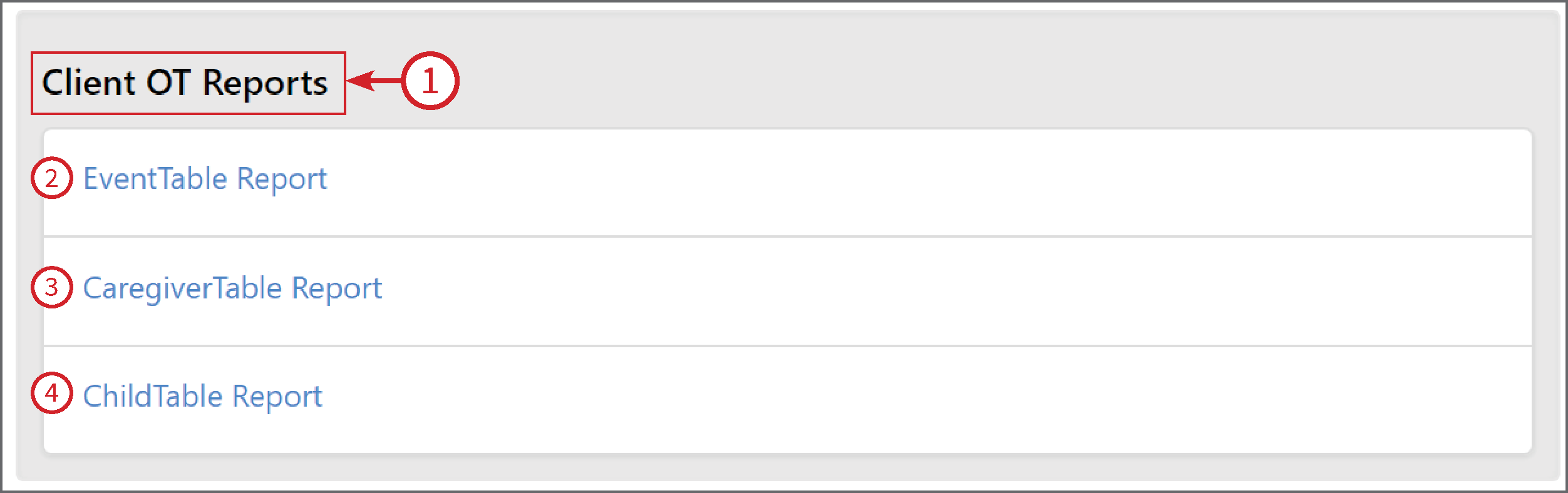
Under Client Reports you will find the report list Client OT Reports (1).
2 - Event Table Report this report compiles the data for Budgeted and/or Actual appointments with IDs for the contract, caregiver and the child.
3 - Caregiver Table Report this report compiles the caregiver data into a report. If fields are empty this is by design to allow for future development additions to the module.
4 - Child Table Report this report exports the childs first and last name, date of birth and the CYRAS ID.
Event Table Report
This will open like any report you use in Webcare.
1 - Select a Client Name or leave blank to use all clients in the report.
2 - Select a Zone/Area or leave blank to use all clients in the report.
3 - Select the Hours Type - Actual and/or Budgeted
4 - Select the Date Range.
5 - Tick to Include Archived Clients.
Then click on Generate Report.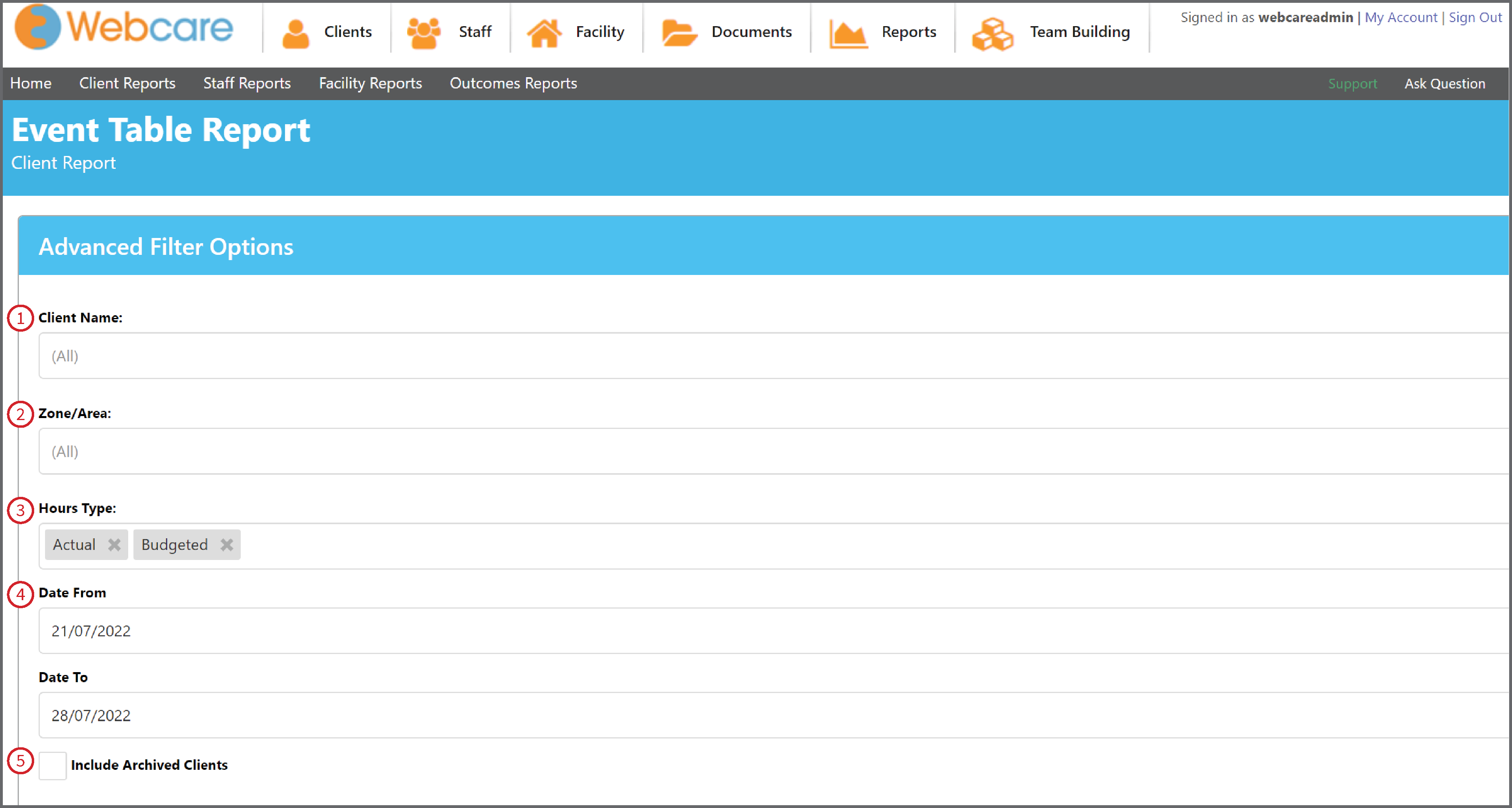
Once the report is generated, you will need to filter it to only include the Service Types linked to Oranga Tamariki.
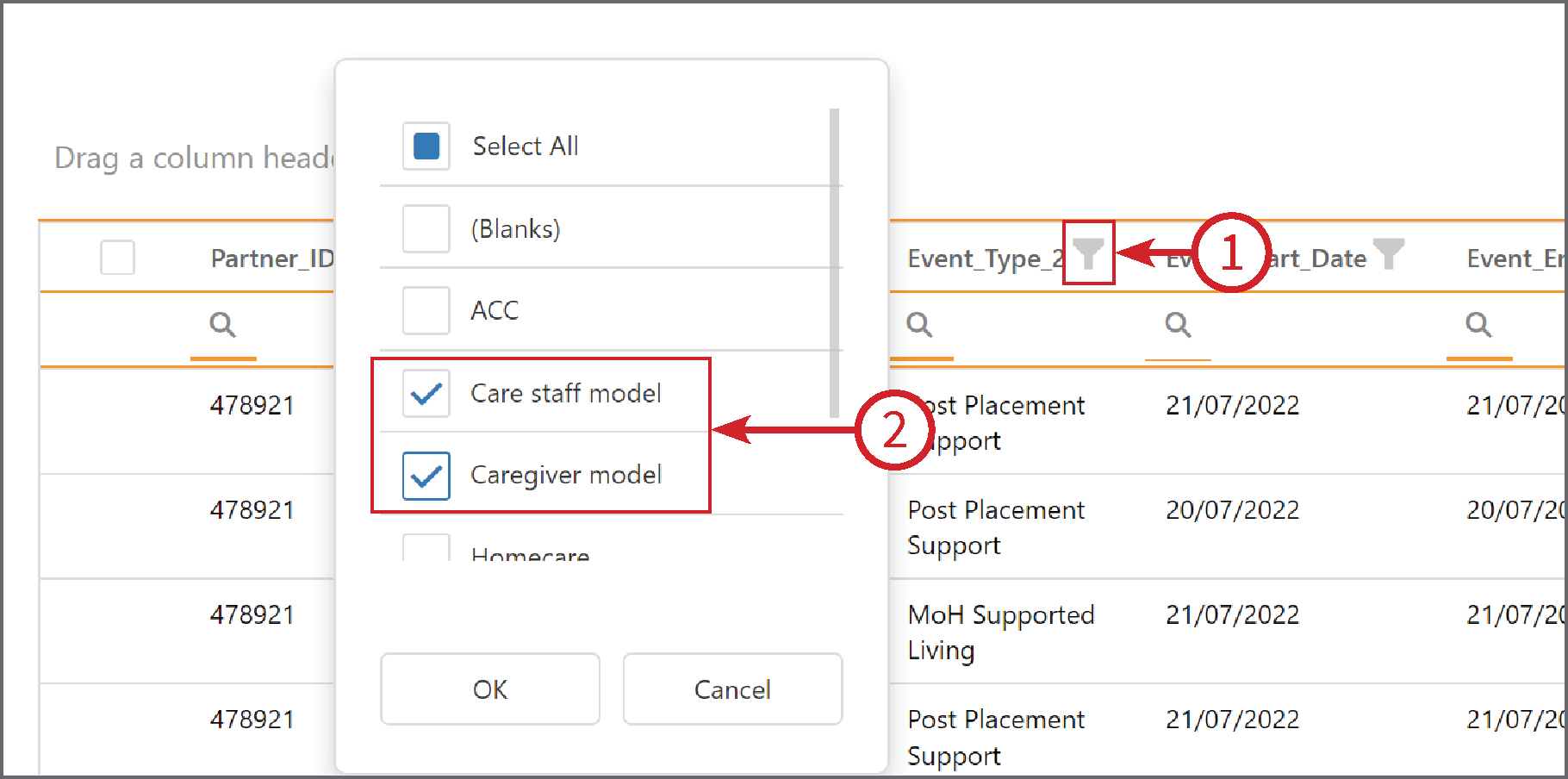
Click on the Event Type Funnel (1) to bring up the filter list.
Select the tick boxes next to Care Staff model and Caregiver model (2). This will keep only the data linked to these Services in the report.
You can also Search (1) the report, add Columns (2), and then once you are happy with the report, you can Export to XLSX (3) or CSV (4) ready to send to Oranga Tamariki.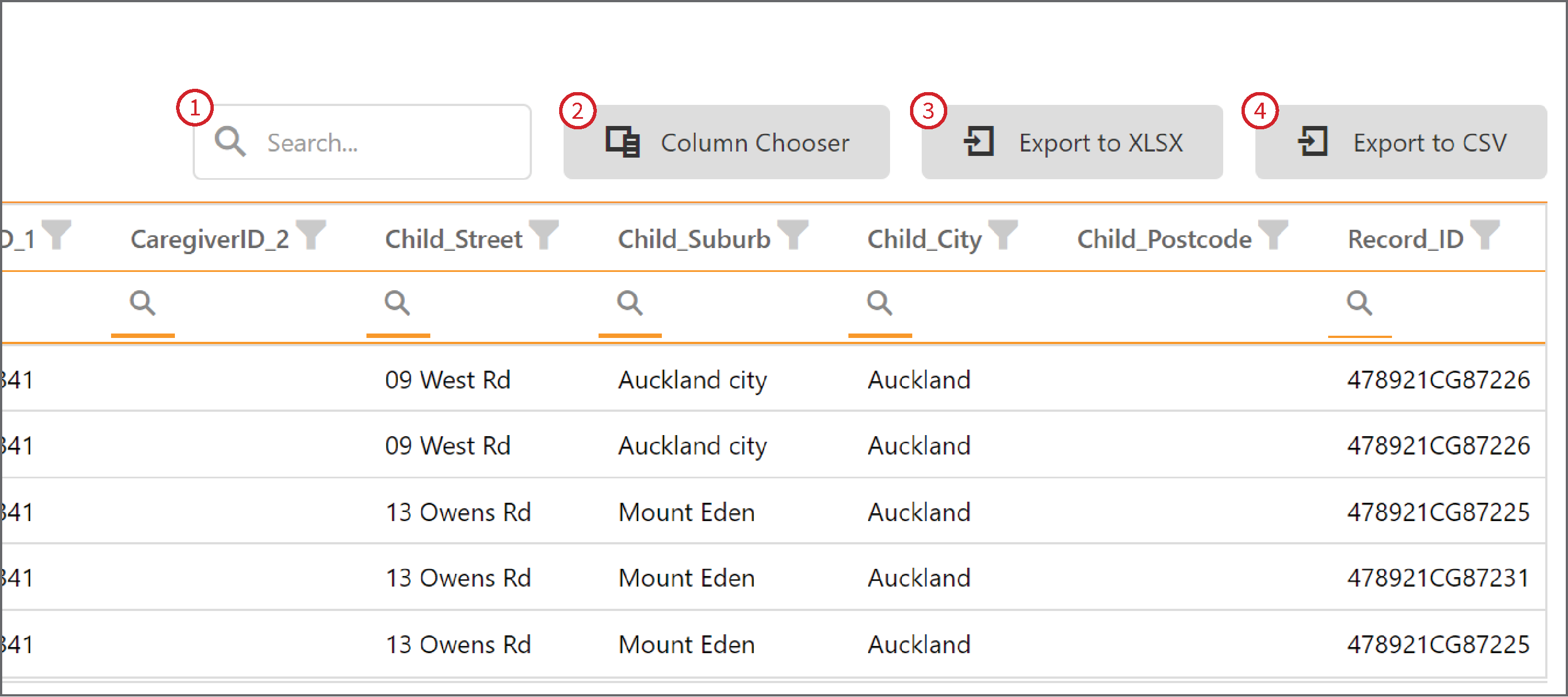
Caregiver Table Report
This is exactly the same process as above to Generate the report. You will also need to Filter the report to only include Care Staff model and Caregiver model using the Funnel Filter.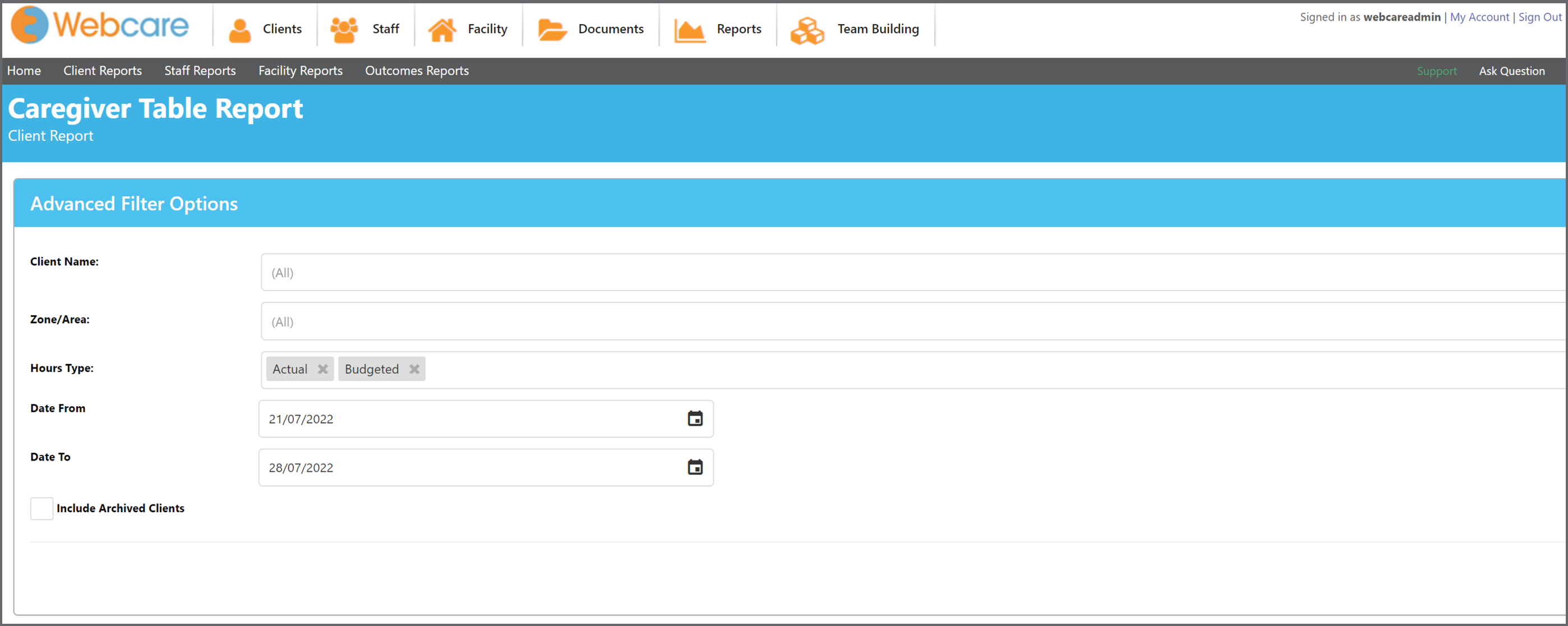
Child Table Report
This gives you a list of all clients and their CYRAS IDs. Every client will need a CYRAS ID issued from Oranga Tamariki.
You can export this report and send it to OT to get the CYRAS ID for clients that do not have one.
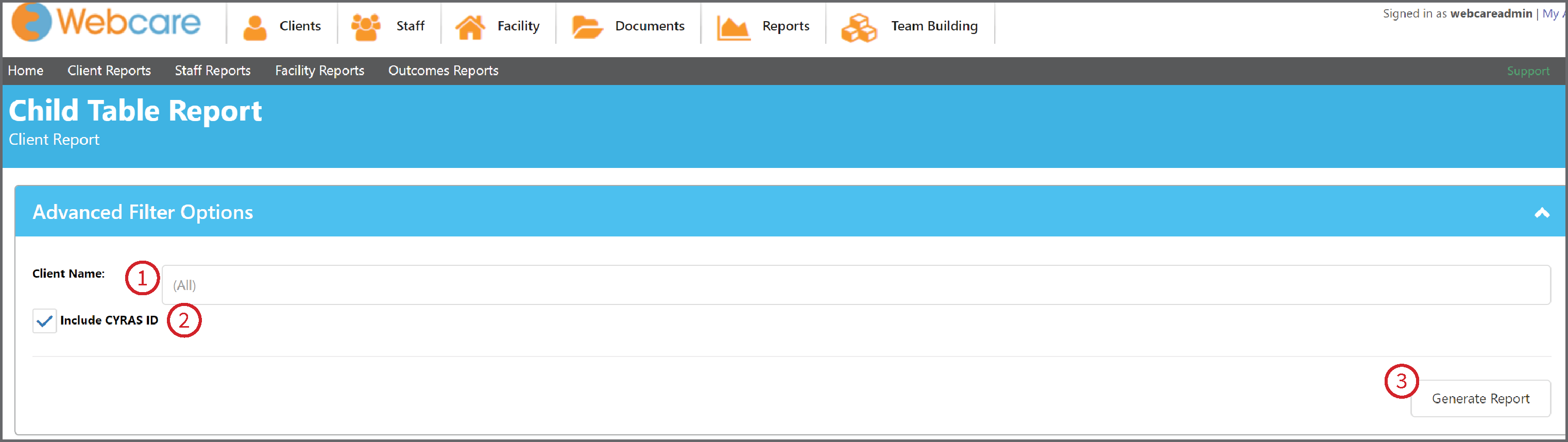
1 - Leave the Client Name blank if you want to include all Clients.
2 - Ensure you tick the Include CYRAS ID box.
3 - Generate Report here.
Once the Report is Generated, you can filter the report to find which CYRAS IDs you need, click on the CYRAS ID Funnel (1) and tick the Blanks (2) box, then OK.
This keeps only the clients who do NOT have a CYRAS ID on the report.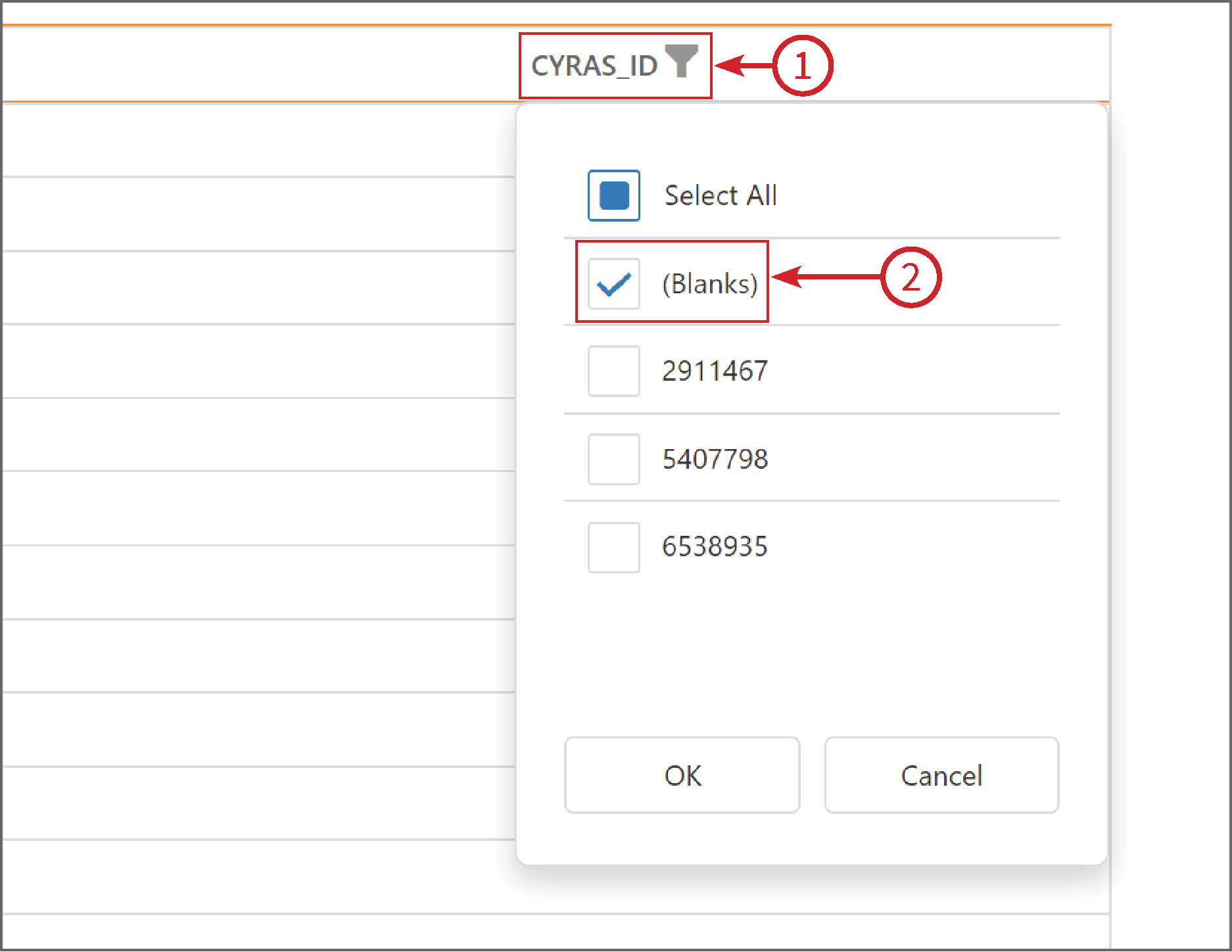
You can then Export the Report to XLSX or CSV.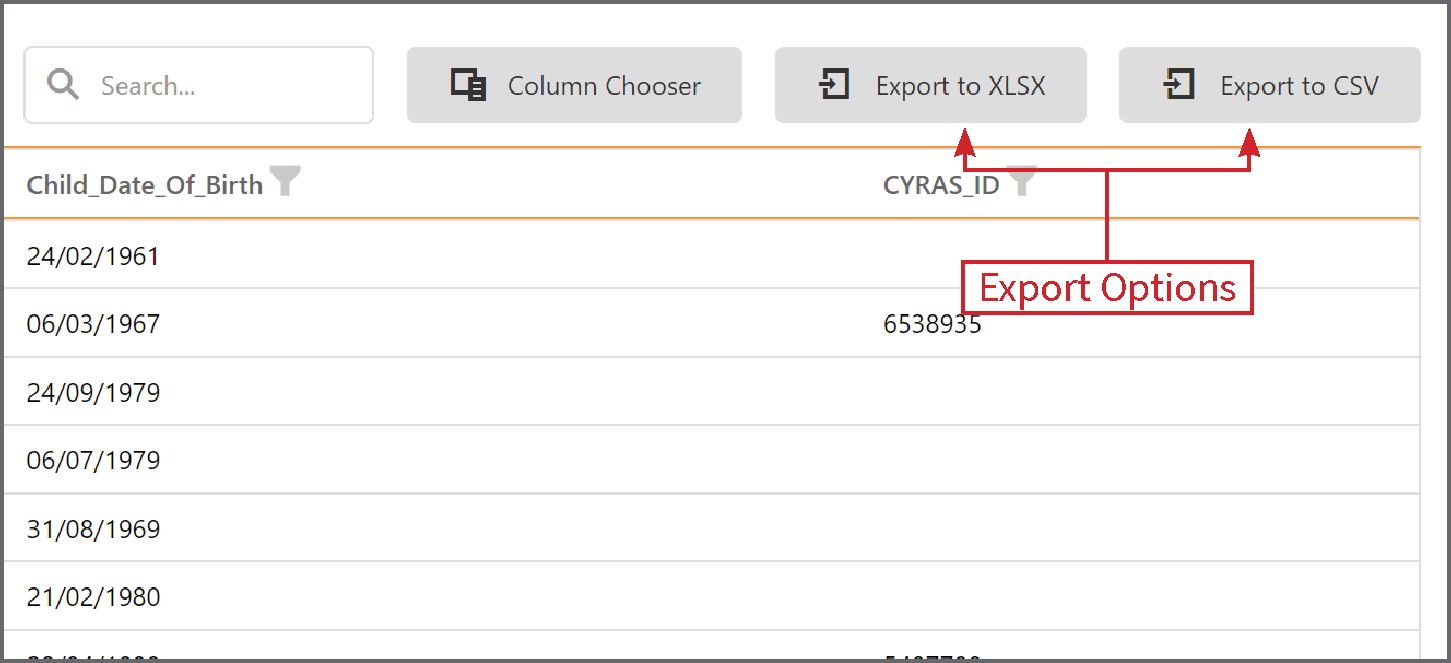
Adding a CYRAS ID
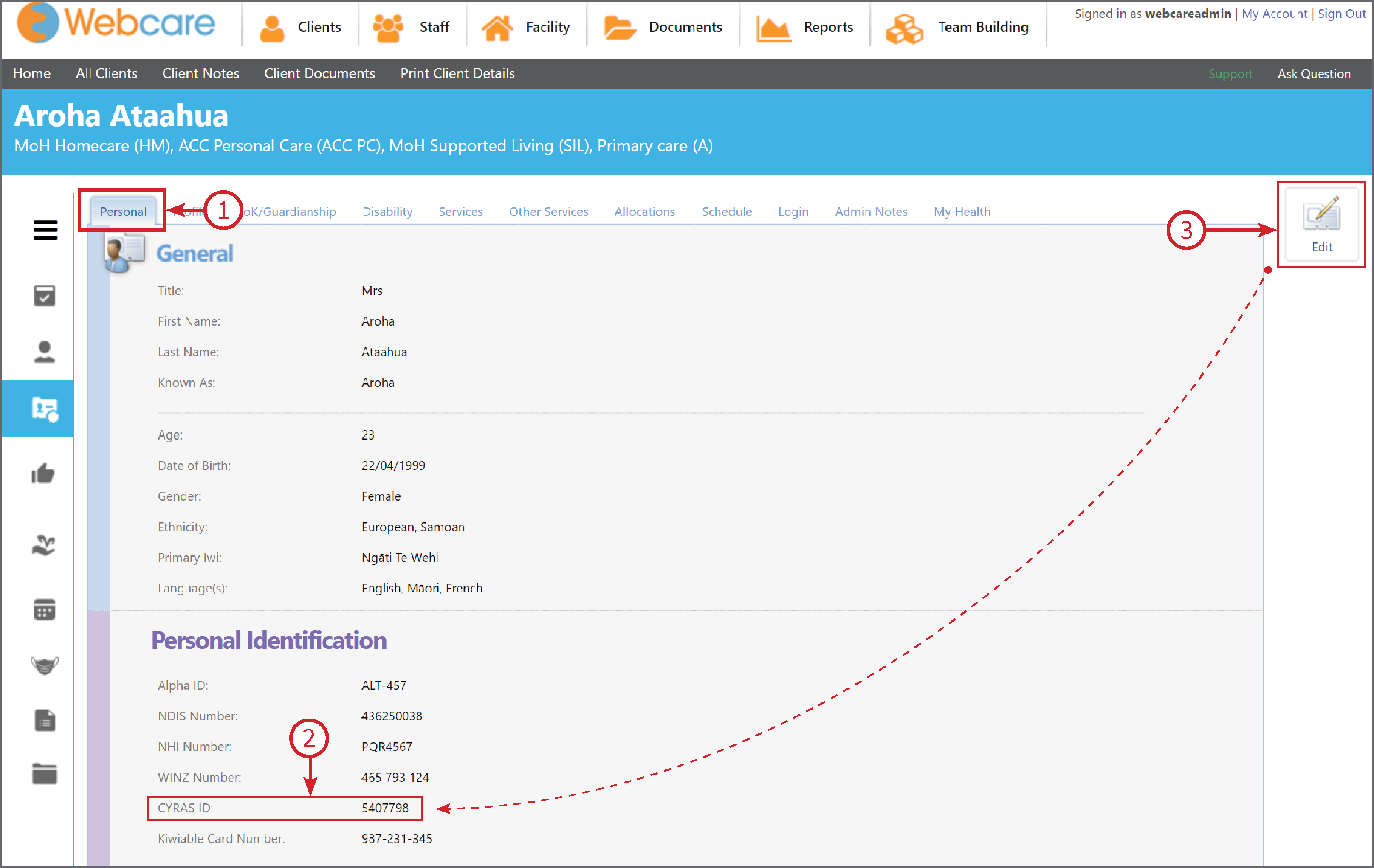
CYRAS IDs are located on a clients Personal Tab (1).
Under the heading Personal Identification, you will see the CYRAS ID (2). If there is nothing there it means no data has been entered. You will need to click Edit (3) and type in the ID number.
Remember to click Save when you have finished.