
Adding a Role to Role Manager
Select Administration (1) from the main menu.
Scroll down until you get to the Security box and select Role Manager (1).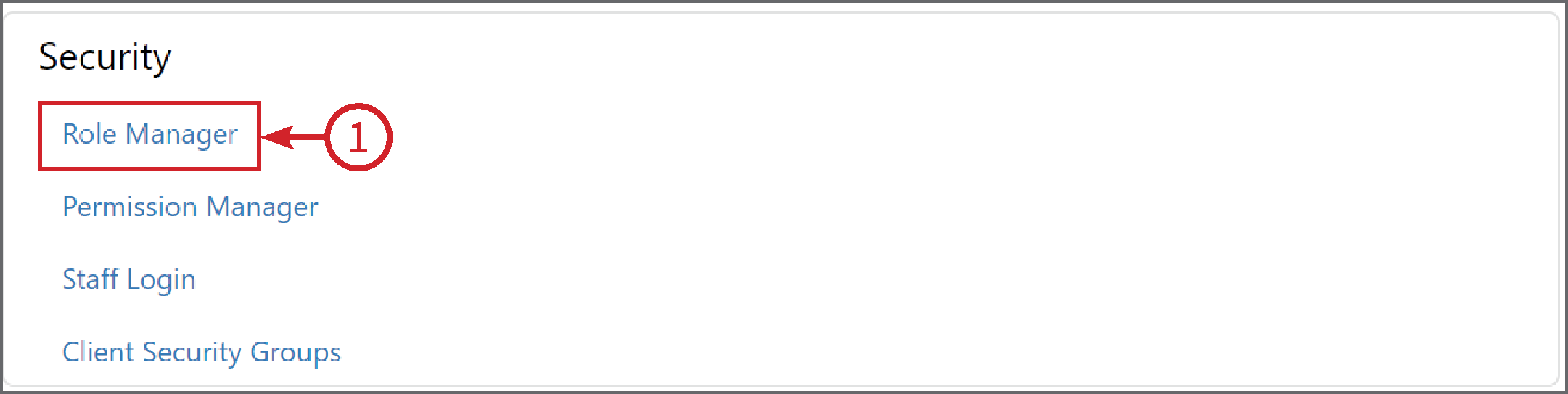
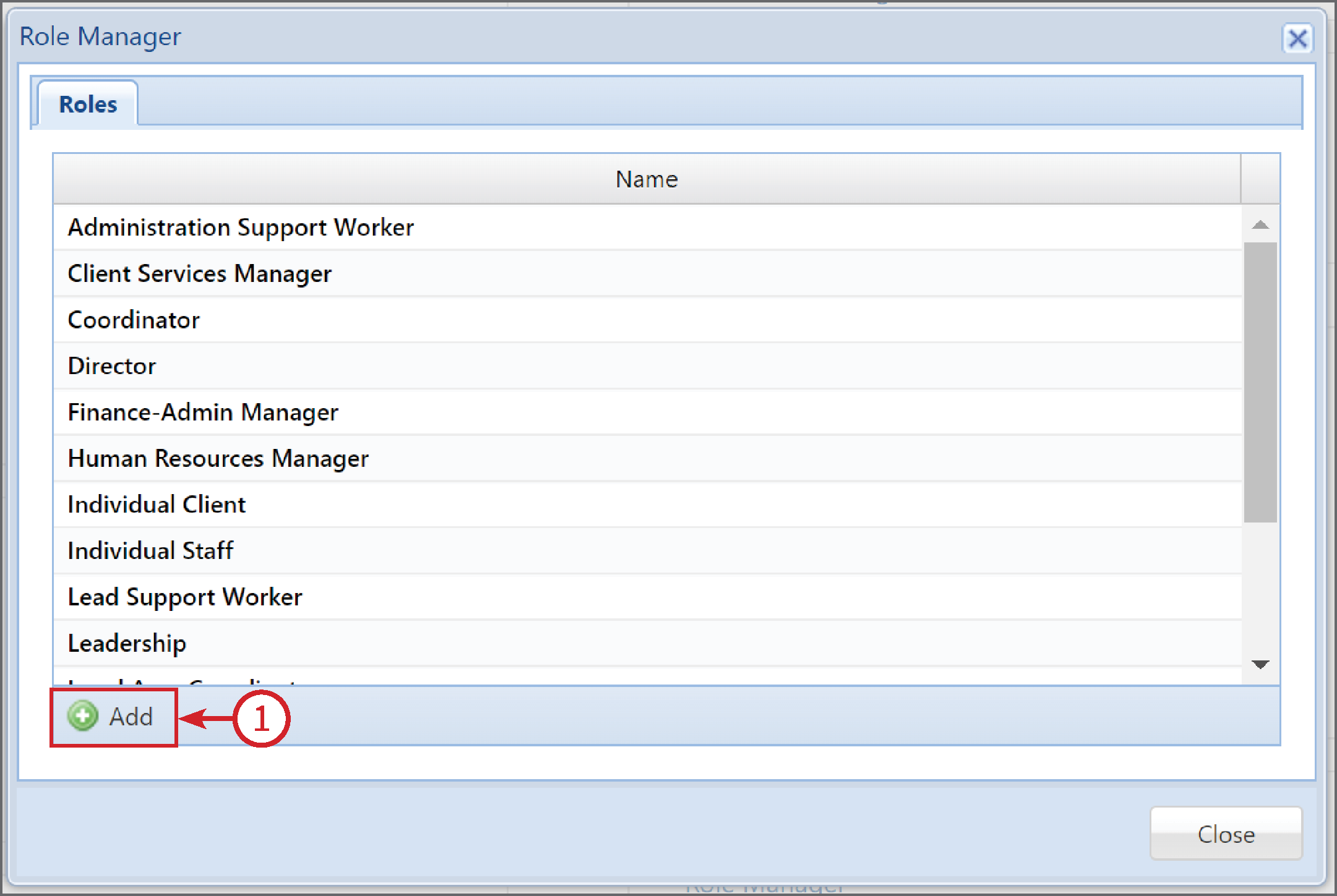
This will bring up a list of all the Roles your organisation has currently, with the option to Add (1) more.
Click on Add, enter the name of the Role, then click OK. (Find out how to set the Permissions for this role here.)
Please Note: Once a Role is added, it cannot be renamed or deleted.
Enter the name of the Role you are adding and click Save. Remember, this name cannot be changed or deleted. 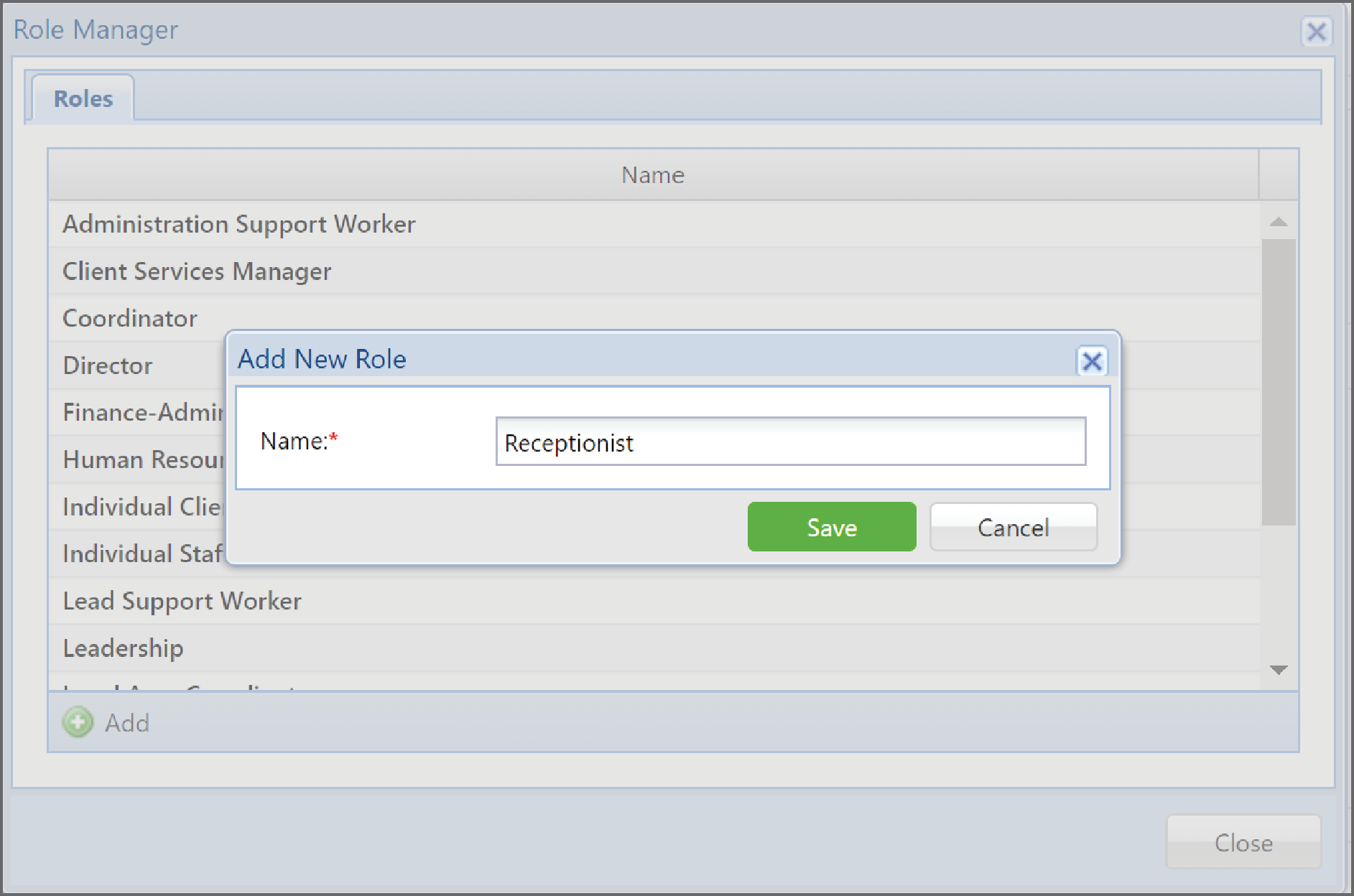
If the Role already exists, you will receive a warning. Click OK.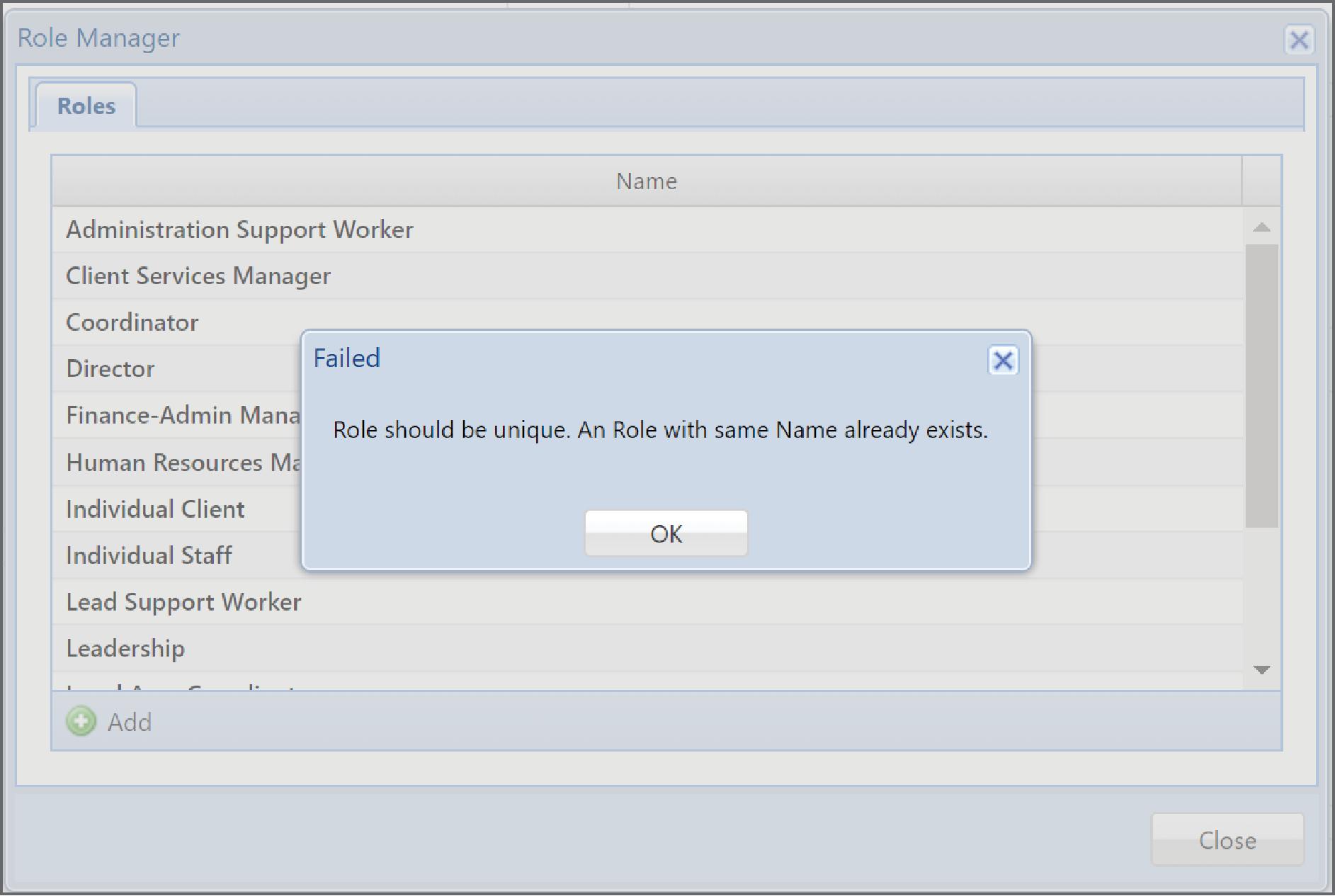
To find out how to set Permissions for the newly added Role, click here.