
This allows admin to restrict which roles can access which views.
This is especially useful for restricting access to Incidents where House Managers can only access incidents of their own houses, or allowing only Executive roles access to all incidents.
To start, go to Incident Report (Global) (1)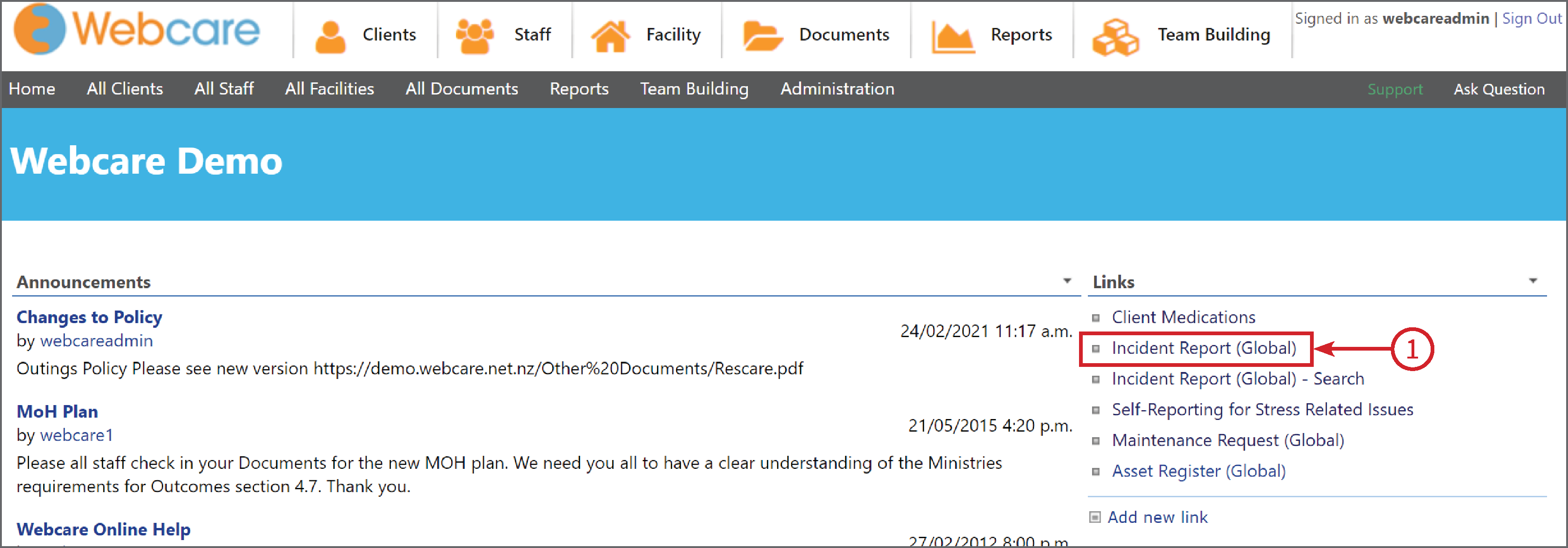
Select Settings (1), then click on List Settings (2) from the drop down menu.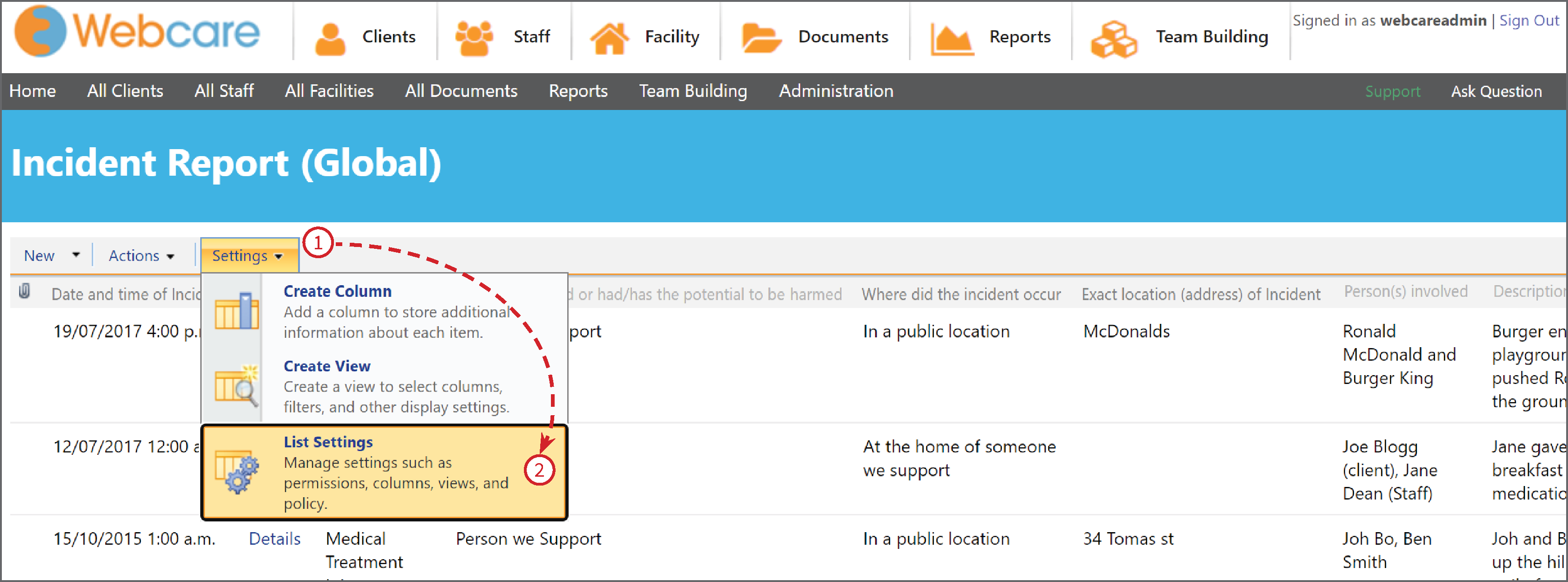
Click on Infowise View Permission Settings (1)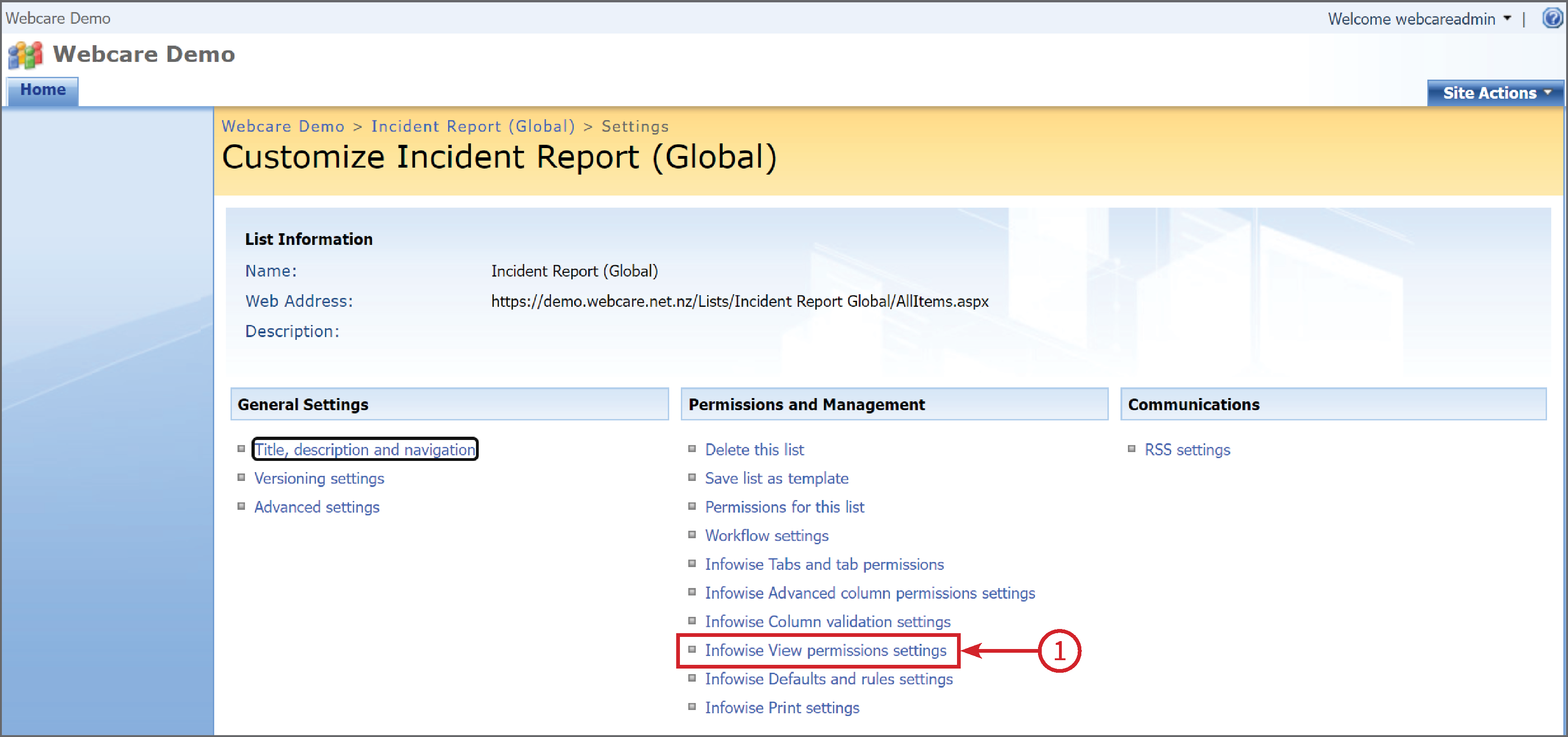
This will take you to the manage permission settings page. If you have already set up View permissions before, there will be a list of them here under the Current Rules heading.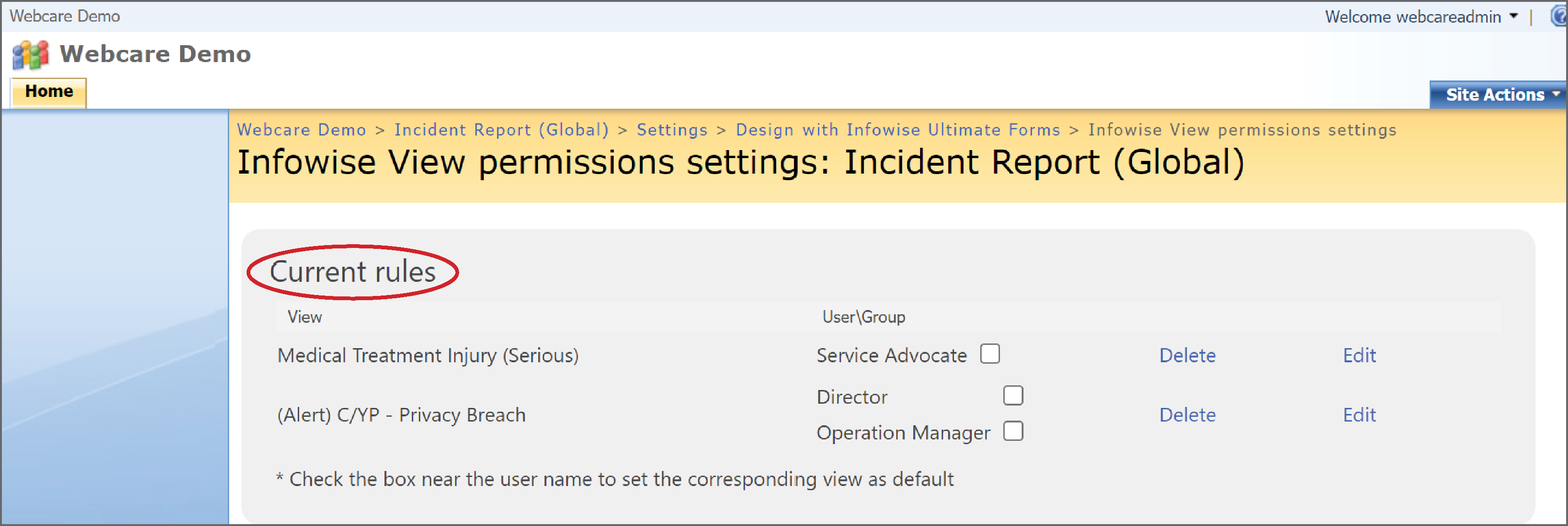
To add a permission view - Select a View (1) > Enter a Role (2) > Click Add (3)
The system will ensure the role is valid and activate the view permissions.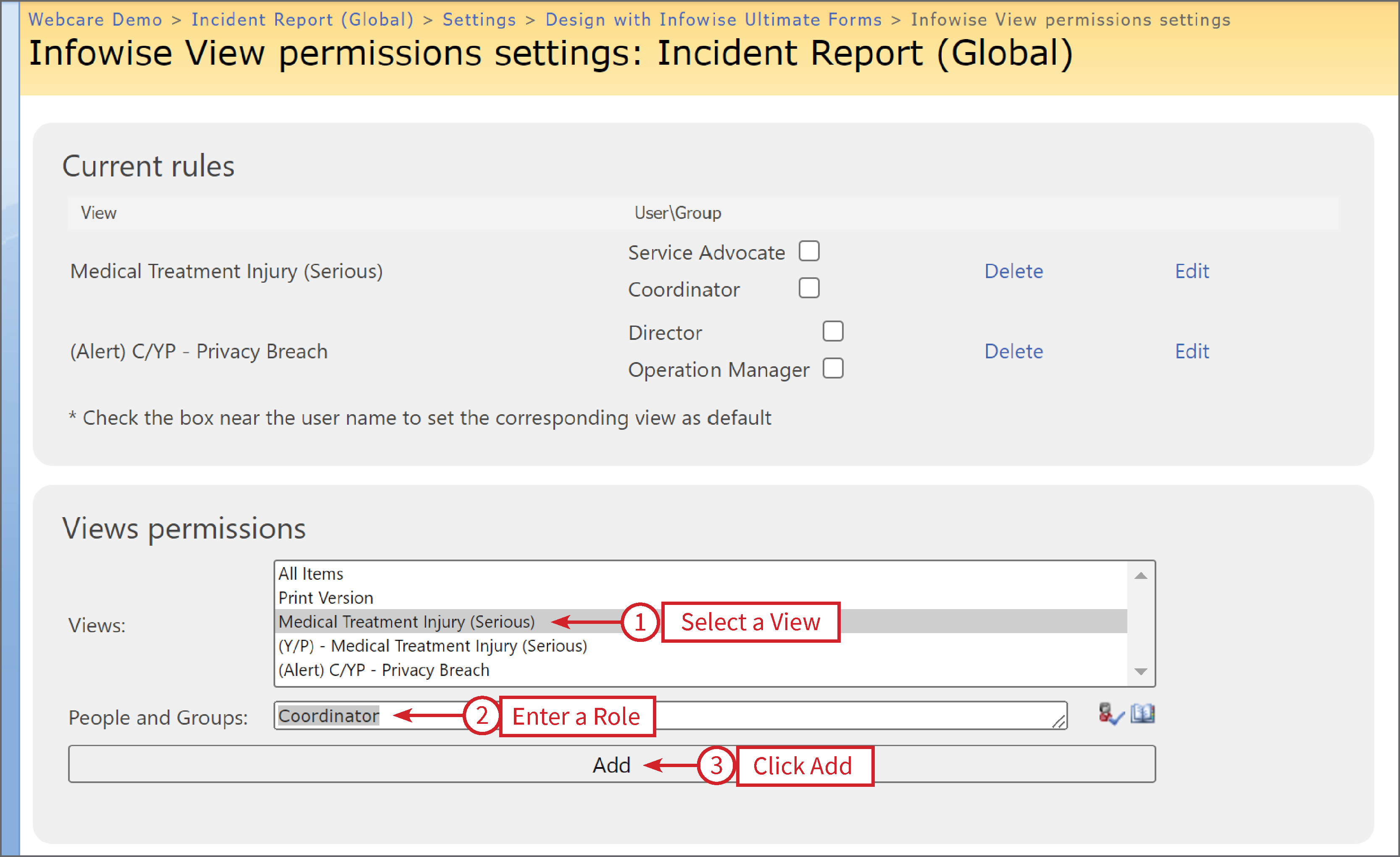
The new User and their Permission will be added.