
To set up permissions for Clients, go to the Manage Permissions screen.
Home > Administration > Security > Permission Manager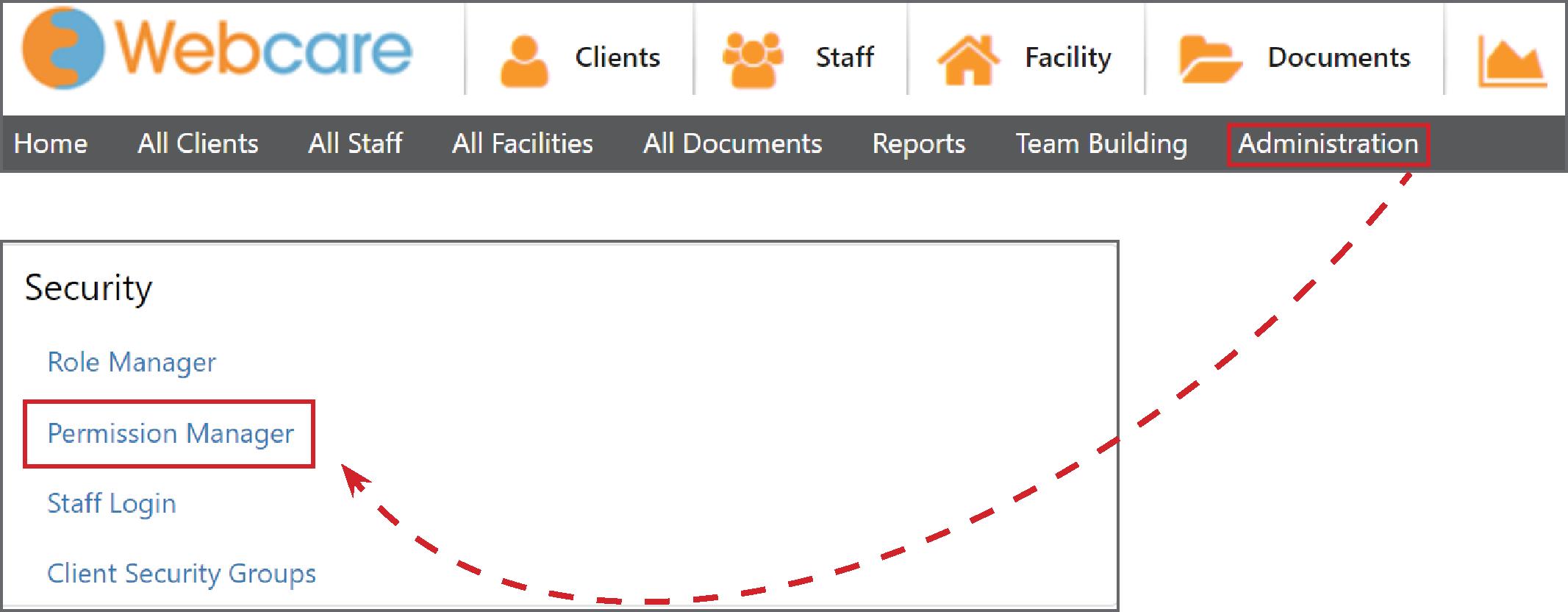
Select the Client tab, then select the Role Name.
Admin can then set permissions for different Tabs. The items listed under tabs, are the same tabs from the client details page:
Personal, Profile, Next of Kin, Disability, Services, Other Services, Allocations, Schedule, Admin Notes, and My Health tabs
Please Note: Advanced Notes and Documents - these are specific to the Clients section of Webcare.
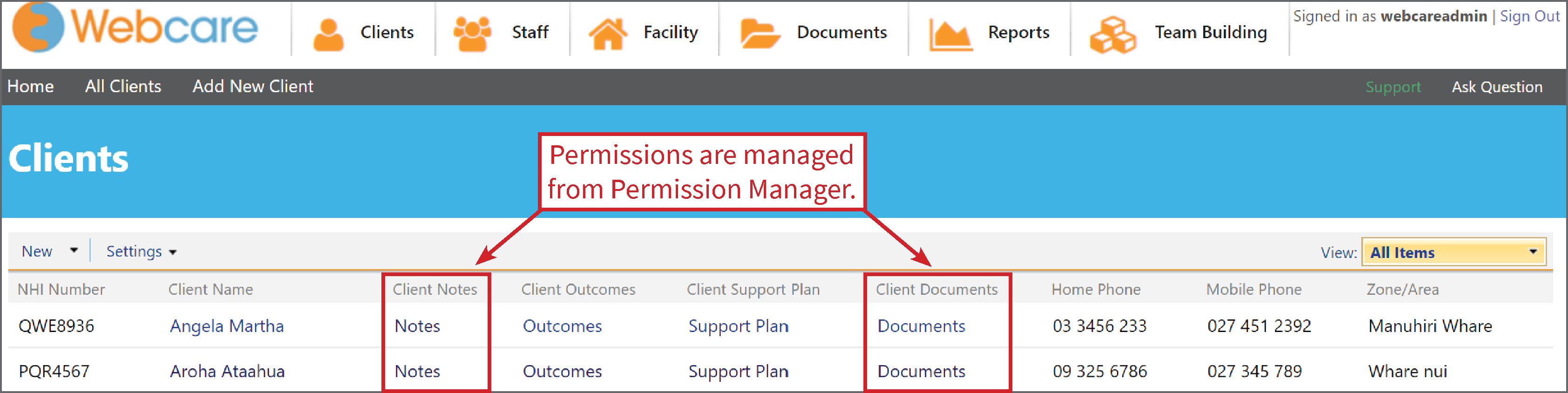
If you want to add/edit permissions for the Document library (found under Documents on the Main Menu bar) which contains your organisations custom forms, you can find the help article here.
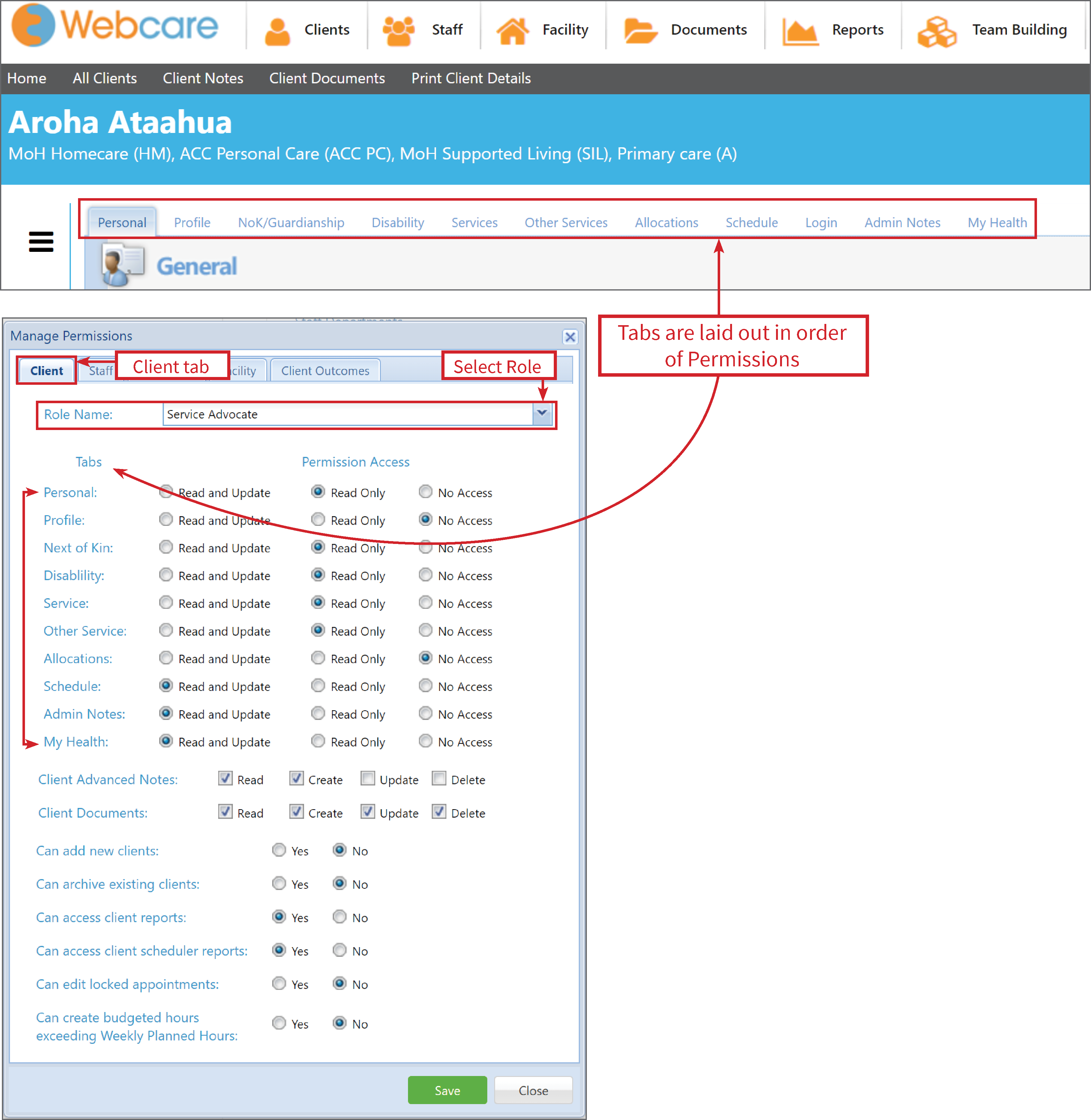
The Permissions are:
Read and Update: Shows the edit button to make changes.
Read Only: Will show the tab in read-only mode. There is no edit button.
No Access: The tab will be hidden.
Admin can also set up permissions to that role for:
- Access client notes and documents (Read only, Create a new note/document, Update an existing note/document and Delete)
- Add a new client
- Archive an existing client
- Access client reports (general details)
- Access client scheduler reports
- Edit locked appointments
- Create budgeted hours exceeding weekly planned hours