
This article contains information regarding:
Accessing Staff Details | Staff Details | Editing Staff Details
Accessing Staff Details
To access the staff details, click Staff along the top menu bar.

A staff list is shown. Select the Staff member (1) you want to view or edit the details of.
The advanced Notes (2) and Documents (3) of Staff can be accessed by clicking the links.

Staff Details
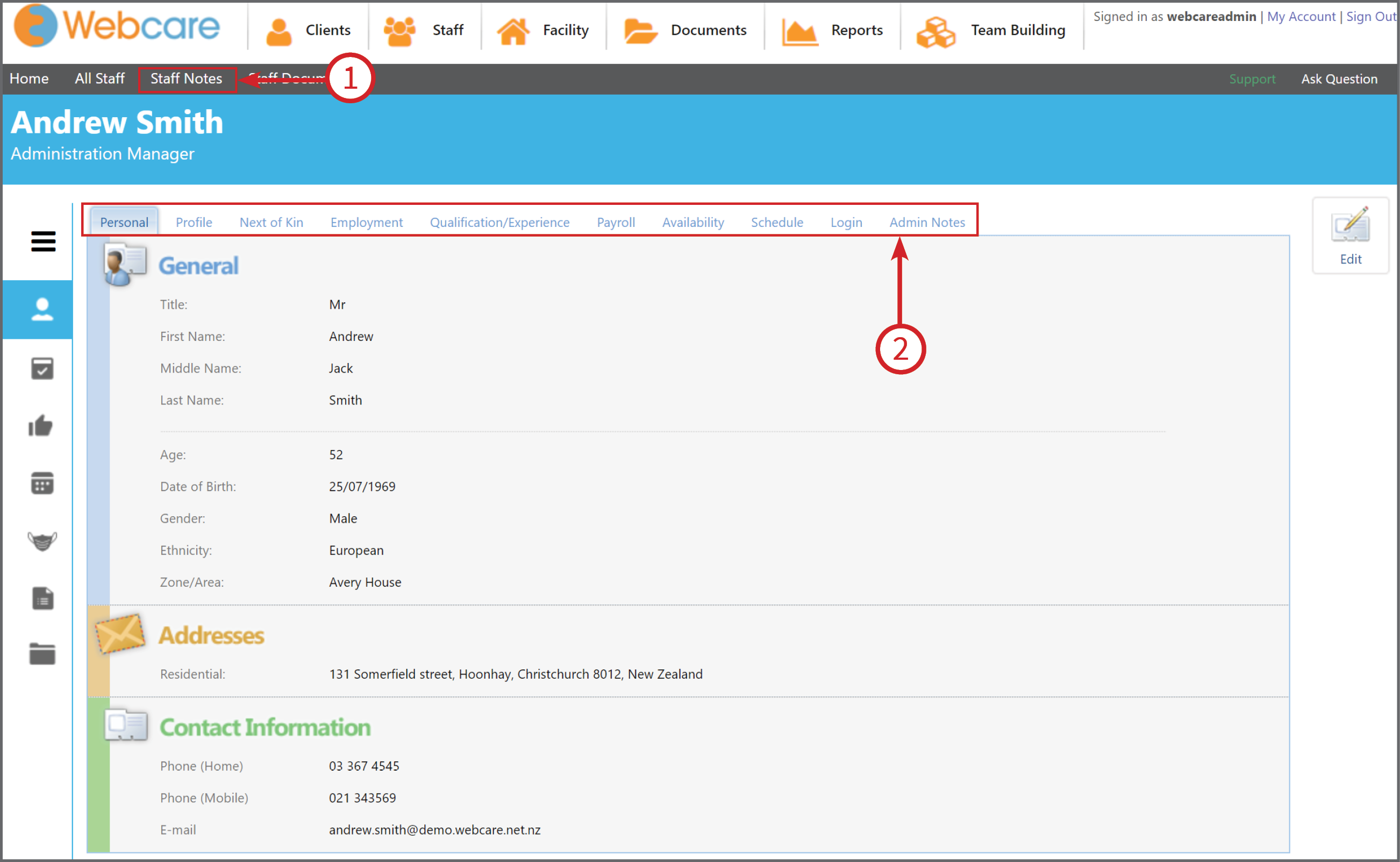
Staff's general information is divided into different tabs e.g. Personal, Profile, Next of Kin, Employment, Payroll, Availability, Schedule, Login and Notes.
Each tab's information can be accessed by clicking the respective tab (2). Some of the tabs may not be displayed, this is due to the permissions assigned to you.
The advanced Notes can be accessed by clicking Staff Notes (1) on the submenu bar.
Edit Staff Details
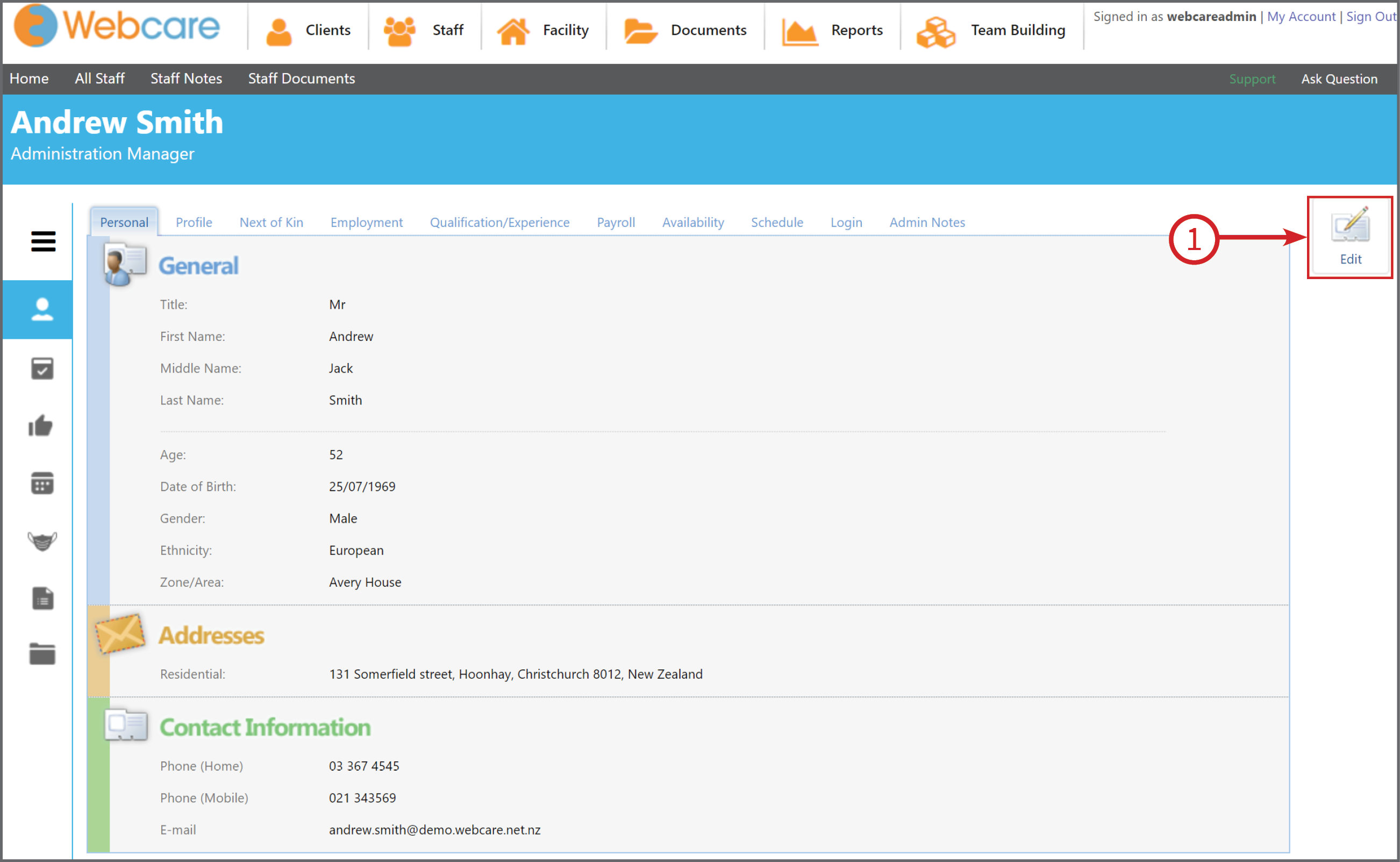
To edit Staff details, click Edit (1) button on the right side. This will show the current tab in edit mode. Please note that not all the tabs will have an edit button. This is due to the permissions assigned to you.
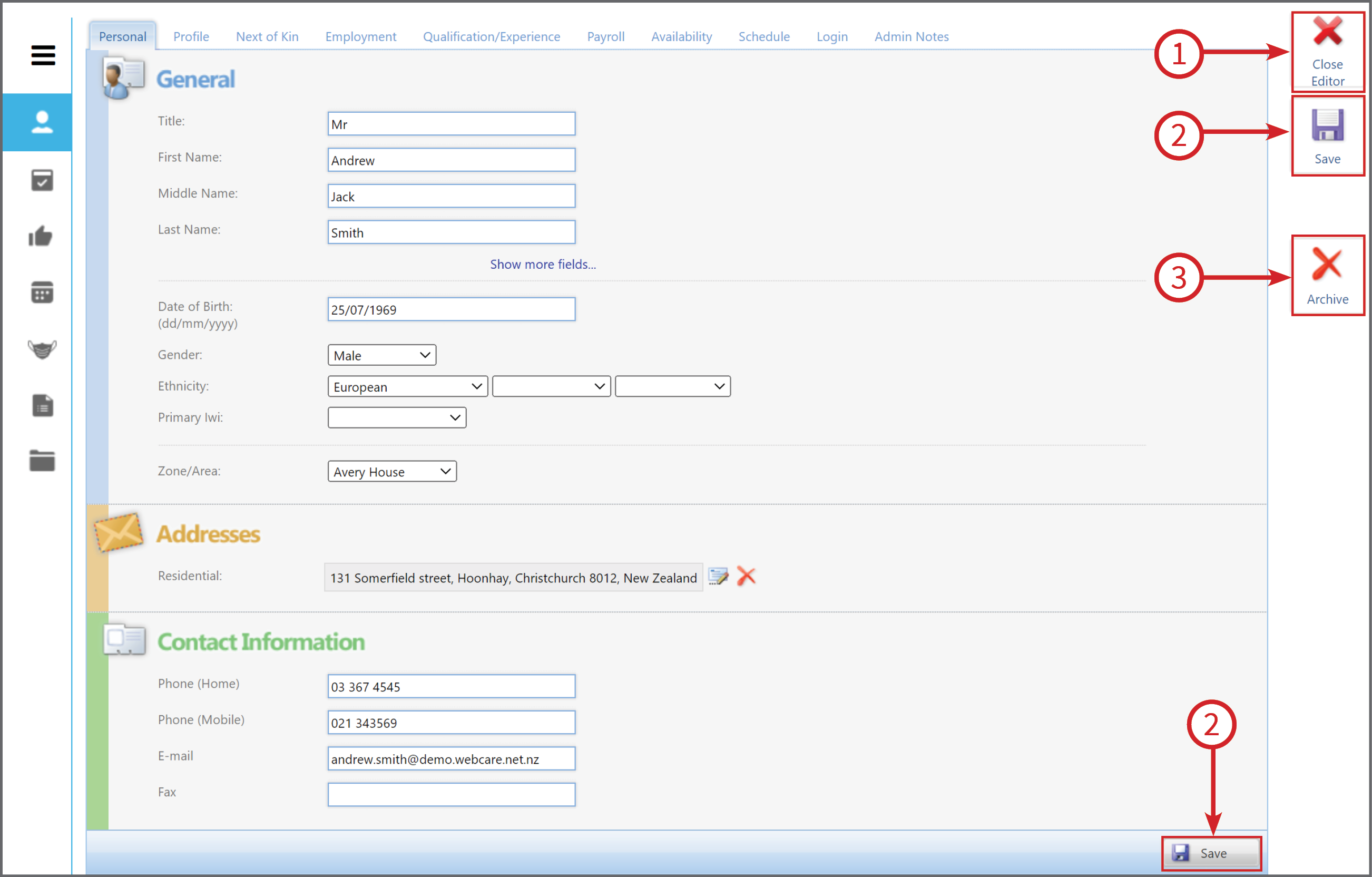
In the edit mode, you can make required changes.
- 1 Close Editor: To exit the edit mode, press the Close Editor button. If the changes are not saved, then this will discard all the changes. To preserve the data, press Save then Close Editor.
- 2 Save: Press the Save button (two buttons are available, one on the right side and another on the bottom)
- 3 Archive: To archive the staff member, press the Archive button. This will archive the staff and all the tabs will be changed to read-only mode. For example, the Edit button will not be displayed.
(The Archive button will only be visible to you, if you have permissions to archive a Staff member.)
To access Webcare, a staff will need an active login.