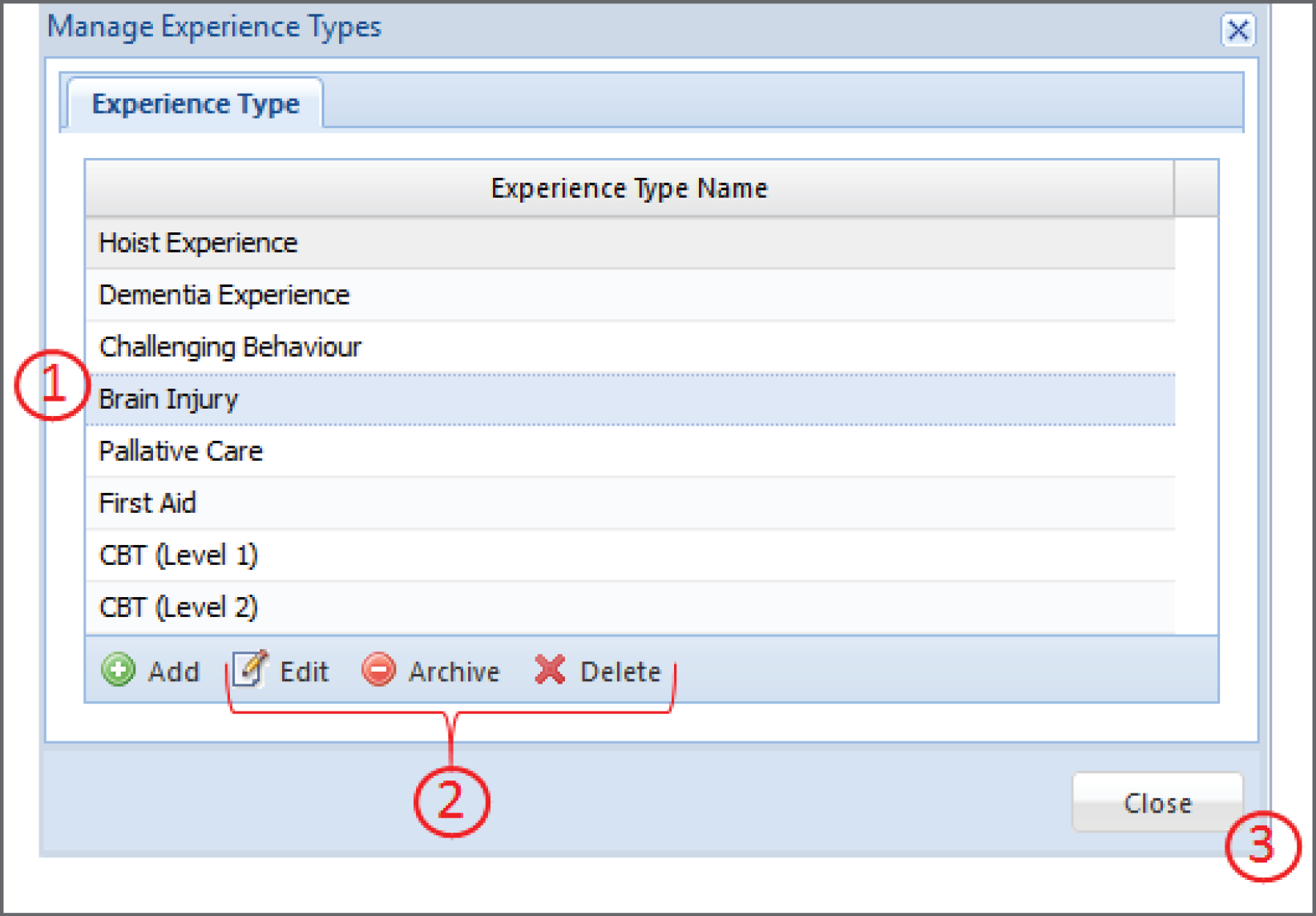
The Article contains information regarding:
Accessing the Qualification/Experience Tab
Adding and Exporting a Qualification/Experience
Adding a New Experience Type
Deleting or Editing Each Staff's Qualification/Experience
Permissions Manager - Updating/Controlling Access to Qualifications/Experience Tab
Adding/Deleting/Managing Experience Type in Administration Mode
To Edit, Archive and Delete
Prerequisite
In order for you to see the Qualification/Experience Tab, you first need to have permission. If you cannot see this Tab, ask your administrator. If you are the administrator, see the "Permissions Manager - Updating and Controlling Access to Qualification/Experience Tab" section below.
Accessing the Qualification/Experience Tab
In each Staff's profile page there is a tab named "Qualification/Experience".
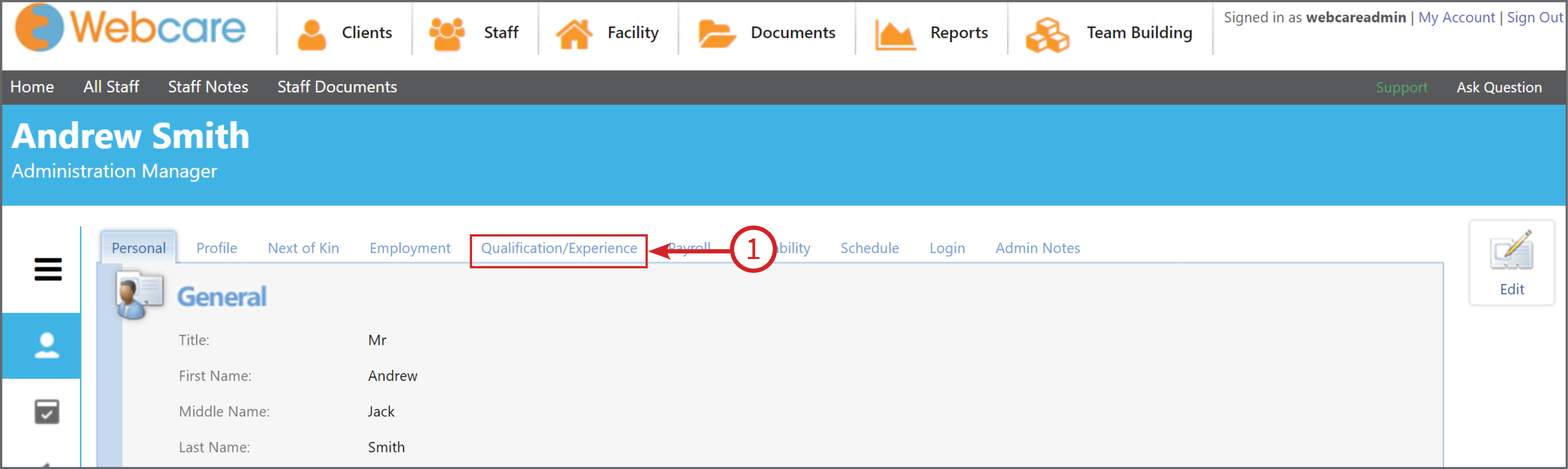
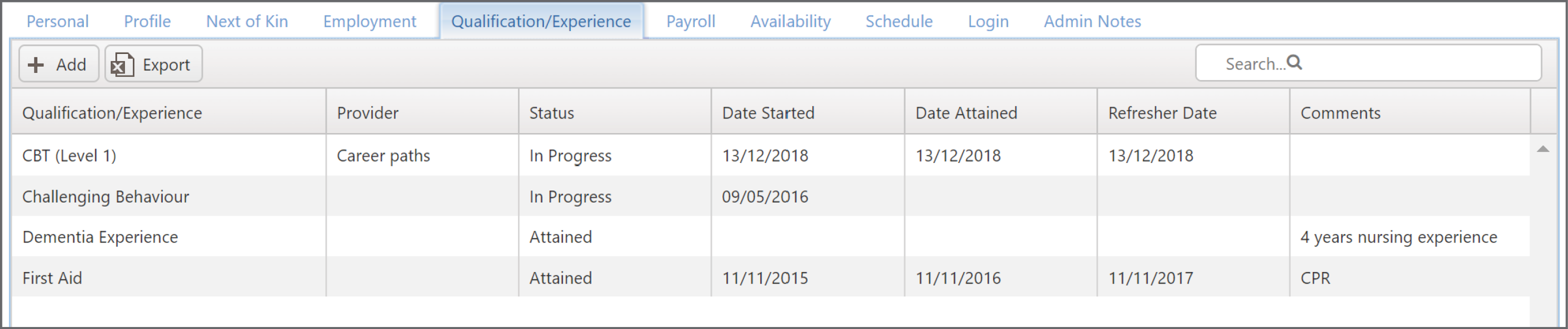
This tab shows the experience and training that each staff member has so that you can easily assign the right staff member to the right client.
This tab also shows important information such as the "Status" of the training "Date Attained", the "Refresher Date" and other helpful information to keep track of each staff members progress, and to ensure you have staff with the required and current qualifications/experience.
Adding and Exporting a Qualification/Experience
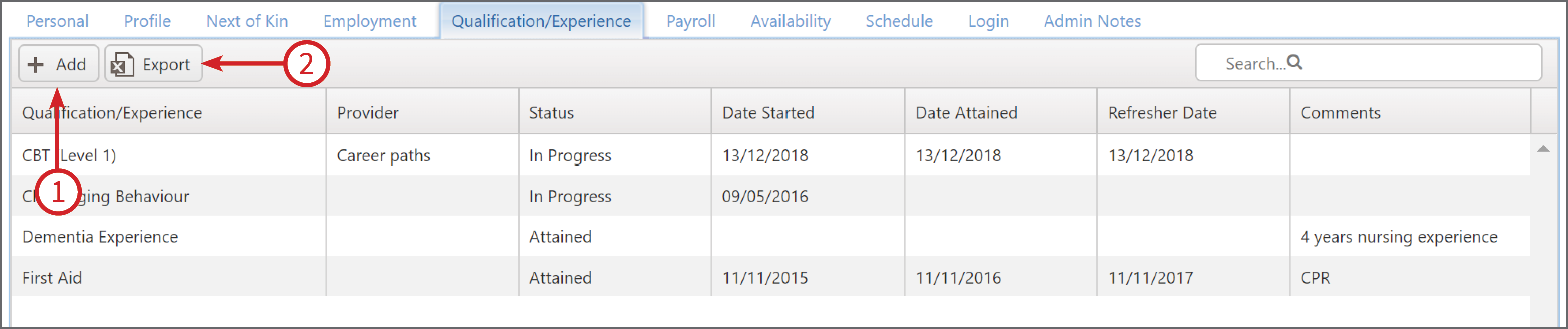
To add a Qualification/Experience Type click on the + Add (1) in the top left corner.
To export the list of Qualifications/Experience, simply click on the Export button (2) and an .xlsx file will automatically download to your computer.
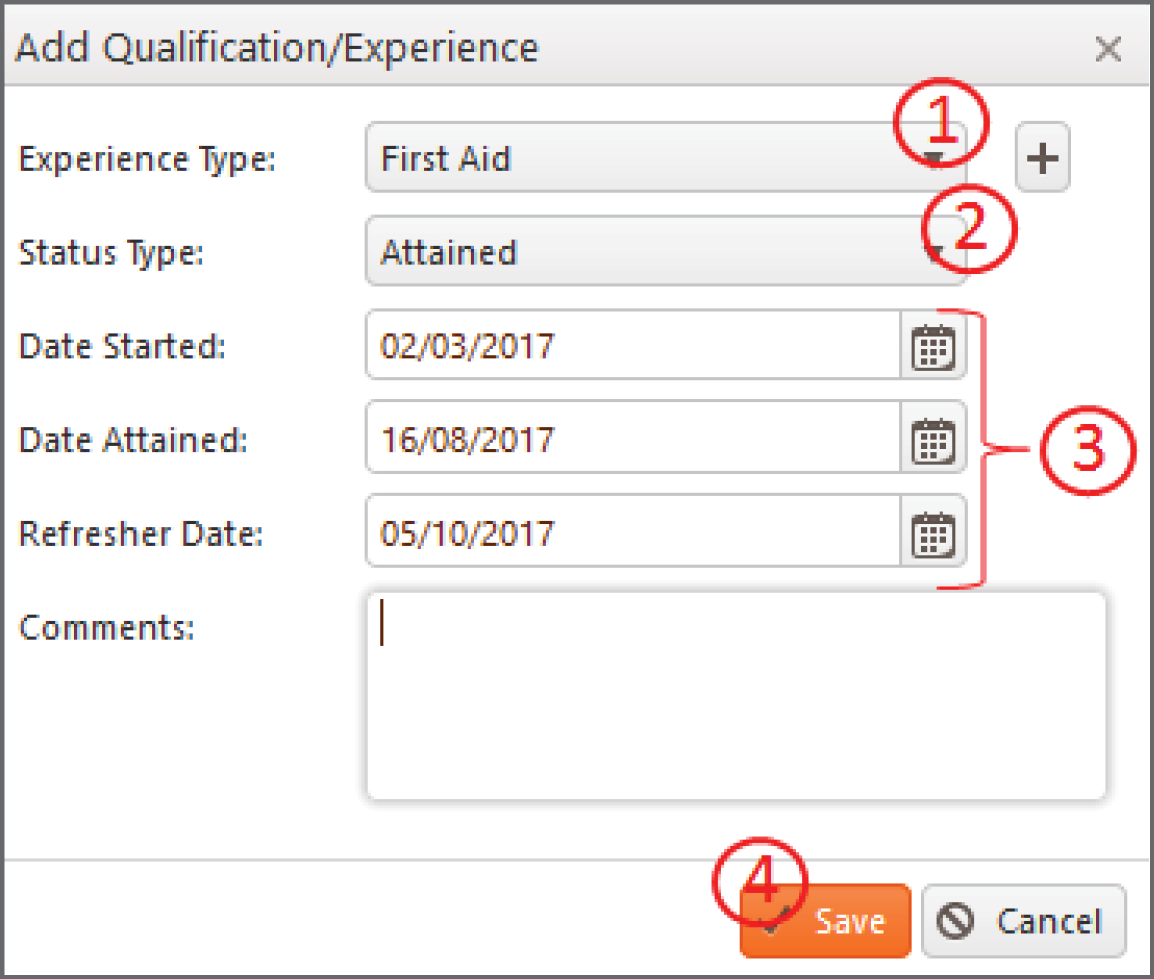
After you have clicked on the +Add button, a form box will pop up.
Click on the down arrow besides Experience Type (1) and select the experience type you require then select the Status Type (2) and fill in the Relevant Dates (3) then click Save (4).
Adding a New Experience Type
If the Experience Type you require is not there you can click on the "+" next to the down arrow. next to "Experience type".
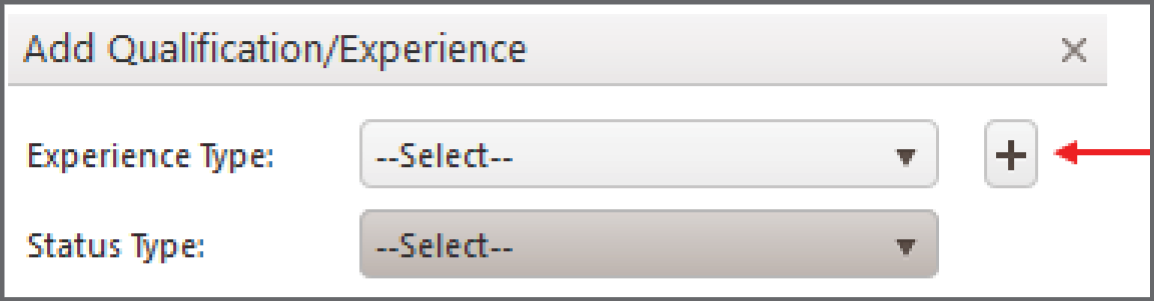
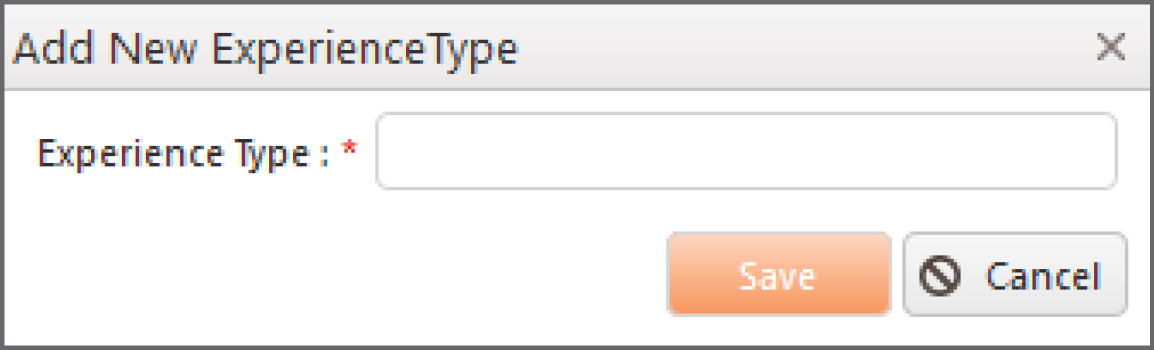
This will bring up a dialogue box. Type in the text field the new experience type name and click "Save".
Deleting or Editing Each Staff's Qualification/Experience
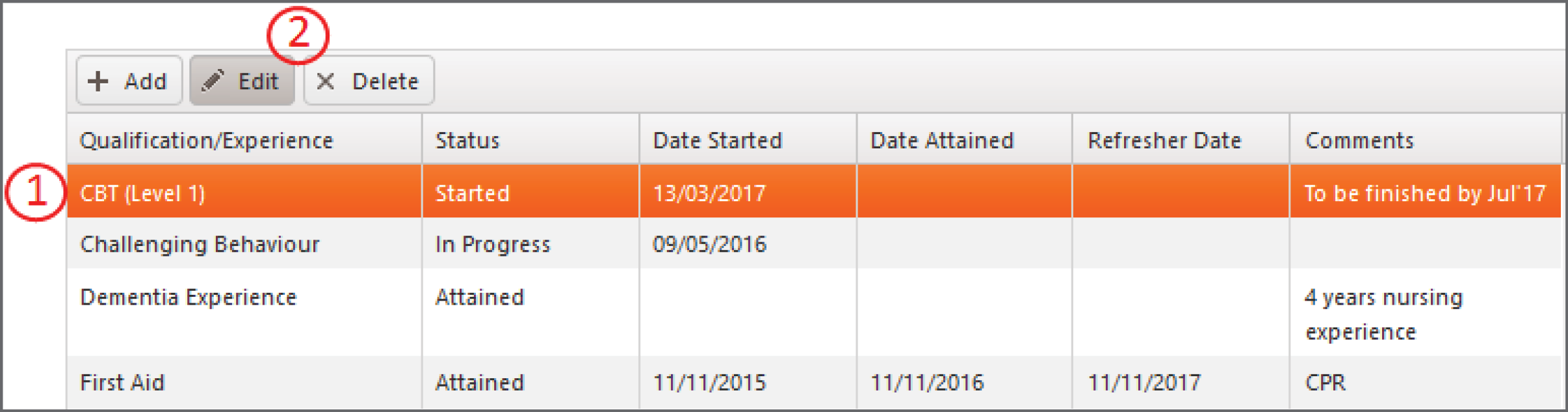
To update, delete or edit the qualification/experience for a staff member, firstly select the qualification/experience you would like to edit by clicking on the name of it (1).
This will bring up Edit and Delete options (2).
Click on the edit button to edit or update the information, and click save.
If you would like to delete the information click on the "delete" button.
Permissions Manager - Updating/Controlling Access to Qualifications/Experience Tab
You can set who is able to view this information and who can update or add this information via the Permissions Manager.
1) To access the Permissions Manager, firstly click on Administration on the sub-menu bar on the homepage.

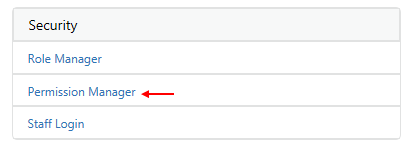
2) Next click on Permission Manager
3) Once in Permissions Manager, click on the Staff (1) tab at the top.
Next select the Role you would like to allow access for by clicking on the down arrow (2) next to Role Name and click on the Role you would allow access to.
Next go to Qualification (3) and select either Read and Update or Read Only or No Access depending on the type of access you would like that role to have.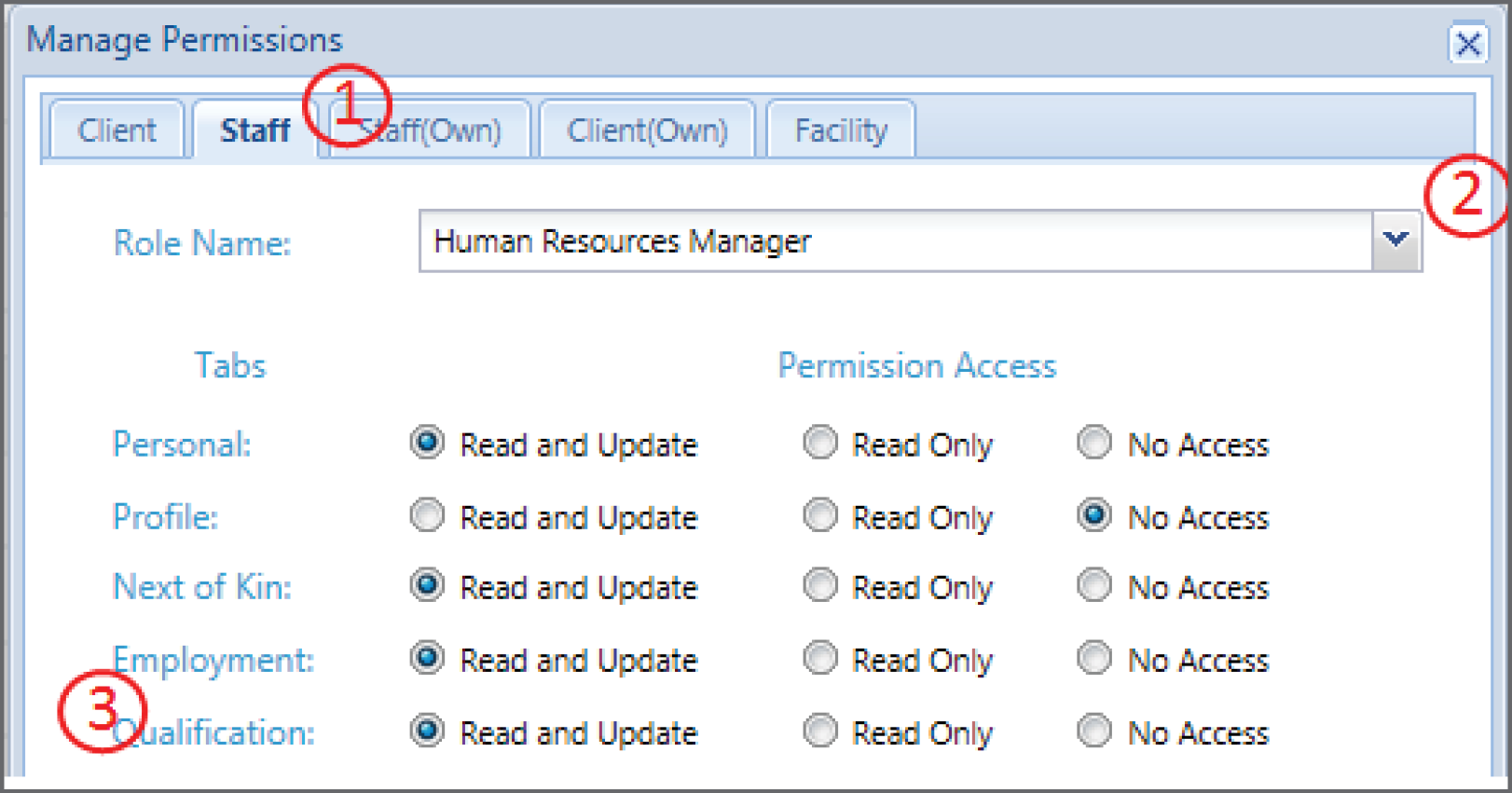
4) Click on Save
Adding/Deleting/Managing Experience Type in Administration Mode
1) To add, delete or archive an "Experience Type" for the Staff member to choose from, firstly click on "Administration" on the submenu bar on the homepage.
2) Then click on Staff Qualification/Experience Type in the Staff section of the Administration page.
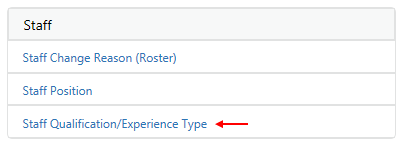
3) Selecting Staff Qualification/Experience Type will bring up a list of experience types which have been previously entered.
To add a new type click on + Add.
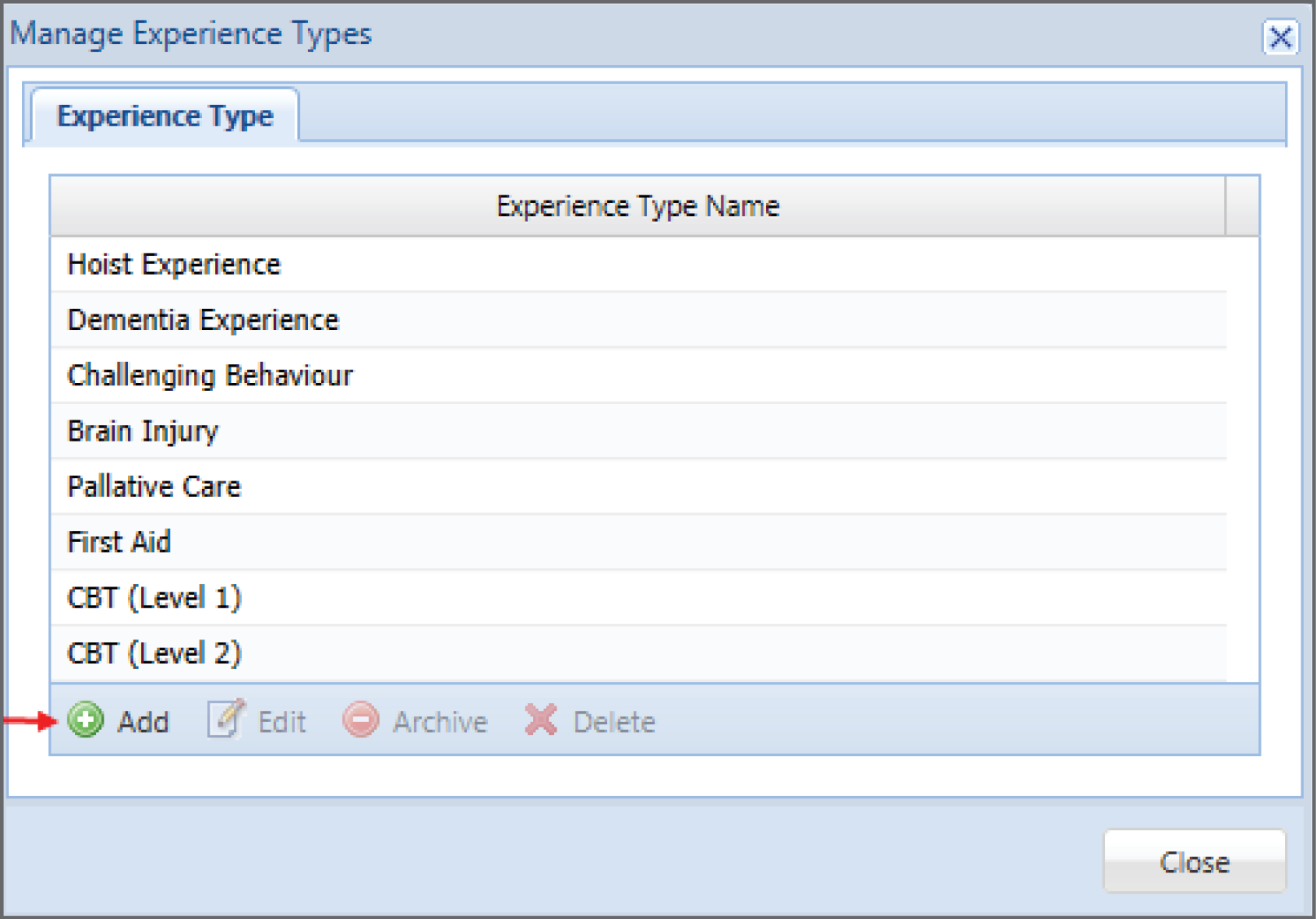
4) Once you have clicked on Add it will bring up a dialogue box. Type the name of the qualification or Experience Type (1) you would like to add then press Save (2).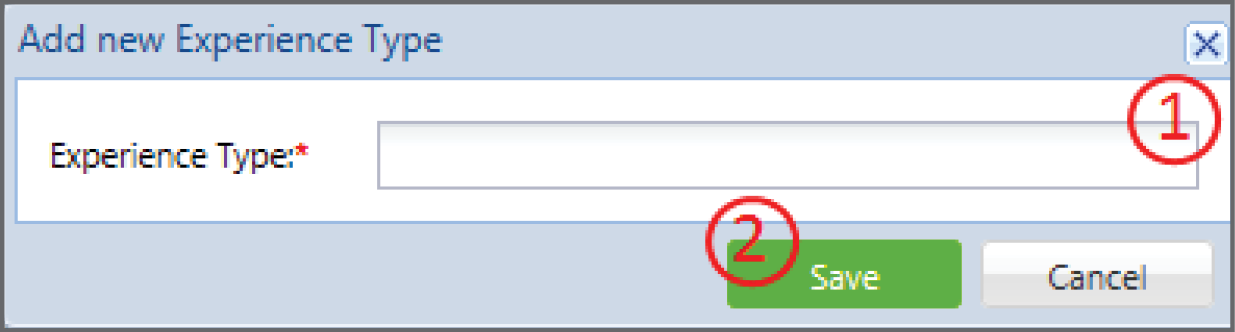
To Edit, Archive and Delete
To Archive, Edit or Delete an Experience Type, select the Experience Type (1) and either click on Edit, Archive or Delete (2) and click Close (3)