
Global Form Search
Select View | Select Filters | Printing and Exporting your Global Report | Viewing the report in Excel
The process for searching Global Forms is the same across all organisations, the only difference is the fields; for example: in the help article below, we are using the form 'Incident Report (Global) - Search'
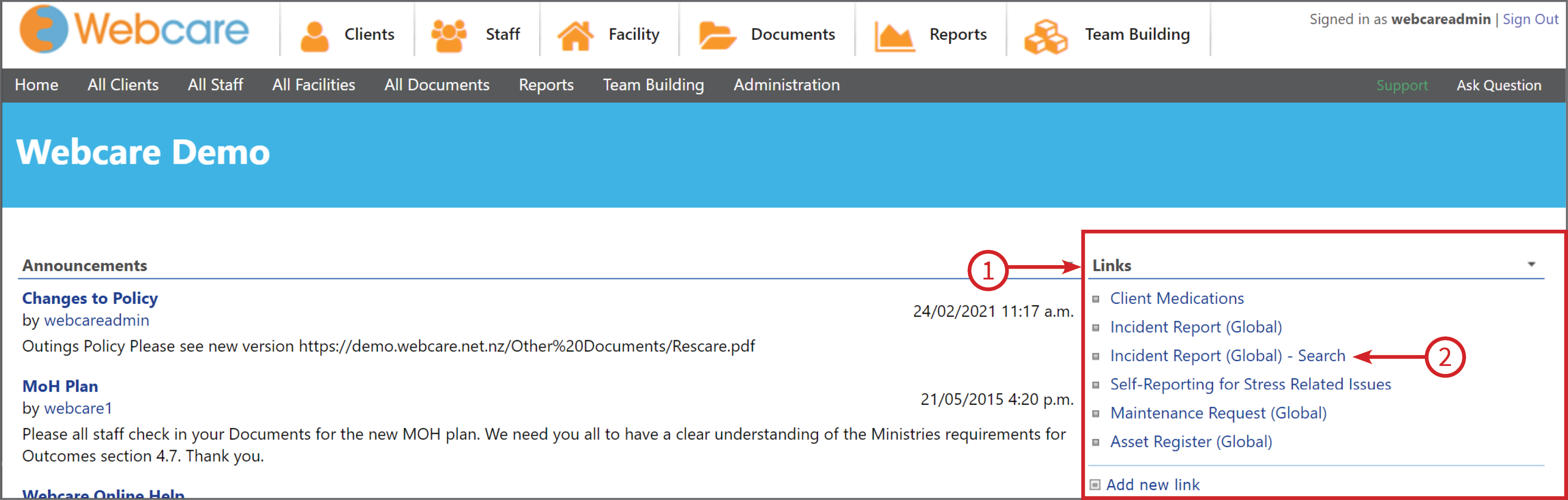
You will find the Global Forms on the Homepage of Webcare under the Links (1) title.
Click on the Search (2) Global Form, remember the name of this form may differ to our example. As long as the word Search is in the title, you will get to the same area we are learning about.
The Global Forms can sometimes also be found on the Reports page depending on your Webcare configuration.
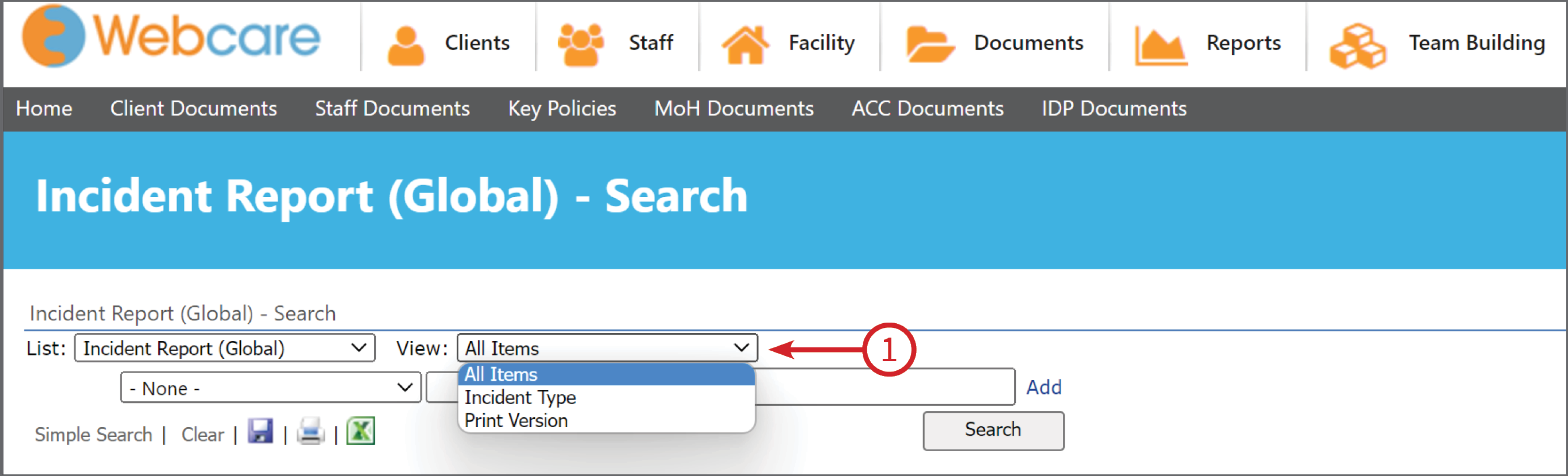
Select View
This prefilters what columns will show on the report. Organisations will usually have different View (1) formats (e.g. monthly report template, ministry audit report template, print template, etc)
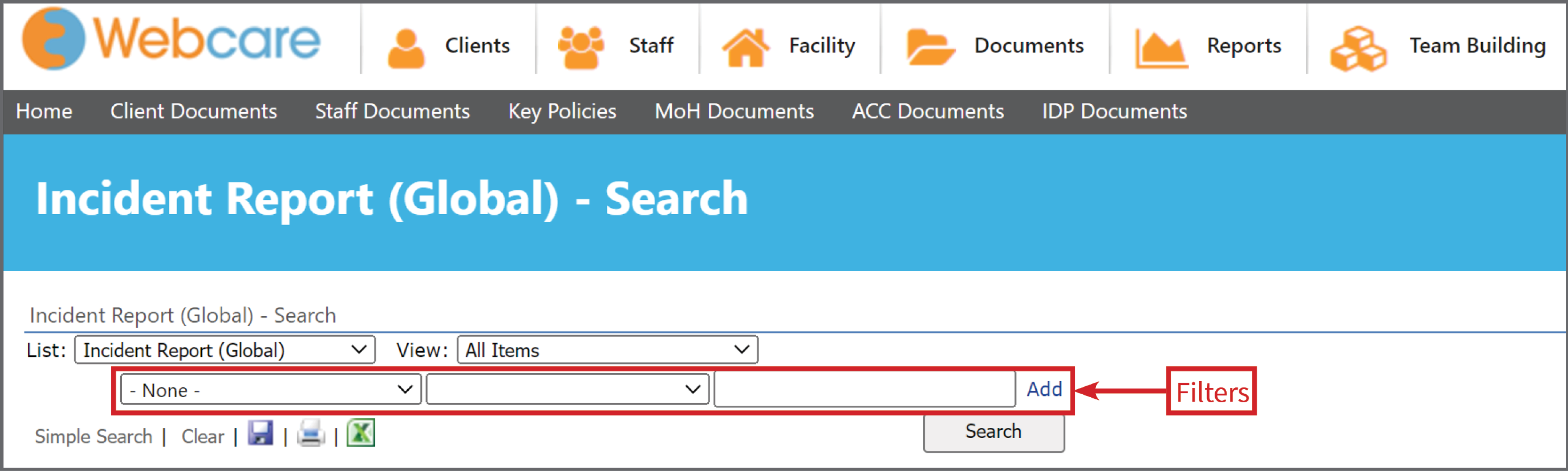
Select Filters
This sets the conditions for the report.
The conditions support multiple operators.
For example:
where <incident> is ‘medical’ and <level> is ‘very serious’
where <house> is ‘avery house’ or <service type> is ‘residential’
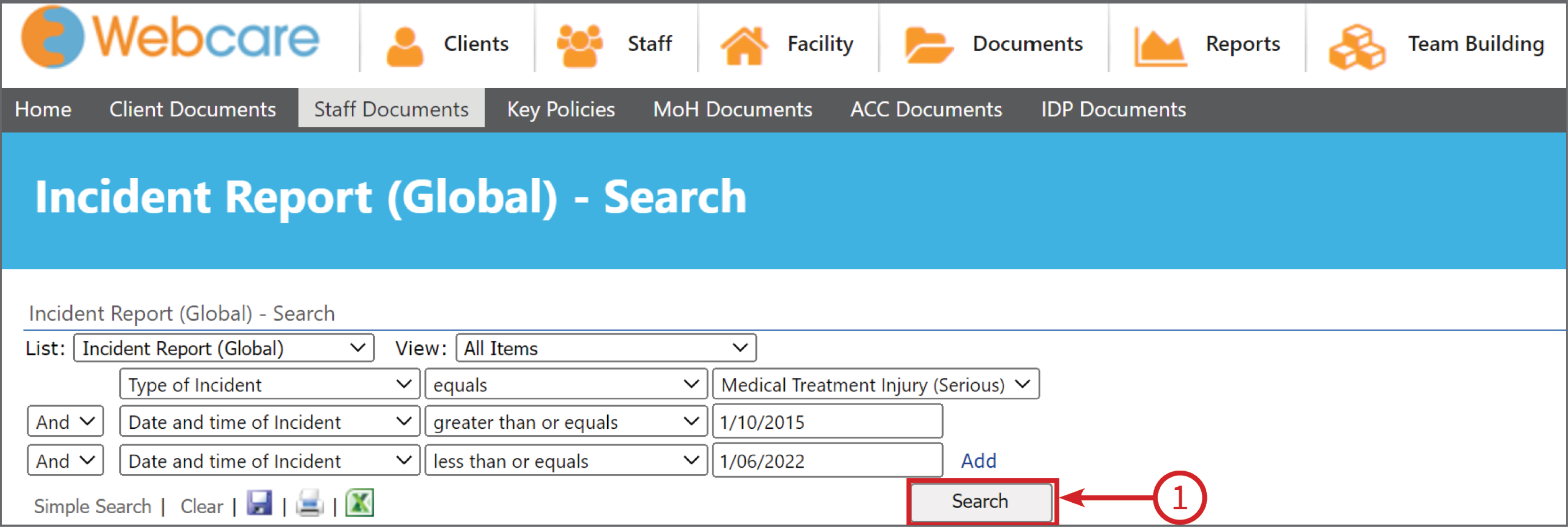
You can adjust these filters to include the information you require. There are three Filter boxes.
When you have made a selection from the first Filter (1) drop down menu, Webcare will automatically give you related options in the next two boxes.
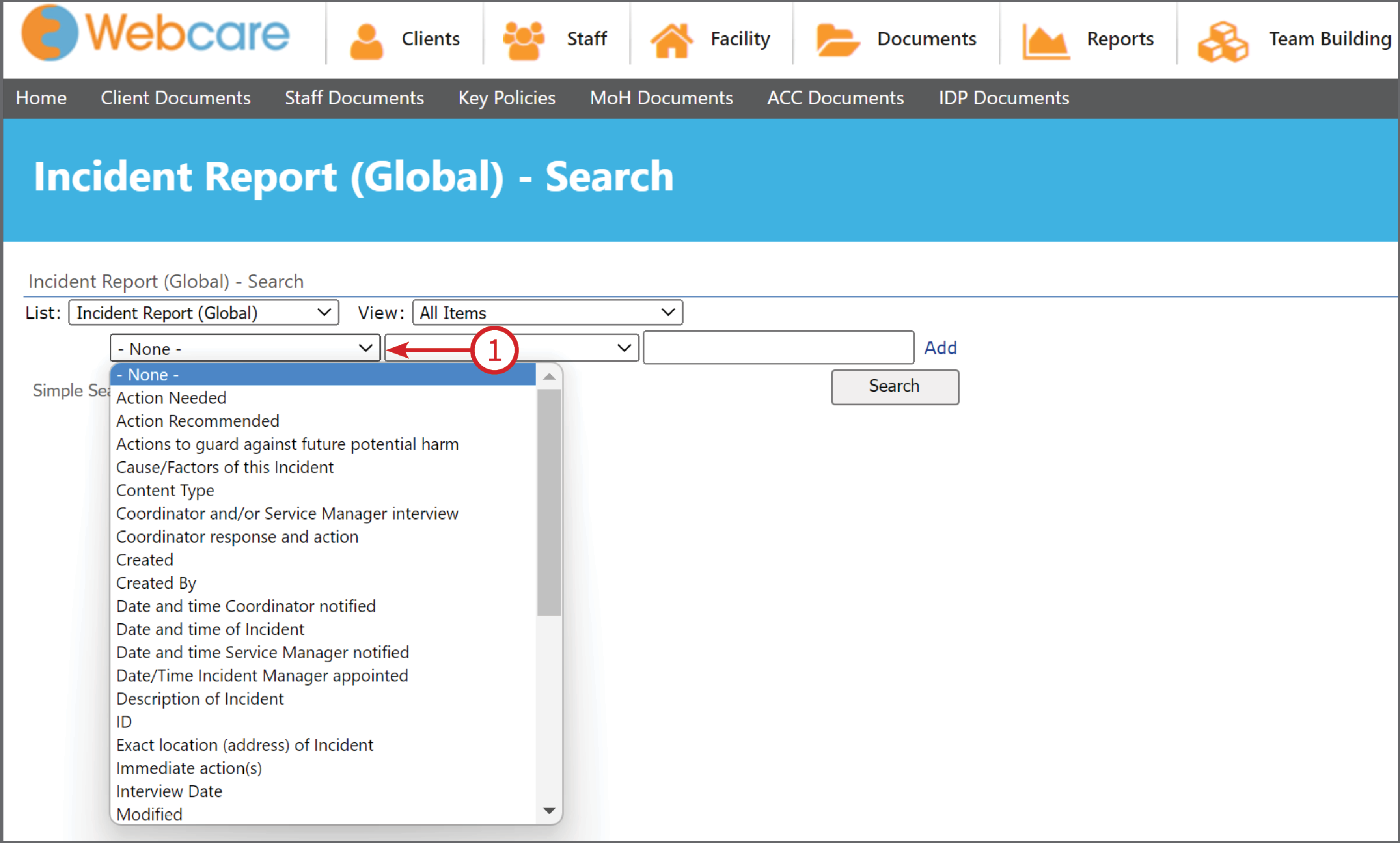
The second drop down menu Filter box (2), will give you options that link the first and third Filter box. The options here are also dependent on what you have selected in the first Filter box.
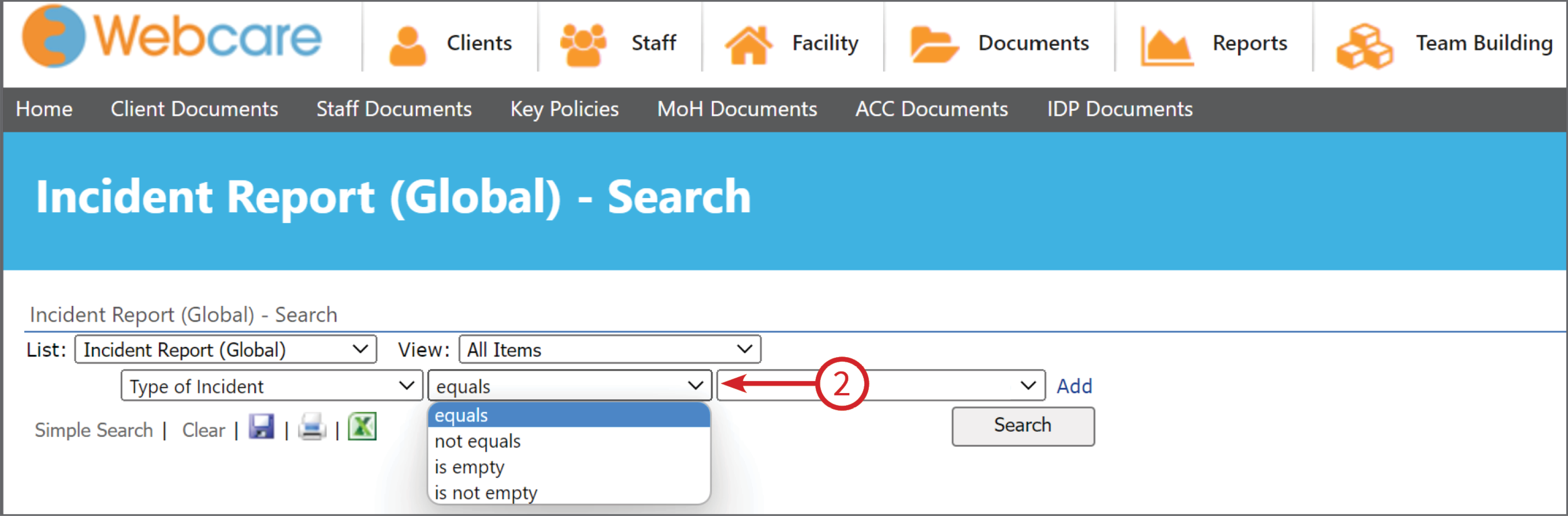
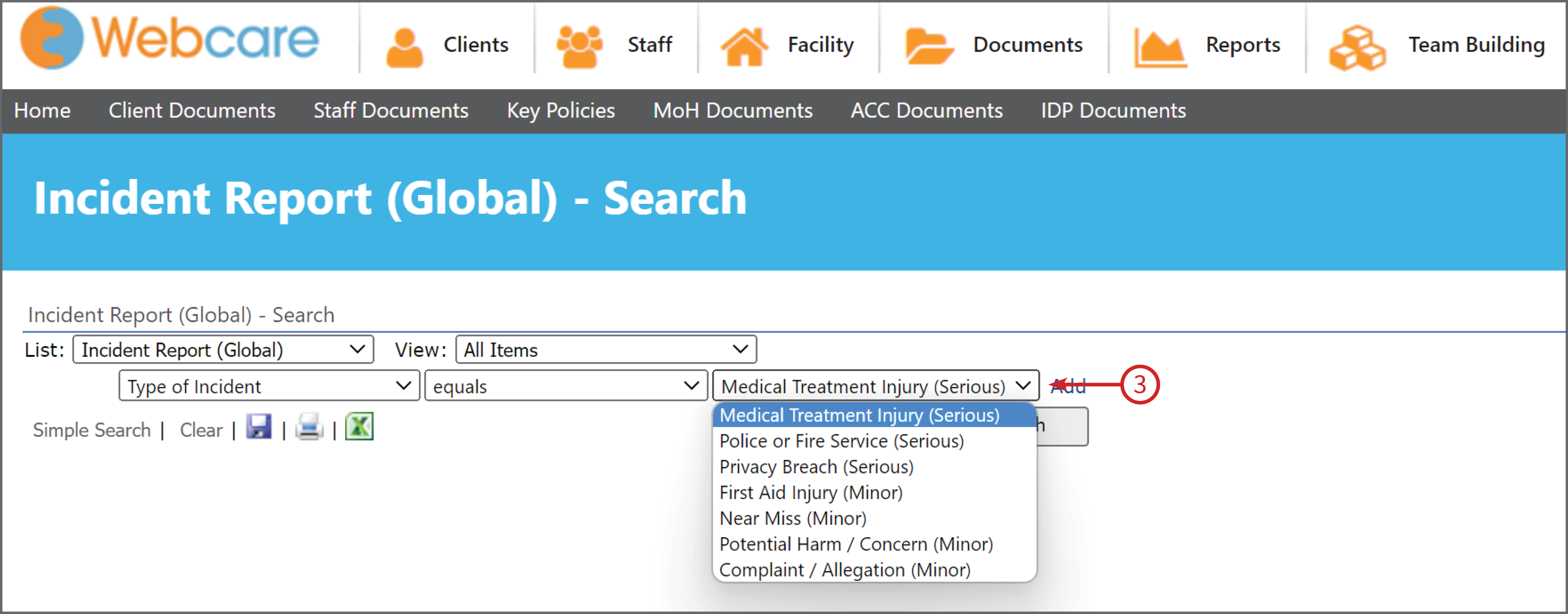
The third Filter box (3) will have the options relating to your first selection. It will either be a drop down menu or a text field so you can enter your own search word/date etc.
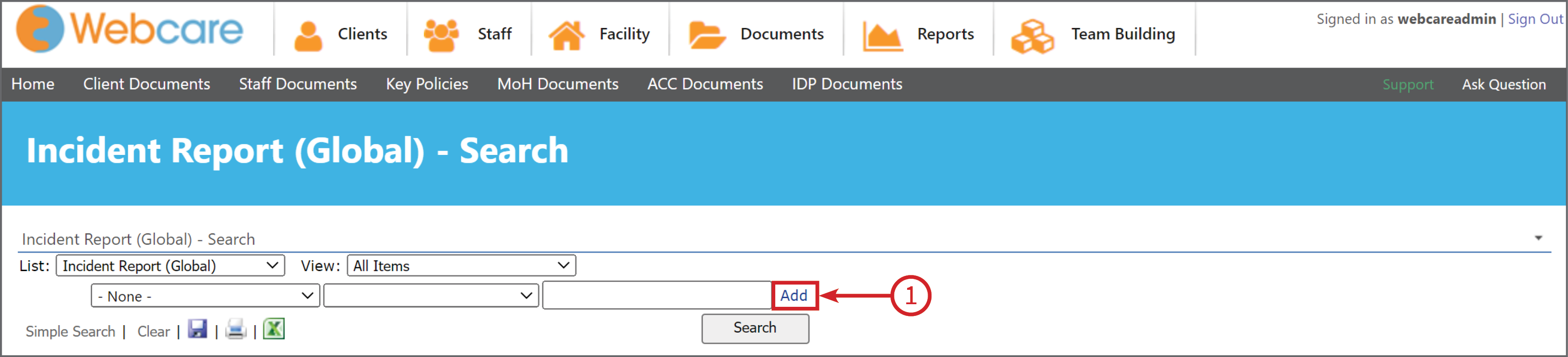
Once you have made your selections, you will see the Add (1) button.
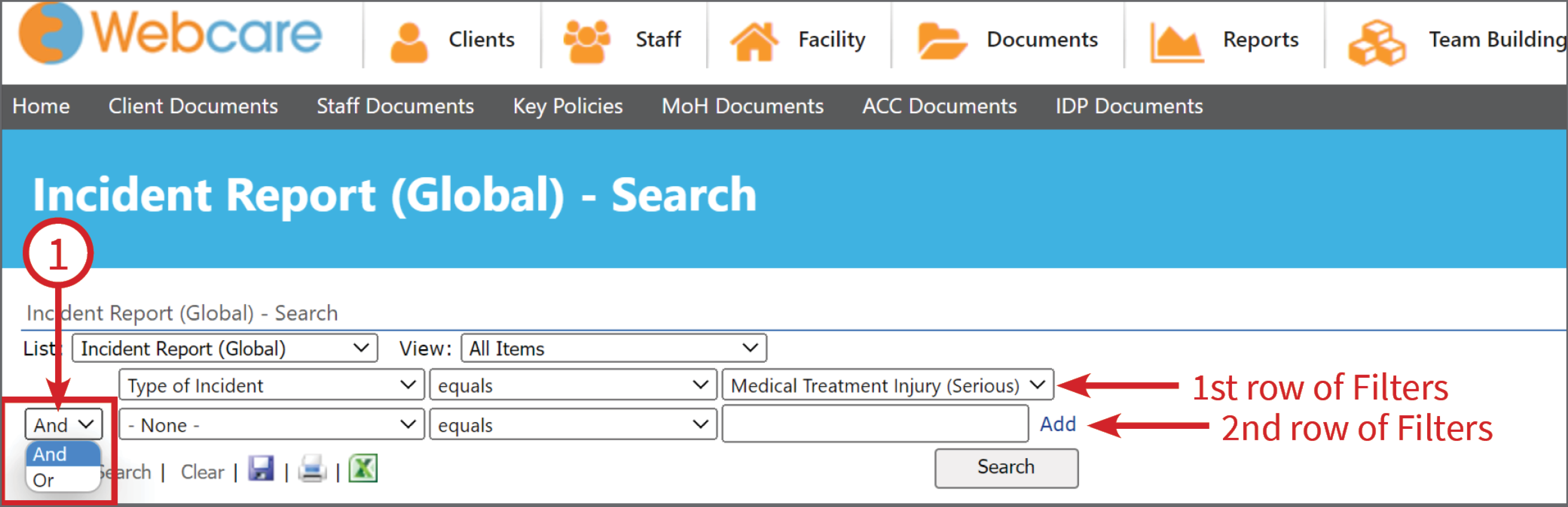
This will add another row of filters to further refine your search results. It gives you the same options as the first row.
You can decide how you want the first row of filters and the second row of filters to relate to each other by selecting And/Or (1). You can add as many rows as you like.
In the example below, we have added two more lines to define the date parameters.
Once you have the filters selected, click on Search (1), this will bring up the results.
Printing and Exporting your Global Report
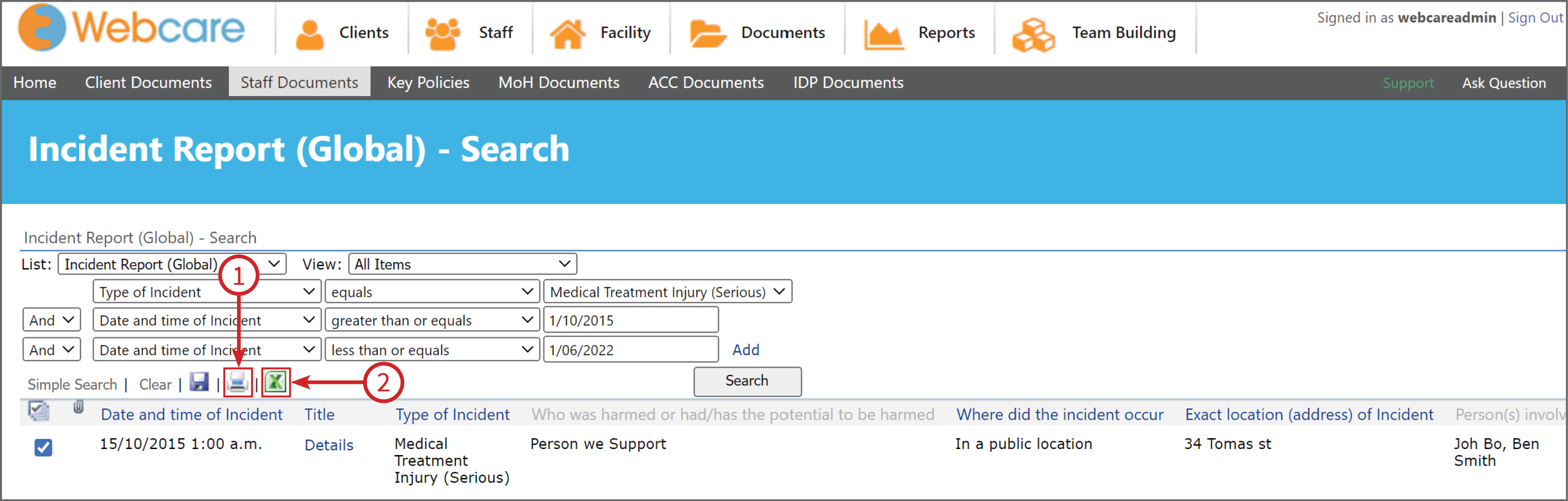
Once the report is generated, you can tick the boxes next to a result to include it in the report. Or just tick the one at the very top to include all results.
You can then Save, Print or Export the Report.
To start again, just click Clear.

For Print (1): there is usually a print template set up for each organisation.
For an Excel (2) export: the file is exported in an XML format. This is different from all our other reports which are exported directly into XLS or CSV format.
Viewing the report in Excel
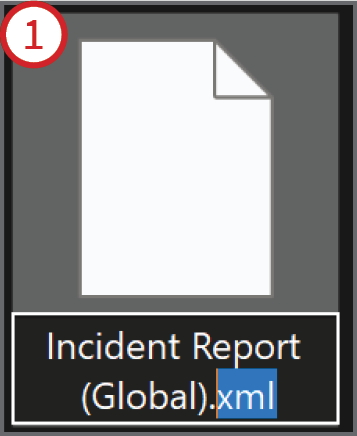
Option 1: You will need to rename the file from .xml to .xls.
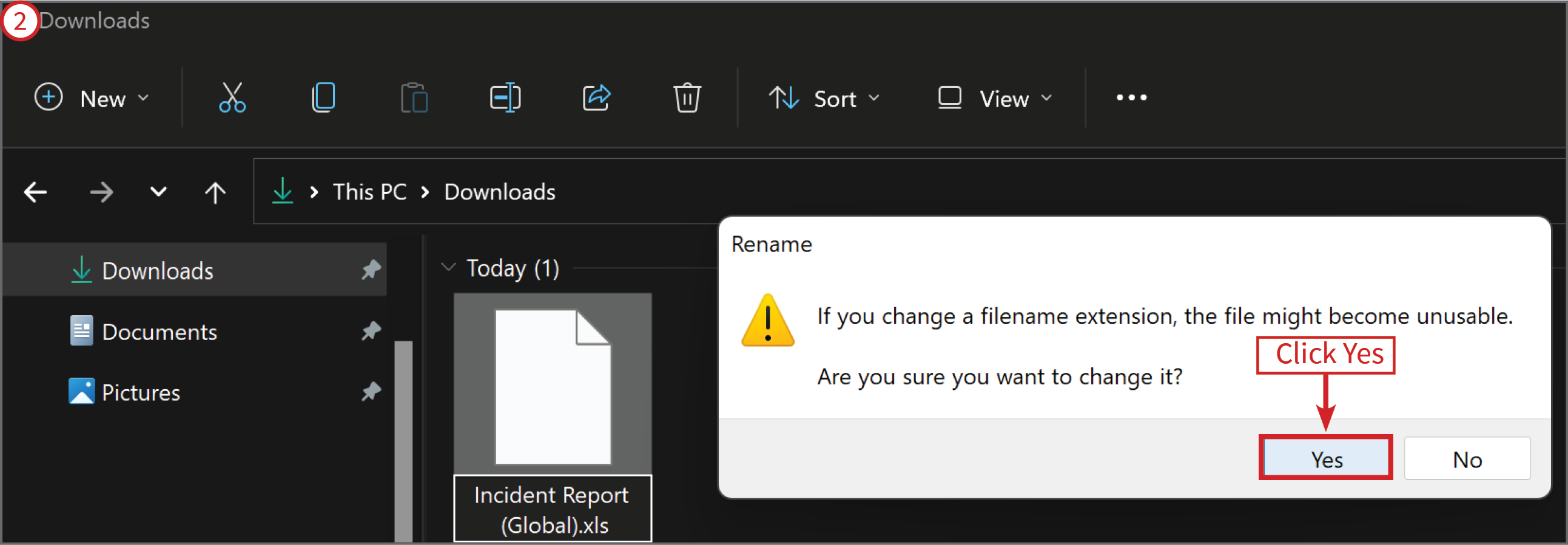
Simply highlight the .xml on your downloaded document file and type in .xls.
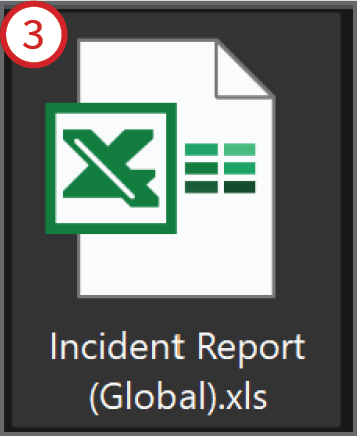
A Rename warning will pop up, just click Yes. The file image will change and you will now be able to double click on it to open the file in Excel.
Option 2: is to open Excel first and then open the XML file.
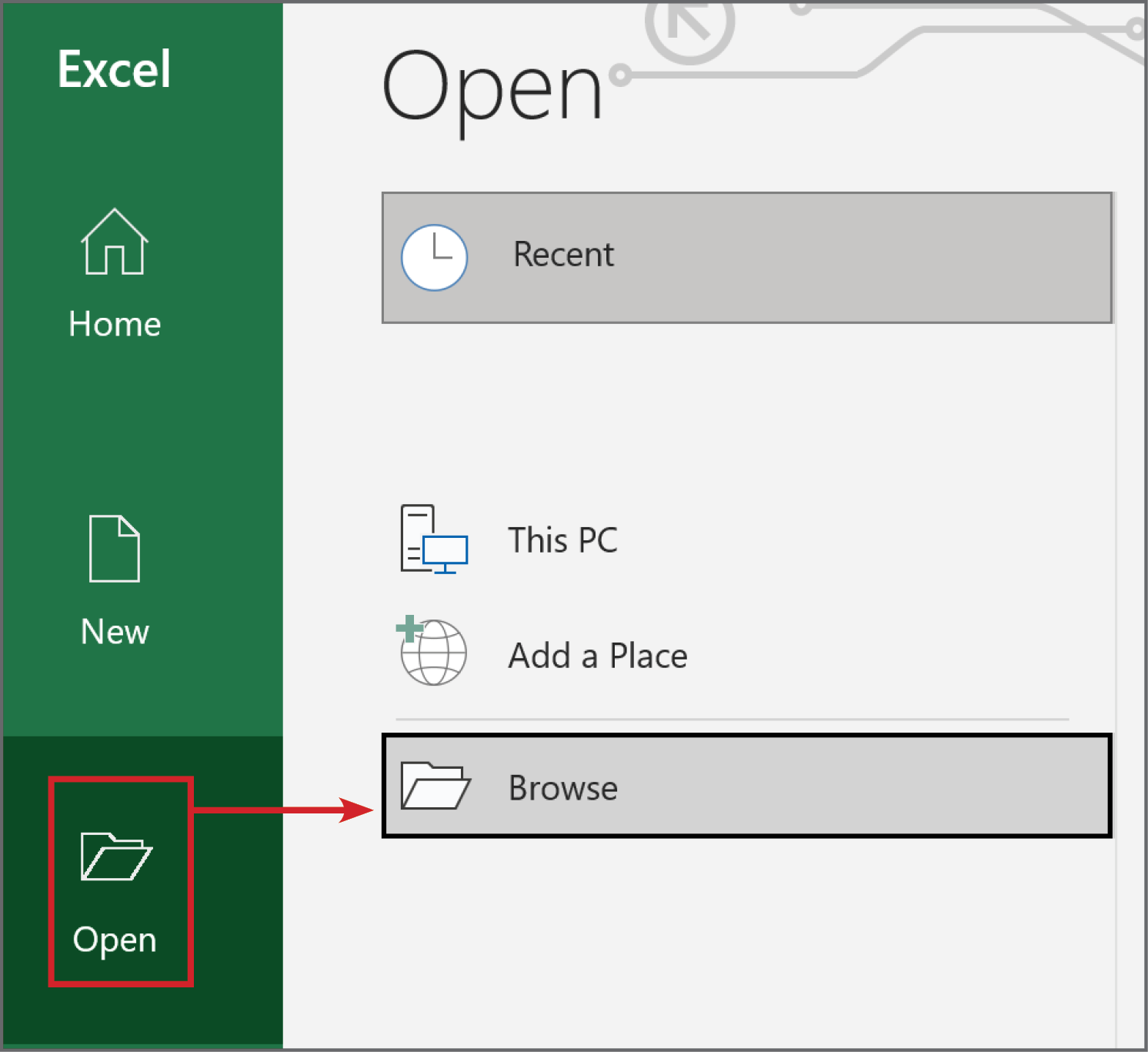
Open Excel, select Open then Browse
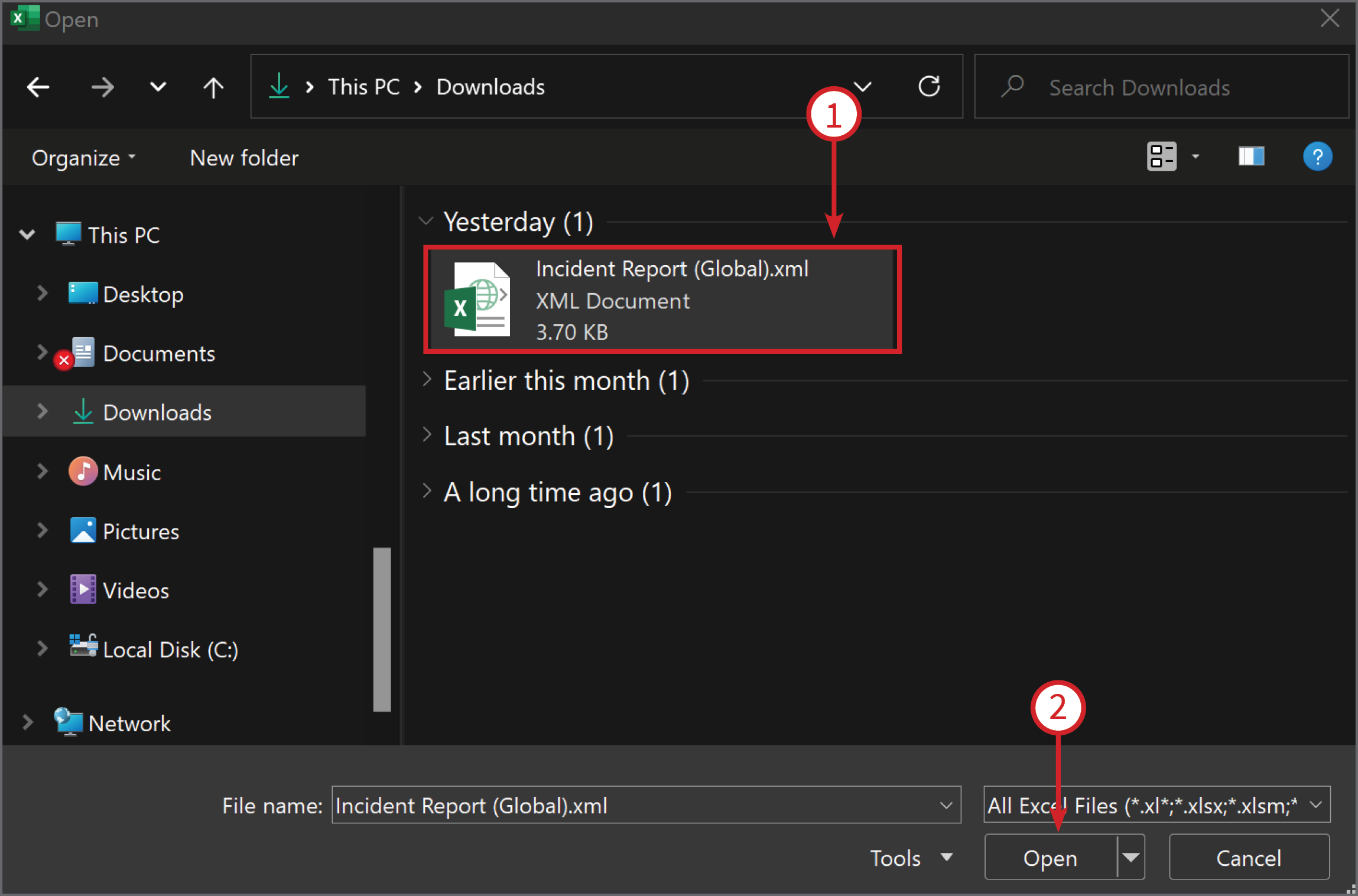
Find the downloaded XML document (1), select it and Open (2) it.
You may have a warning pop up, this is ok and can be safely ignored.
Just click Yes or Enable Editing (1) depending on the warning.
