To Create a Report Template
Select Reports on the Menubar (where is Menubar?).

Once in Reports, click on Client Reports on the submenu bar (what is submenu bar?).

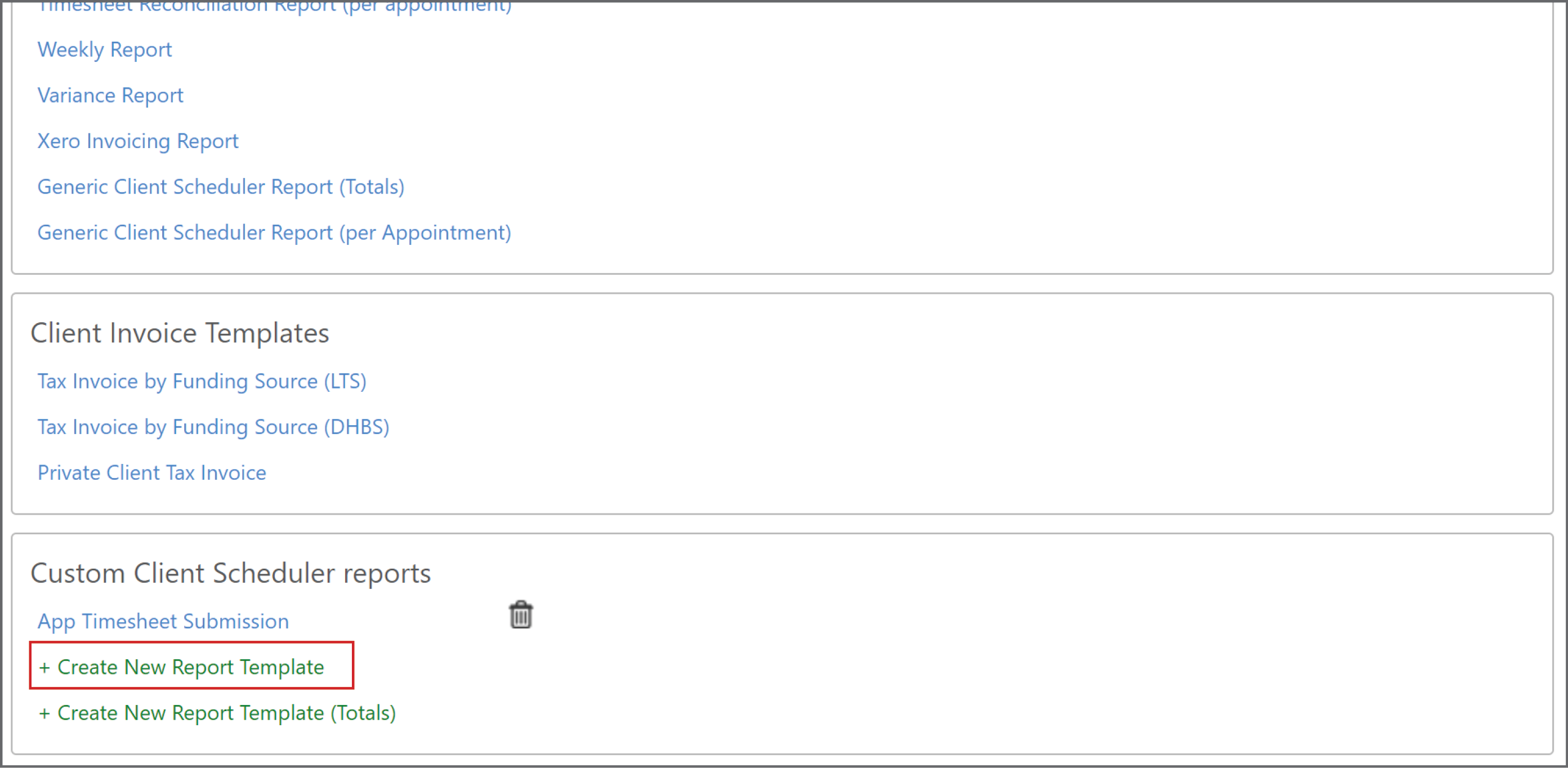
In Client Reports, scroll down until you get to Custom Client Scheduler reports then click on Create New Report Template.
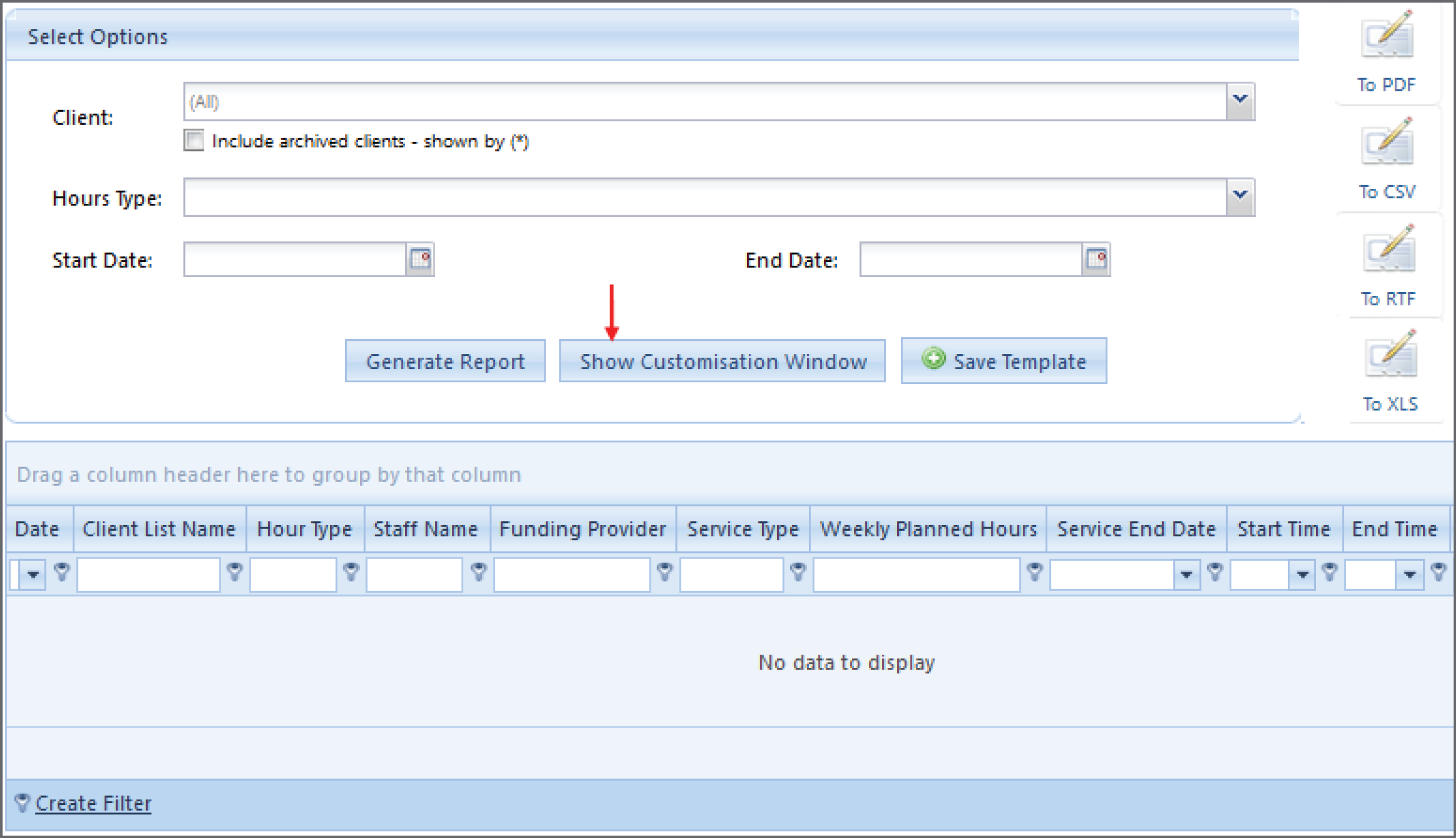
Once you have opened a New Report Template, Click on Show Customisation Window to bring up the Field Chooser, this is a list of fields you can add to your template.
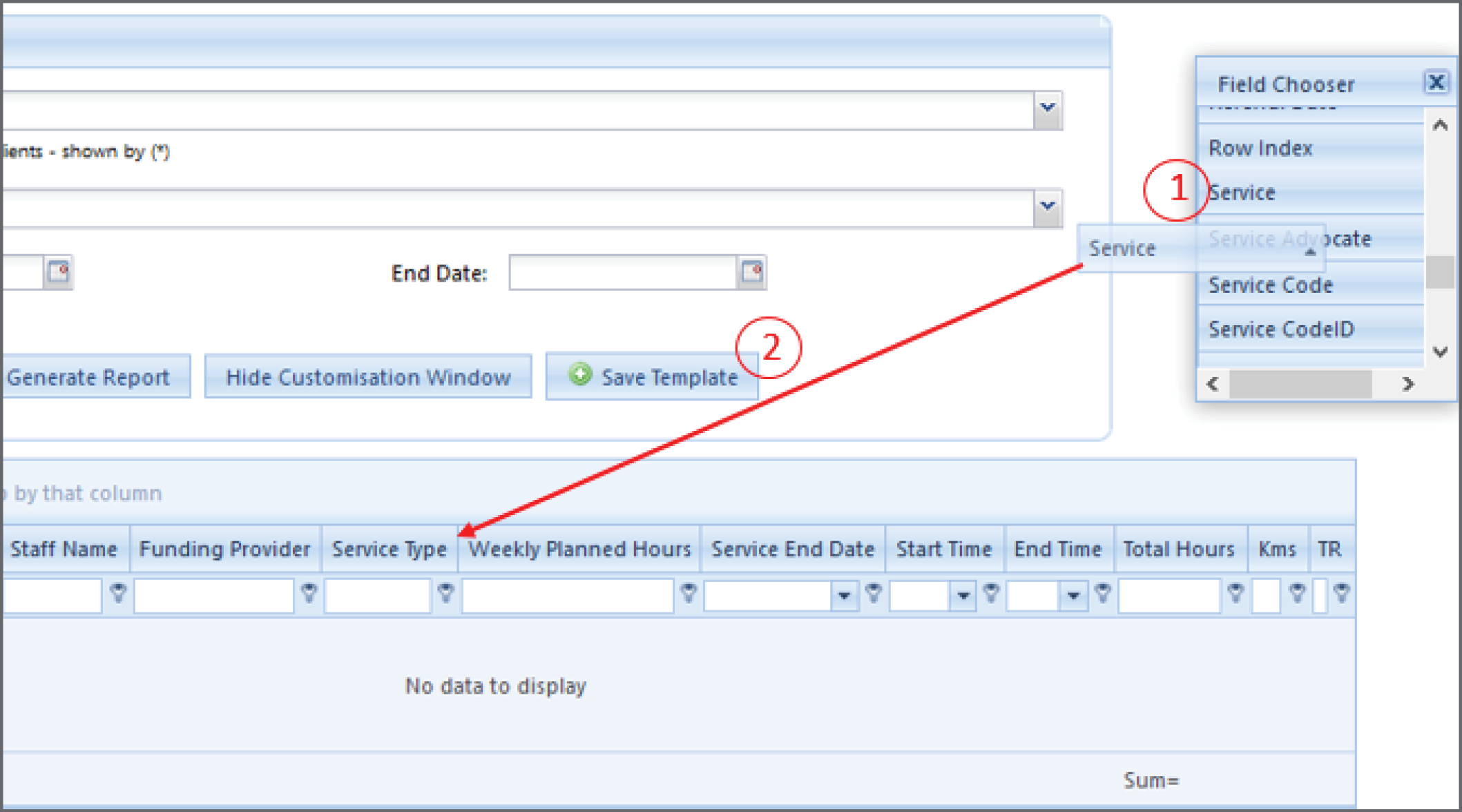
From the "Field Chooser" scroll down until you get to the fields(s) you would like to add and "drag and drop" the new field onto the report template.
To learn more about how to customize the report - click here
Once you have made your changes click Save Template to save the template. Clicking save will bring up a box for you to name and add a description of your new report then just click "Save".

Now when you go to the Custom Client Scheduler reports in the Clients Reports, your new template will be saved there.
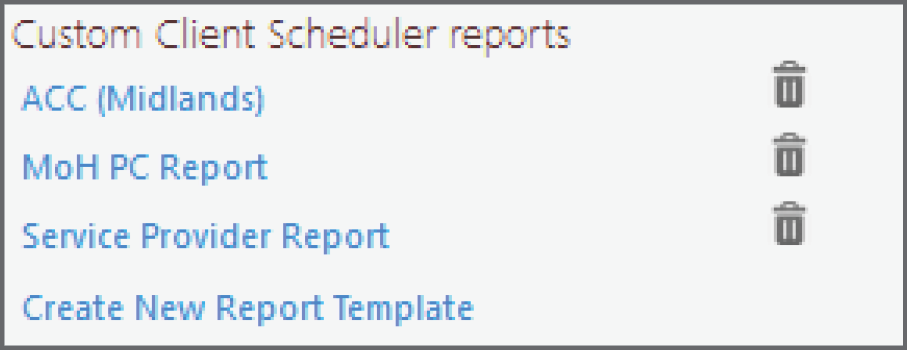
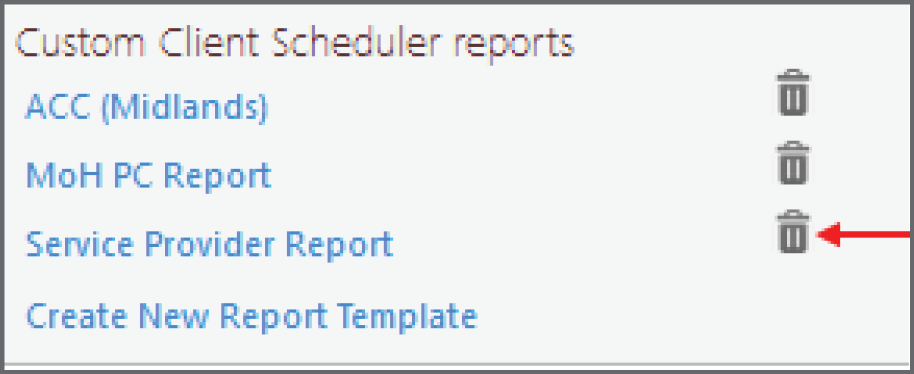
If your report is wrong or needs to be changed click on the rubbish bin next to your report and then create a new template.