
This article contains information regarding;
Accessing Documents Library | Downloading a Document | Deleting a Document | Uploading a Document
Uploading Multiple Documents | Moving Documents between Folders
Editing Document Properties | Creating a New Folder
The below help video goes over accessing documents, downloading a document, deleting a document and uploading single or multiple documents.
Accessing Documents Library
There are two main Document libraries which have different purposes.
1. Client, Staff or Facility Document Library
Each Client, Staff and Facility has their own documents library. These individual libraries should contain documents specifically related to that client, staff of facility. The step to access individual documents library is similar for client, staff and facility. For simplicity, the following steps shows how to access a Client's documents library:
a. To access client's documents library, select Clients on the main menu. If you need to access staff or facility documents, please select Staff or Facility from the main menu (what is menubar?).
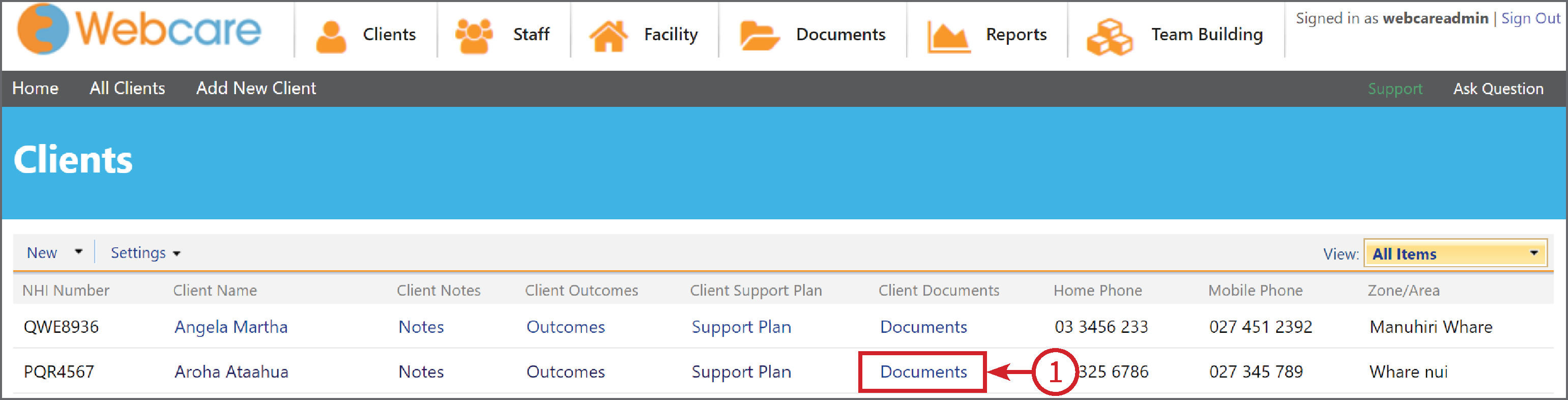
b. Once you are in Clients, scroll down until you get to the client you want to upload the documents to. After this, select the documents by clicking on Documents (1) as shown below. Selecting documents will bring up the list of all of the documents for this client.
2. Documents Library for the organisation
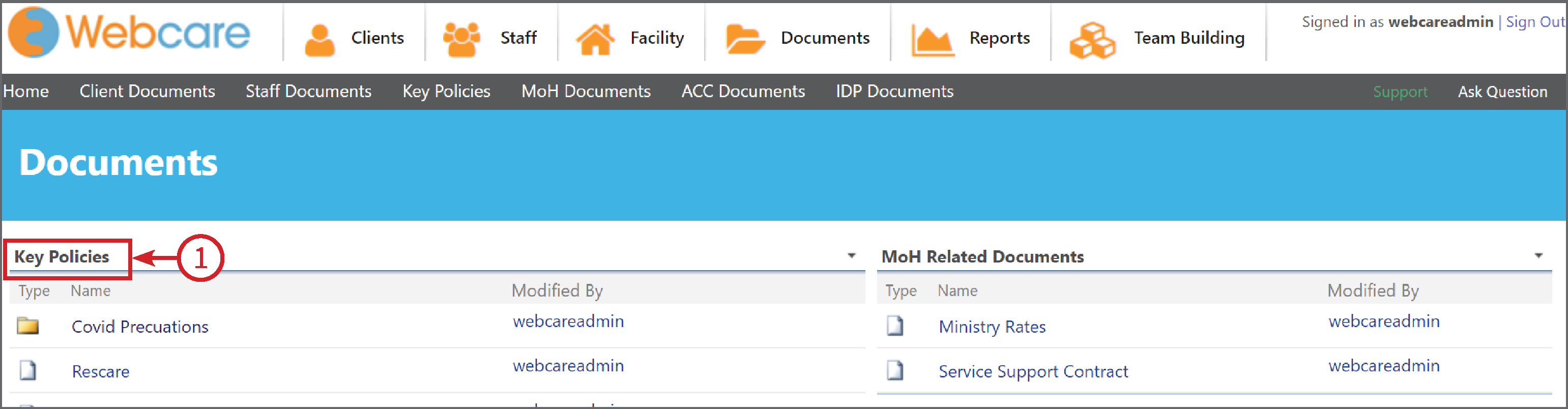
The documents which are common to the organisation, and usually in the Documents section. To access common documents, select Documents on the main menu. This section will show all the common documents libraries for the organisation.

NOTE: Webcare adds these document library's specific to each organisation's requirements, they can be different for each organisation.
To access an individual library, click on the heading of the library. For instance, to access the Key Policies document library, we will click on the Key Policies (1) heading.
Downloading a Document
To download a document, hover over the document you wish to download. A little orange arrow will appear. Click on the orange arrow (1) to see a set of options.
NOTE: The available options are based on the your current permissions on that document.
To download a document, use the dropdown menu and click on Send To (2). Next click on Download a Copy (3).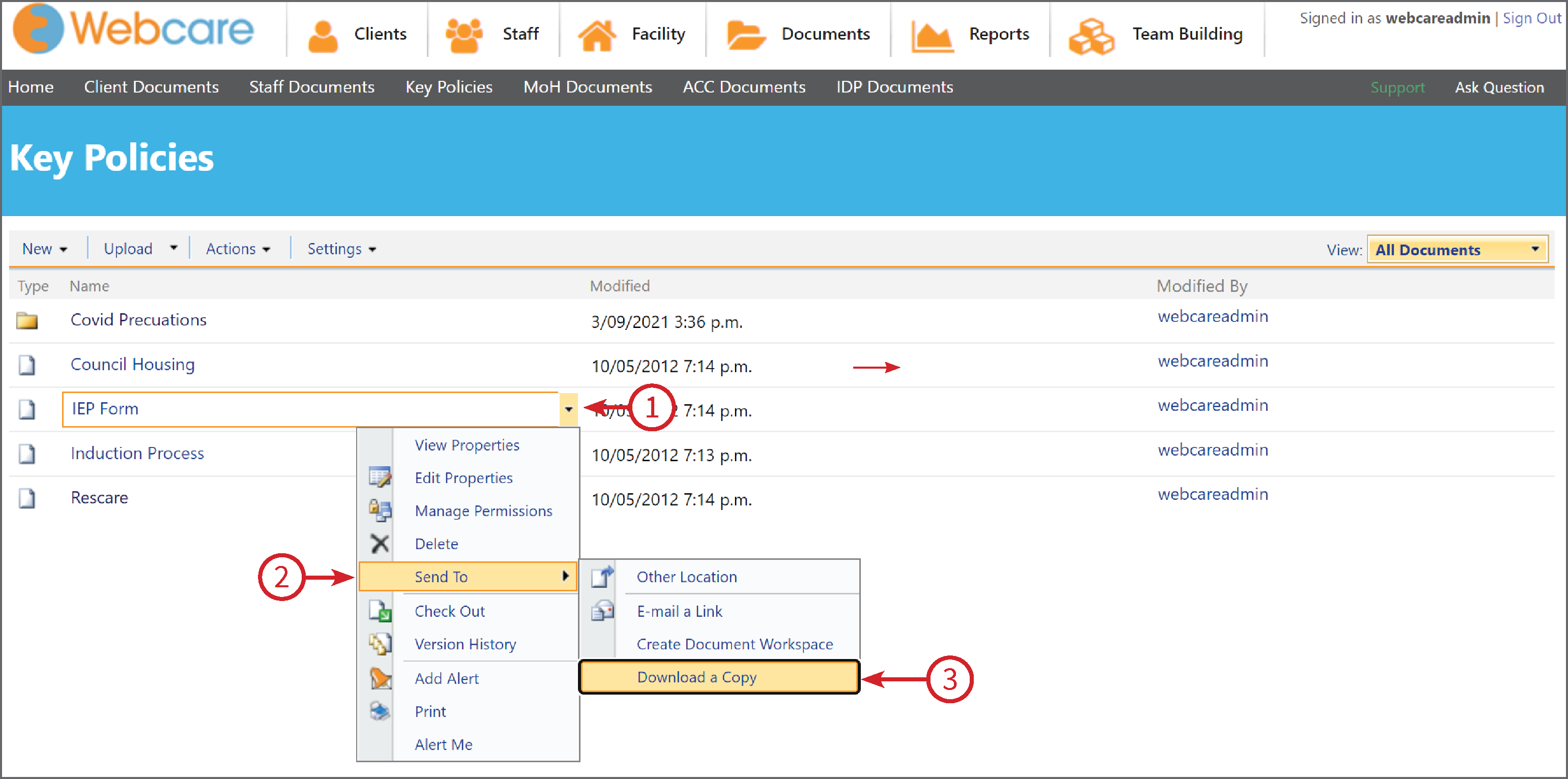
Deleting a Document
To delete a document, hover over the document you wish to delete, a little orange arrow (1) will appear. Click on the orange arrow to see a set of options. In the dropdown menu, click Delete (2).
Note: If the Delete option is not available, it may be due to your current permissions of that document. Please see your local administrator for permission access.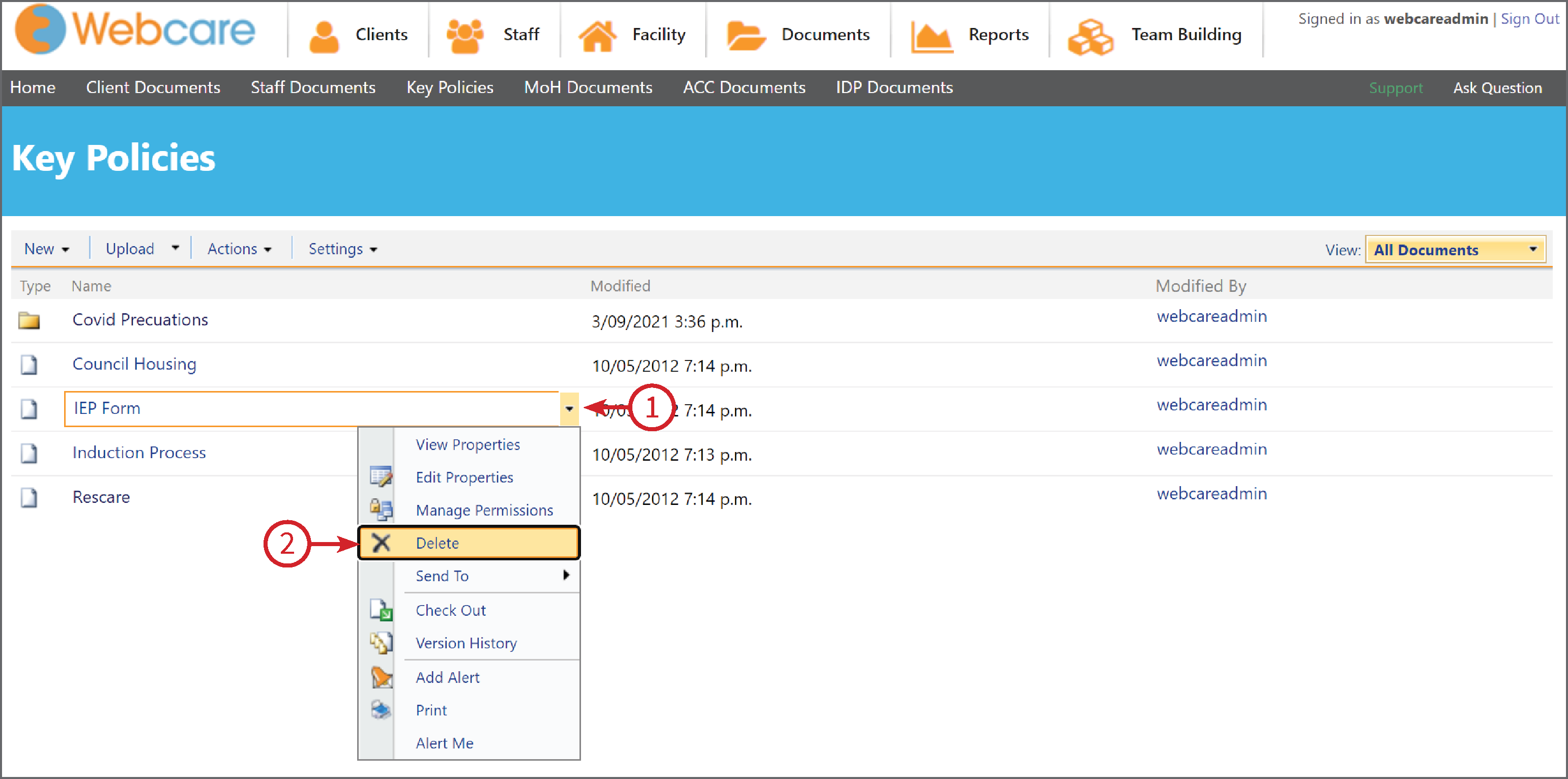
Uploading a Document
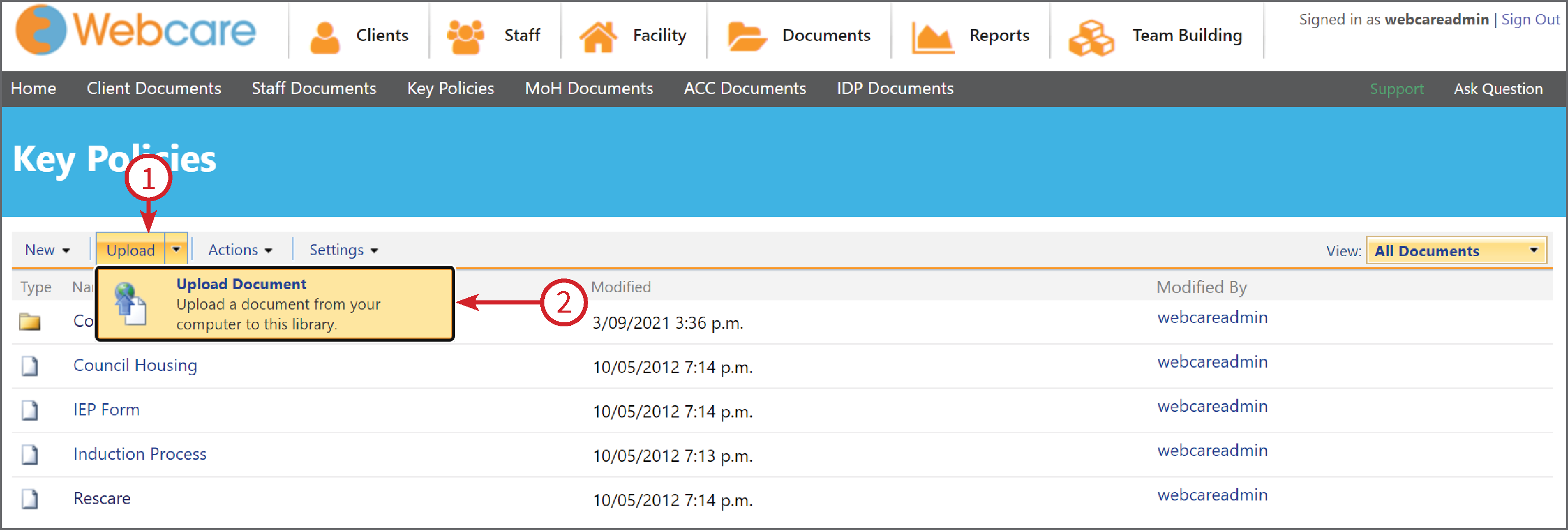
To upload a document, on the same screen as above, select Upload (1) - Upload Document (2).
Click Choose File (1) and then select the document from where it is currently saved. Once you have found the document on your computer, select the document with your mouse and double click on it (this will pick up the document) and then press ok. If required you can add Version Comments (2), then click OK (3).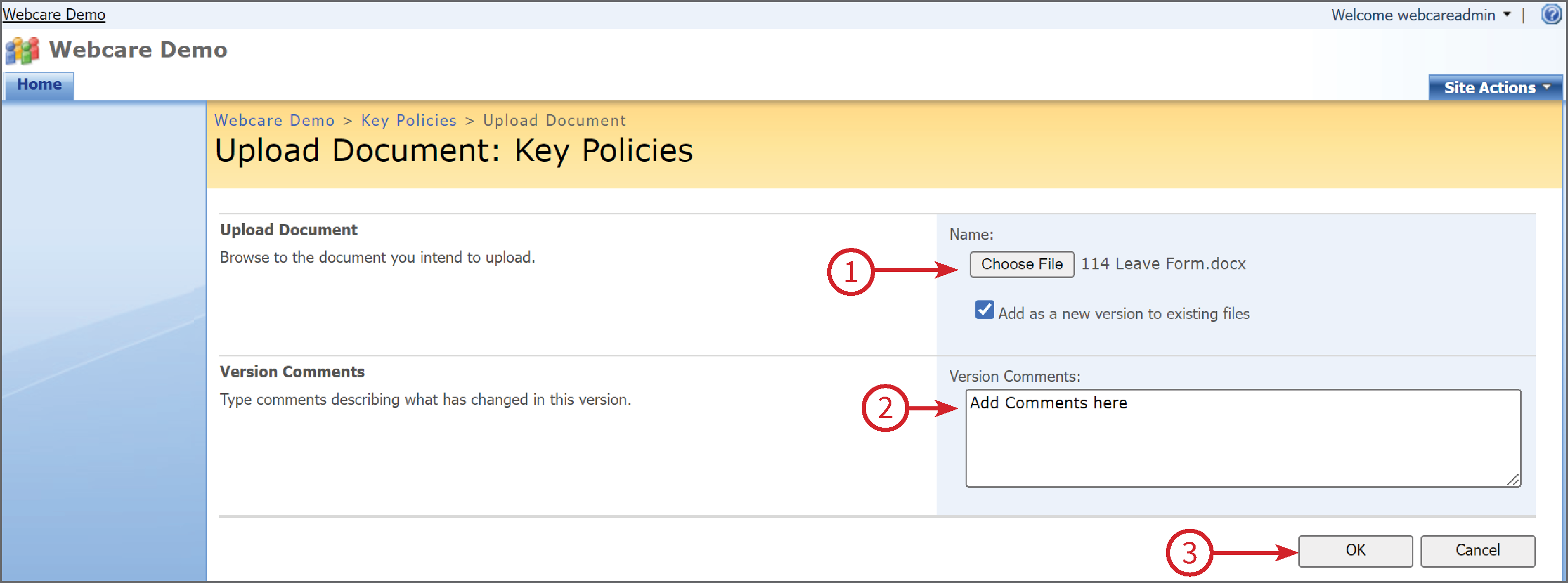
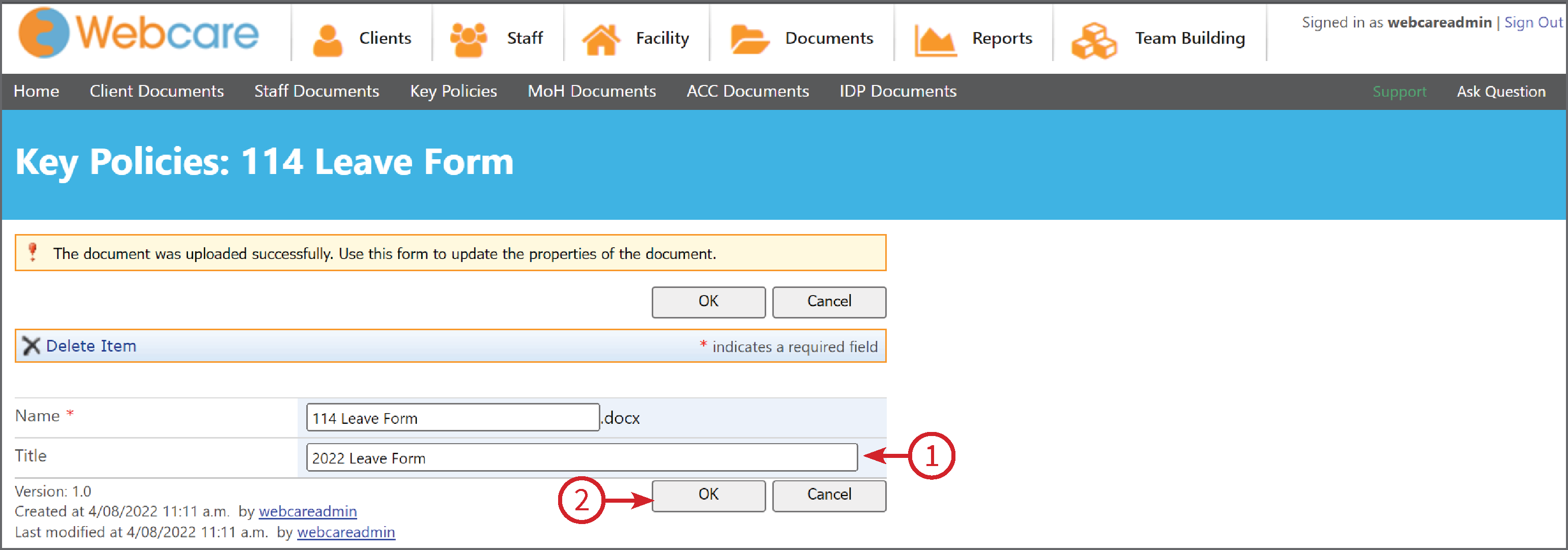
To save the document you need to give it a Name (1). Click on OK (2) to save.
Uploading Multiple Documents
Prerequisites
There are a few required prerequisites before being able to upload multiple documents
- The host machine (i.e. desktop, notebook, etc.) must have Internet Explorer (not Microsoft Edge), and NOT Firefox, Safari, Google Chrome etc, and,
- Webcare need to be added as a trusted site,
- You must be signed in automatically when you log in.
1) Select Client on the menubar (what is menubar?). Once you are in clients, scroll down until you get to the client you want to upload the documents to. After this, select the documents by clicking on Documents as shown below. Selecting documents will bring up the list of all of the documents for this client.
2) Select Upload from the submenu bar ( what is a submenubar?). First, click on the arrow next to Upload (1), then select Upload Multiple Documents (2).

3) Either click on Browse for files.

Or, "drag and drop" files. To drag and drop the files. Click on the files from where they are located, keep you finger on the mouse and let go once it is over the upload page.
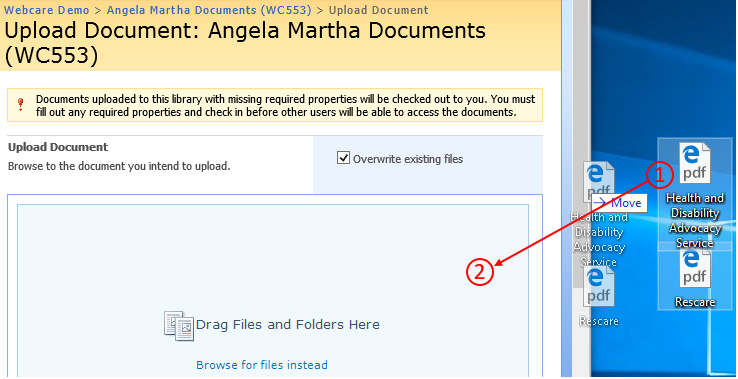
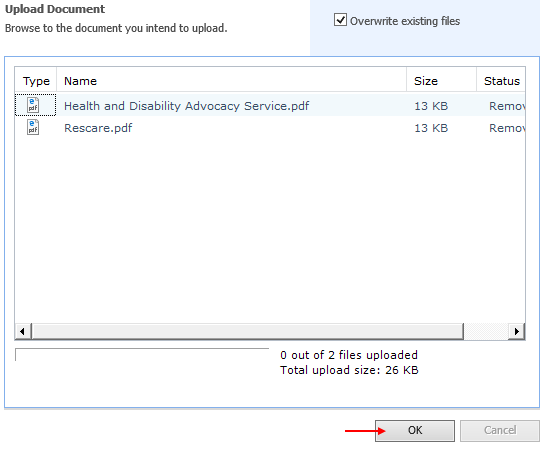
4) Once you have clicked browse for files, select the files you would like to upload and click "OK".
Moving Documents between Folders
Prerequisites
There are a few required prerequisites before being able to upload multiple documents
- The host machine (i.e. desktop, notebook, etc.) must have Internet Explorer (not Microsoft Edge), and NOT Firefox, Safari, Google Chrome etc, and,
- Webcare need to be added as a trusted site,
- You must be signed in automatically when you log in.
In the documents library (for Client, Staff, Facility or Documents section), select Actions > Open with Windows Explorer

This step will open the documents stored in your document library as a separate folder in your Windows computer. Once the document libraries are opened in different folders, the documents can be moved between these folders.

For instance, to move a document 'Rescare.pdf' from Other Documents library to MoH Related Documents:

We will open Other Documents and MoH Related Documents libraries in different folders using Open in Windows Explorer option. Then, we can move the required files between folders.

Editing Document Properties
Either in a Clients Documents or the Documents Library hover over the document you wish to edit, a little orange arrow (1) will appear. Then select Edit Properties (2).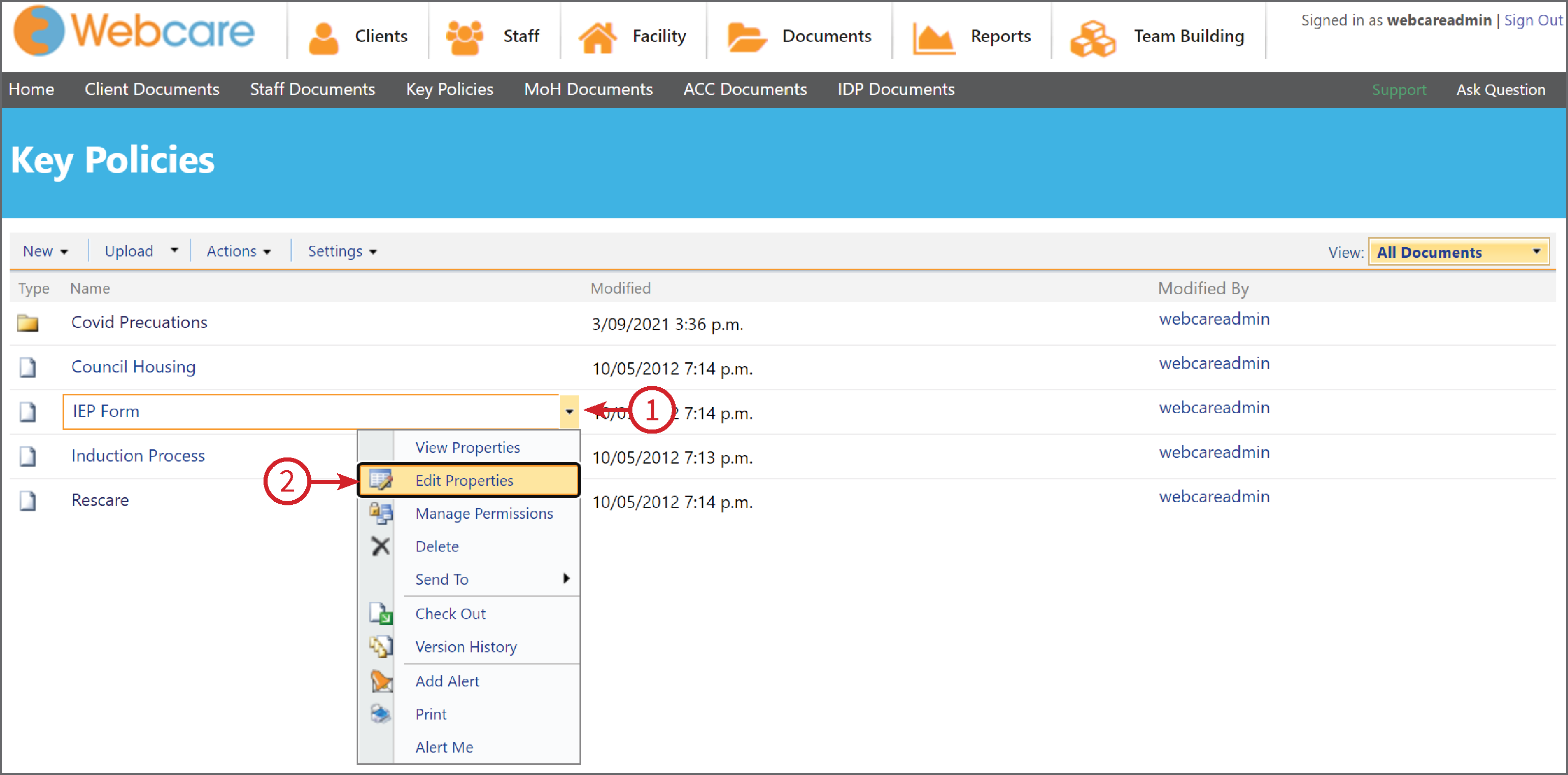
Creating a New Document Folder
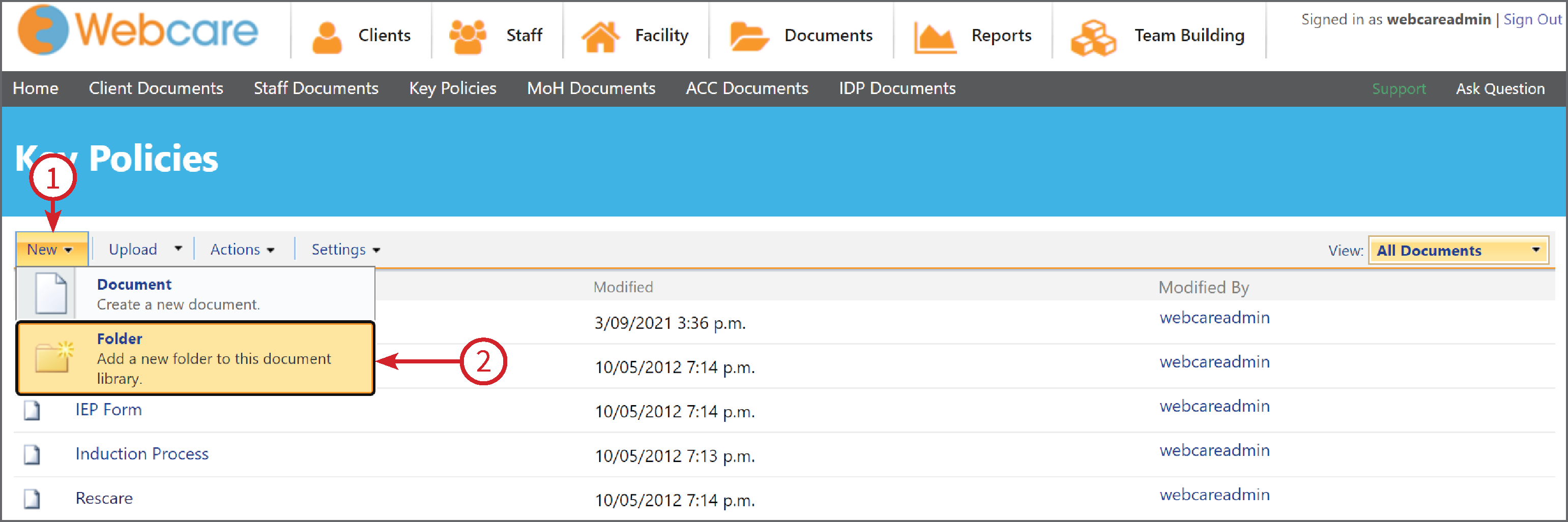
Either in a Clients Documents or the Documents Library you can select New (1) on the sub menu bar. On the drop down bar select Folder (2).
3) To save the document you need to give it a name. If required you can also add notes from this step. Click on OK to save.