This article contains information regarding;
Creating a shift | Creating a shift template
Creating a Shift
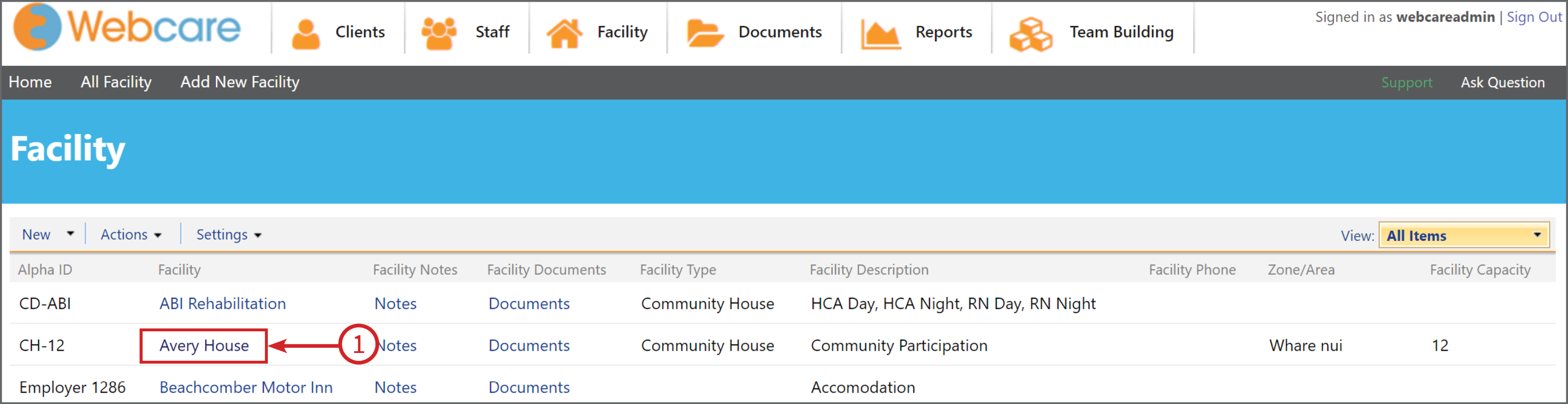
To create a shift, click on Facility along the main Menu bar

Then click on the name of a Facility (1)
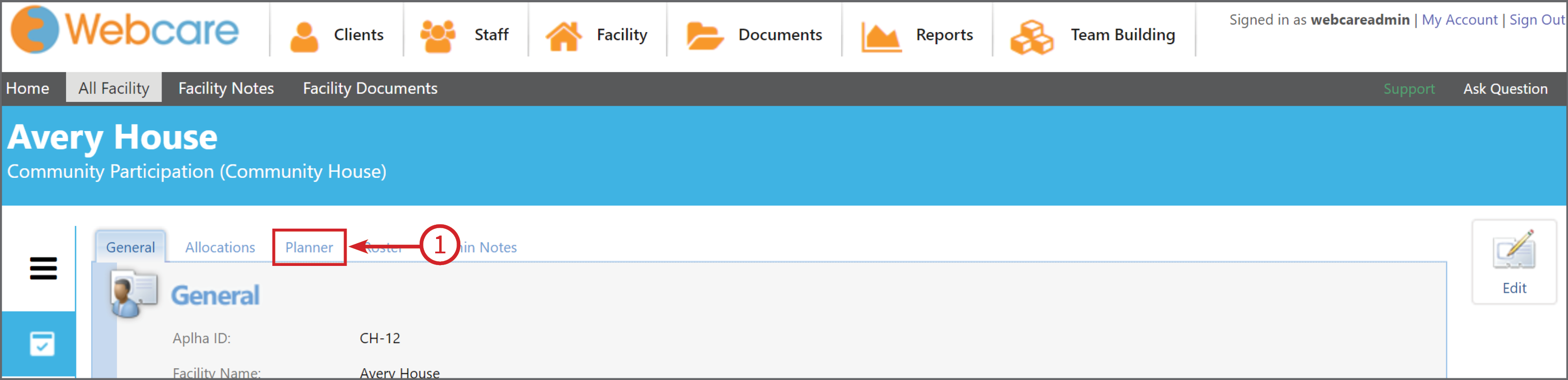
Once in the facility click on the Planner (1) tab.
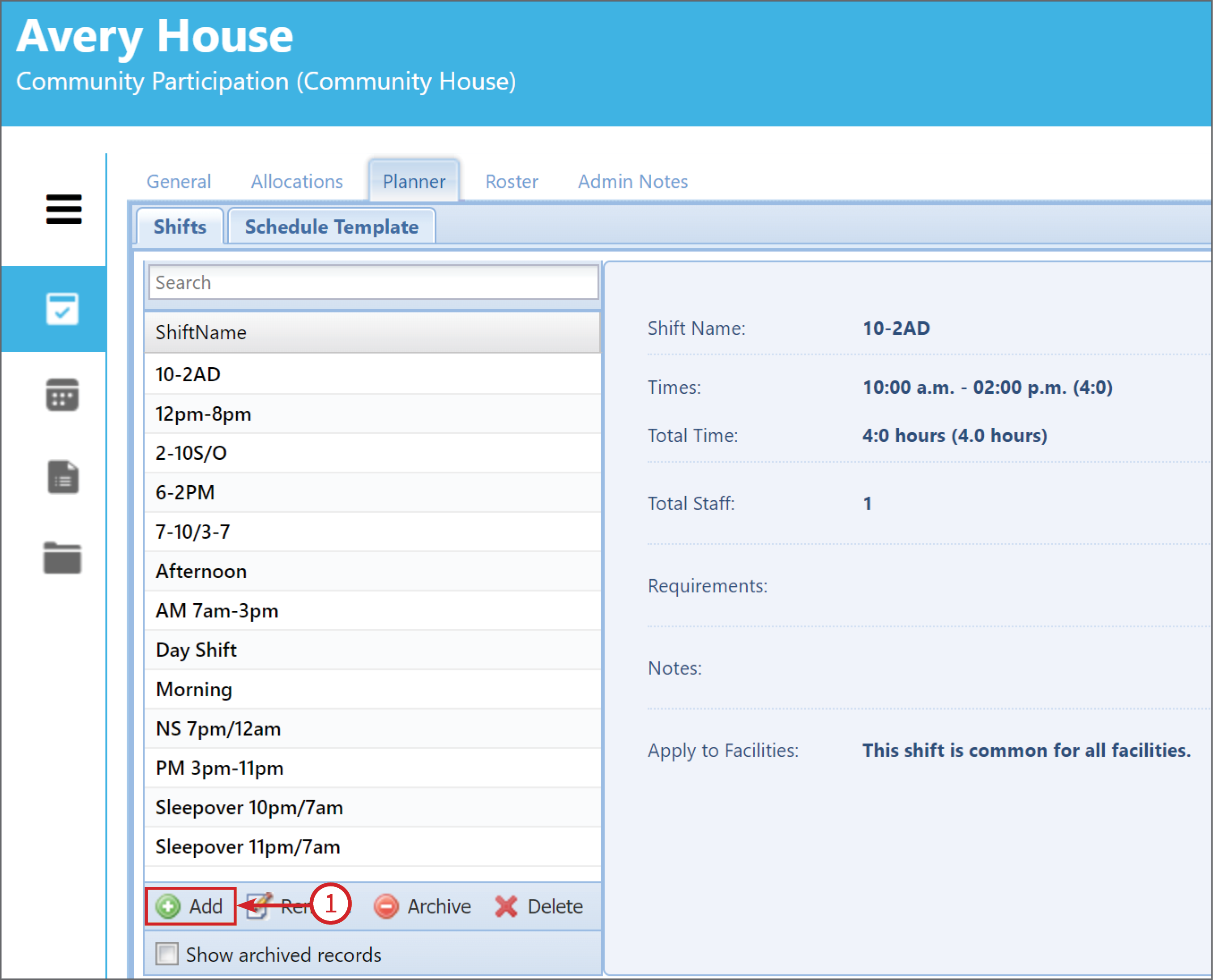
To add a shift click on the +Add (1) button at the bottom of the page.
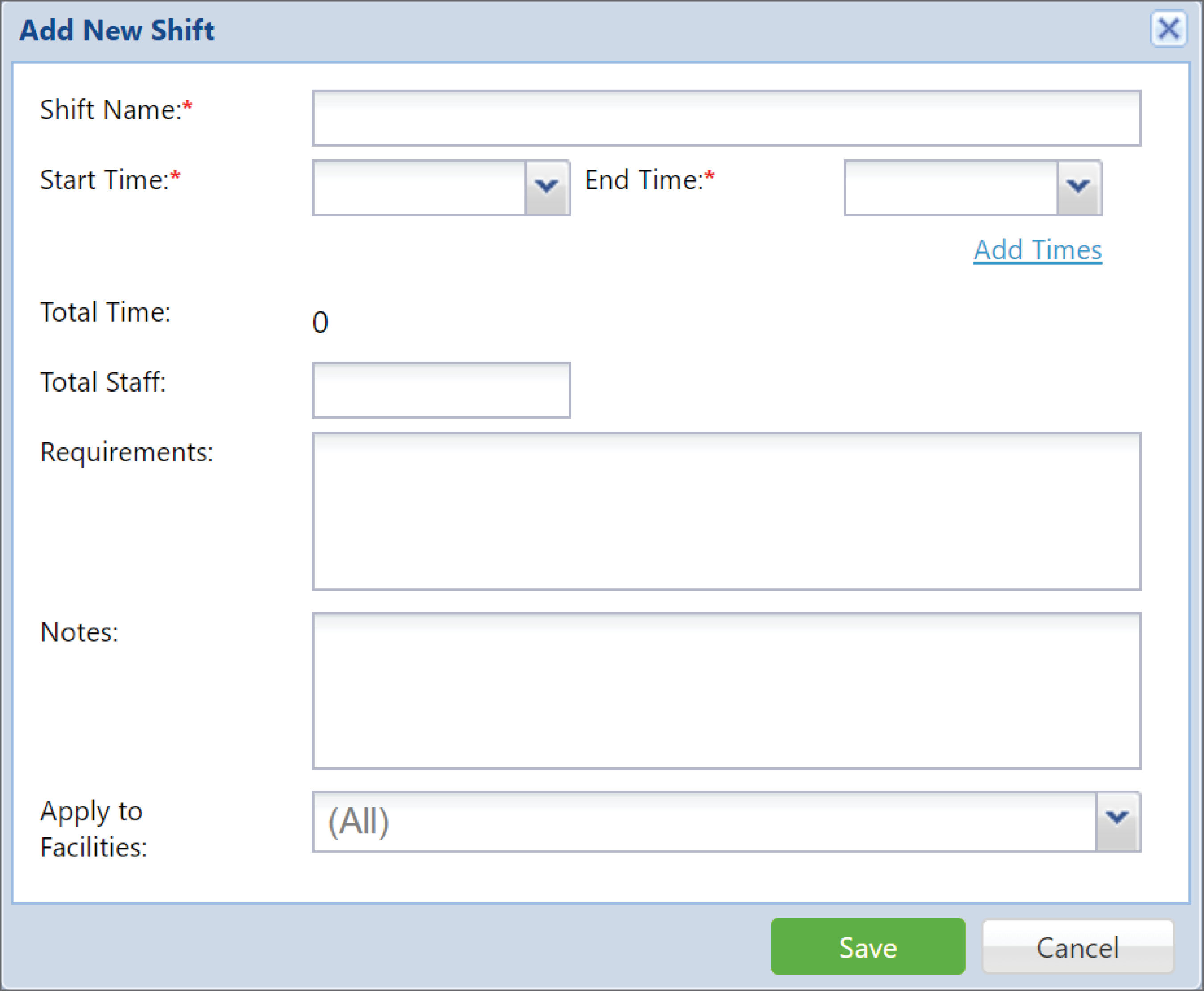
Then enter the details of the shift which you are creating and to add them to all of the facilities click on save.
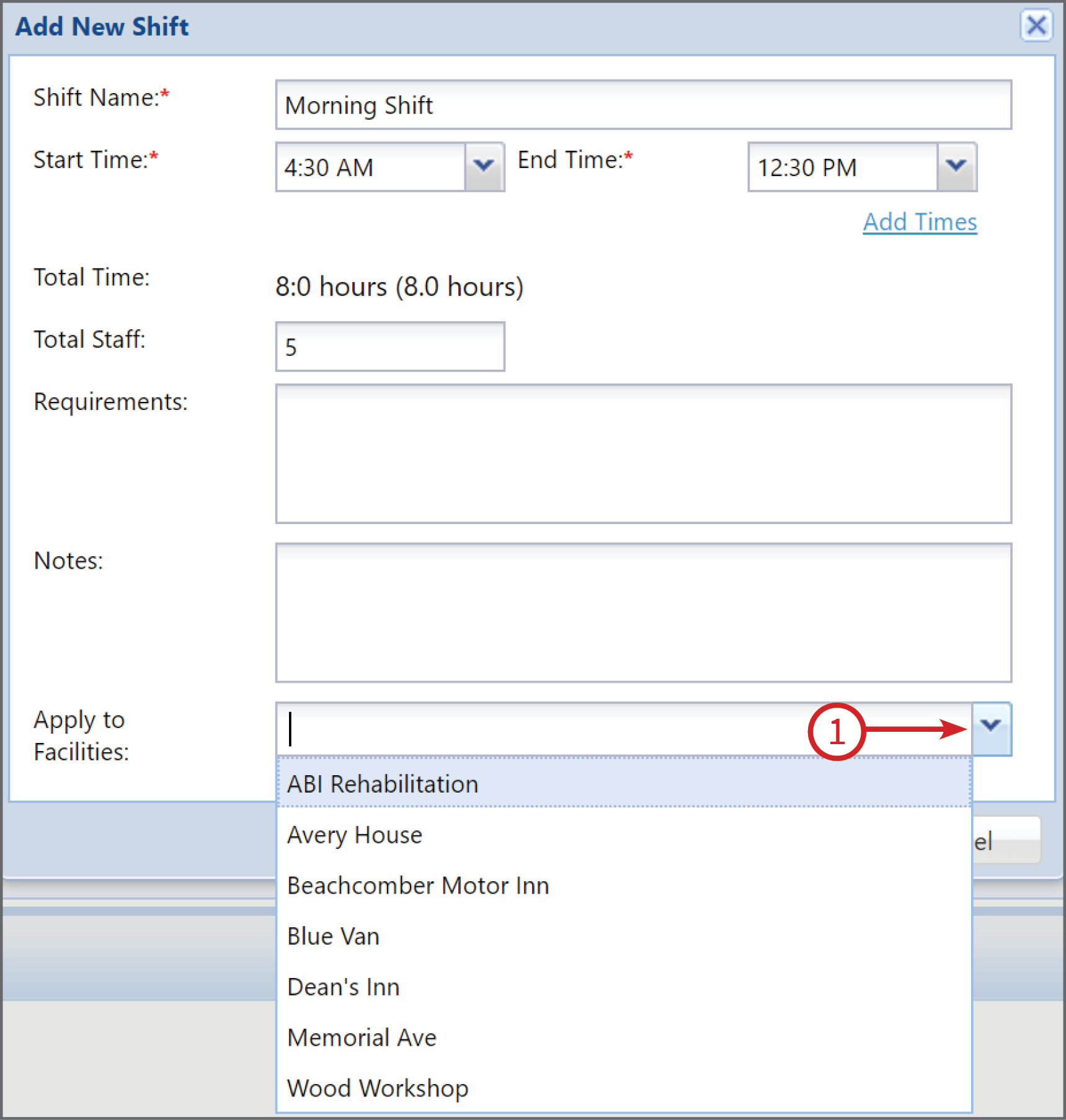
To add to a specific house click on the arrow next to the Apply to Facilities (1) button and click Save.
Creating a Schedule Template
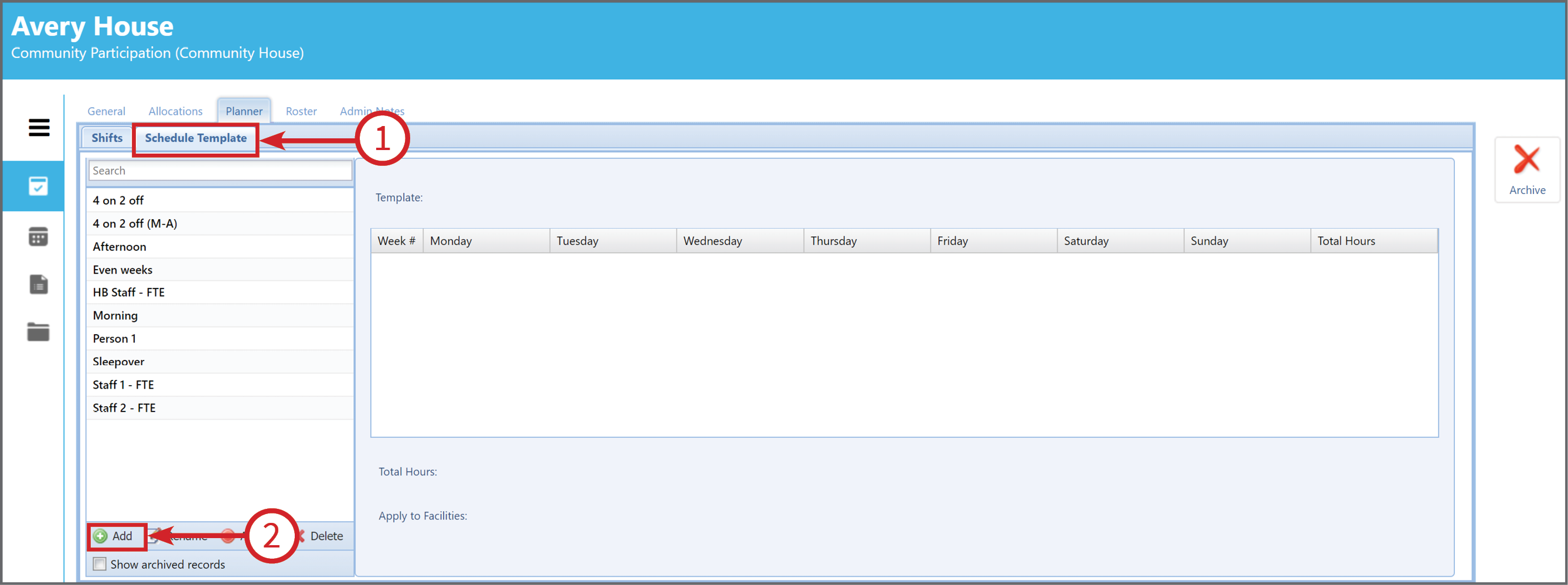
To add a schedule first click on the Schedule Template tab (1) then click on the +Add (2)
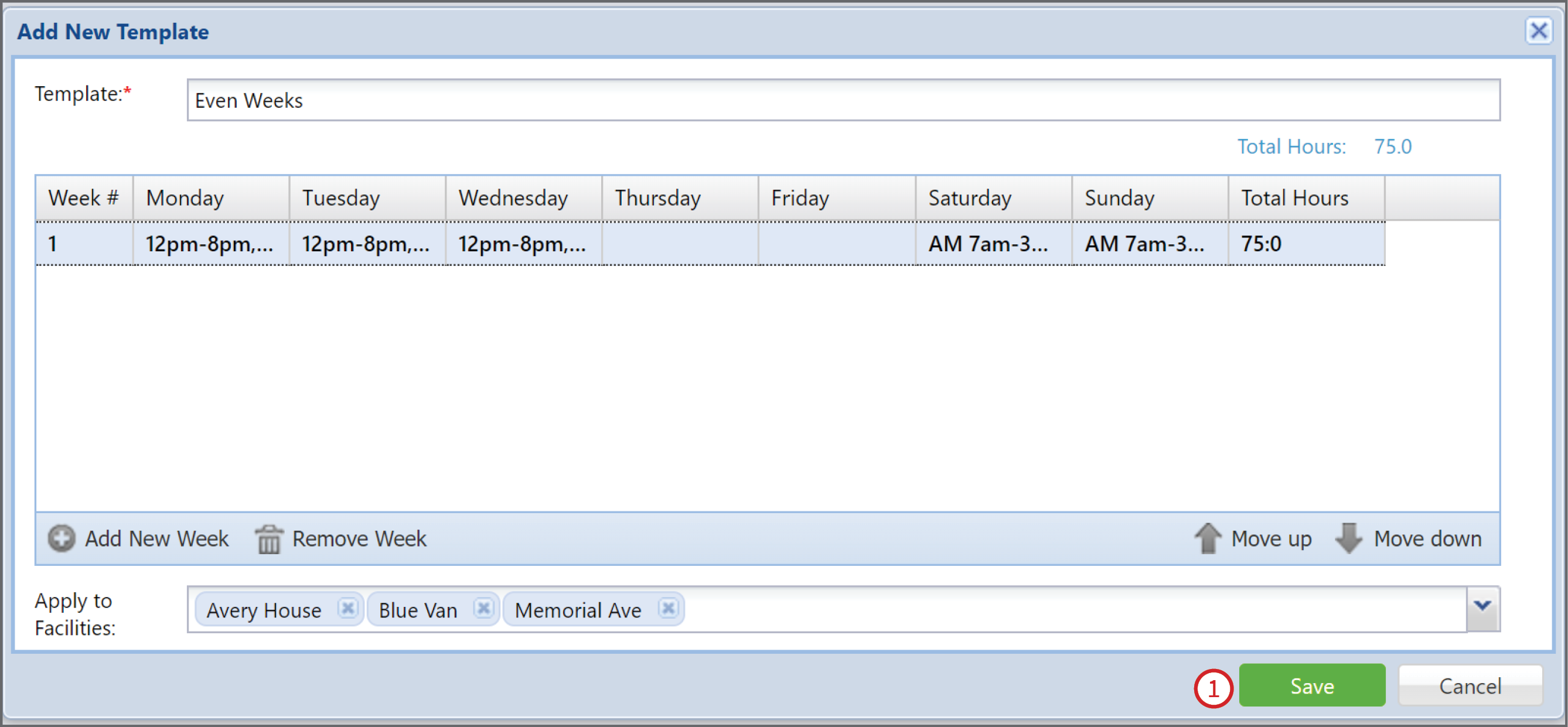
Once you have clicked on the add button a box will open up. Name the template by typing in the text field Template (1) then click on +Add New Week (2)
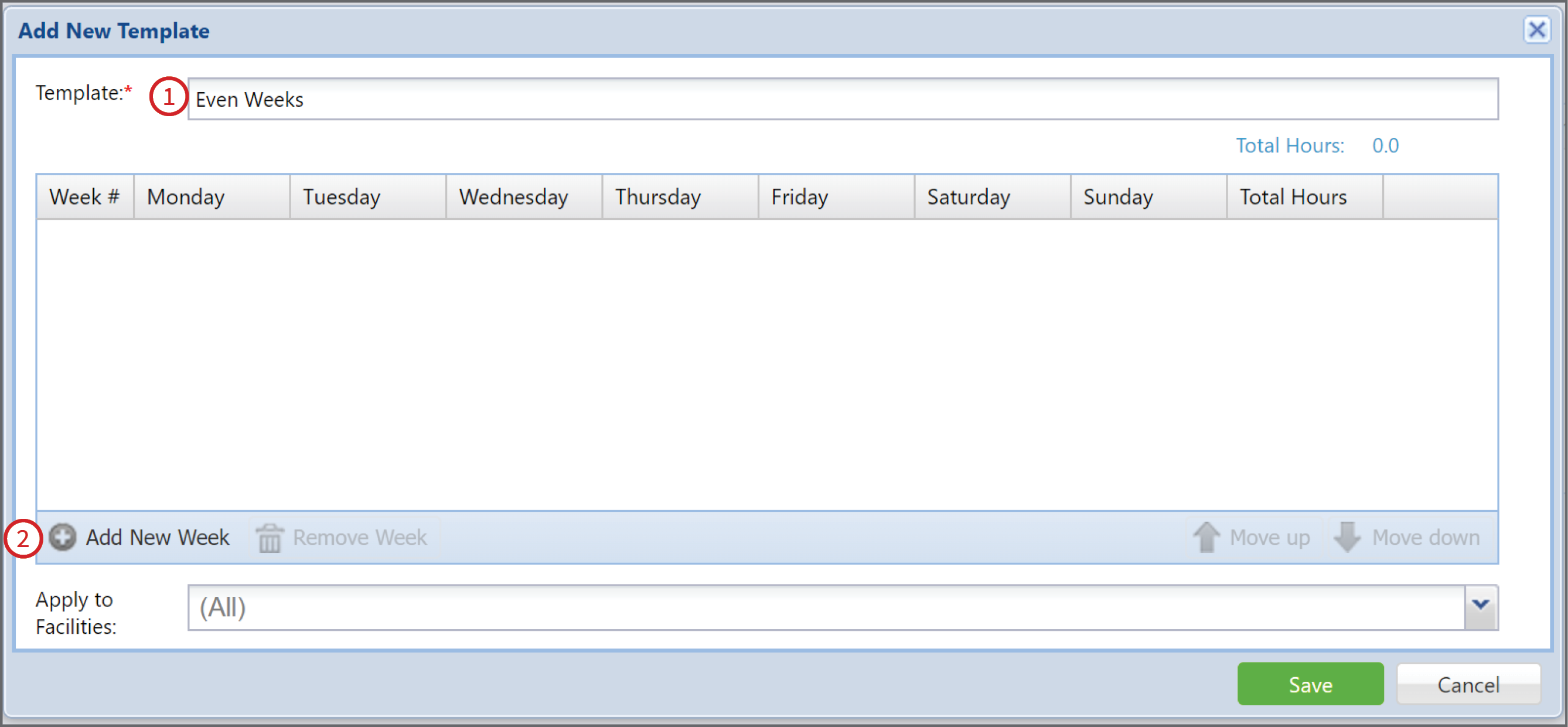
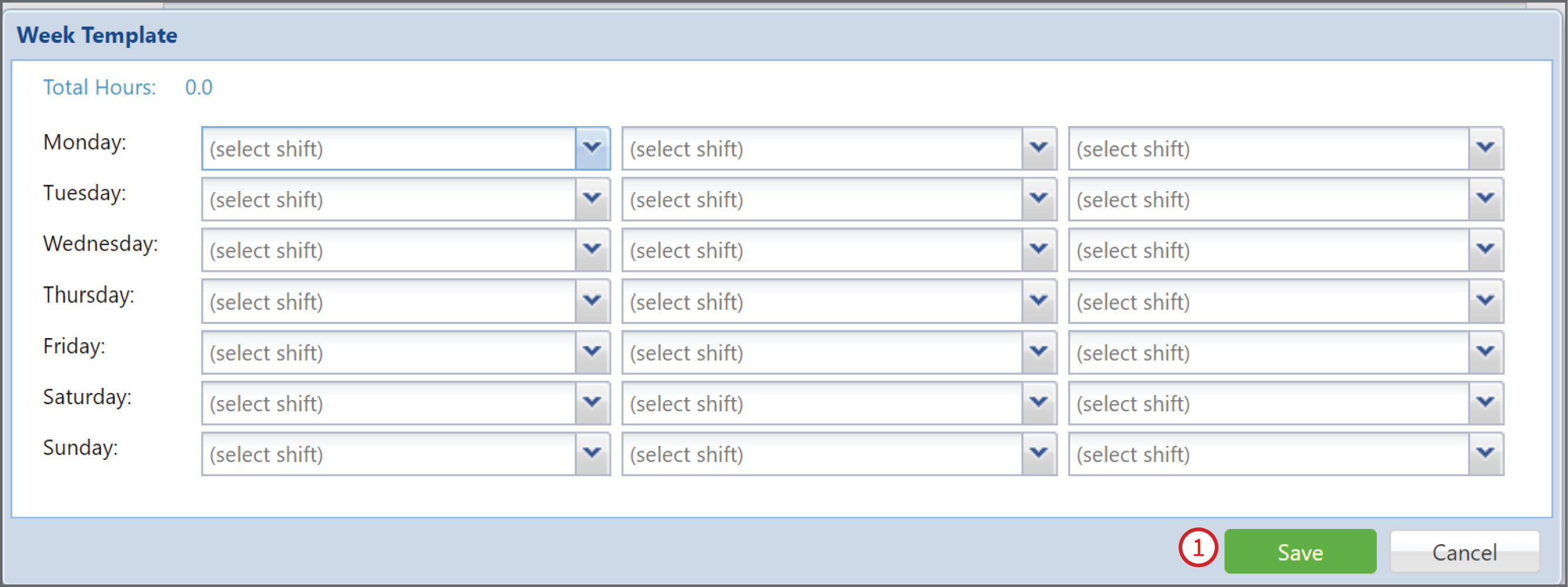
Once you have clicked on +Add New Week it will bring up the days of the week. Click on the down arrows on each day and then add the shifts (which you have previously in the Add New Shift page).
Then click Save (1)
If you want to specify which facility you would like the shift to apply to, click on the down arrow (1) and then click on the facility or facilities you would like the shift to apply to and click save.
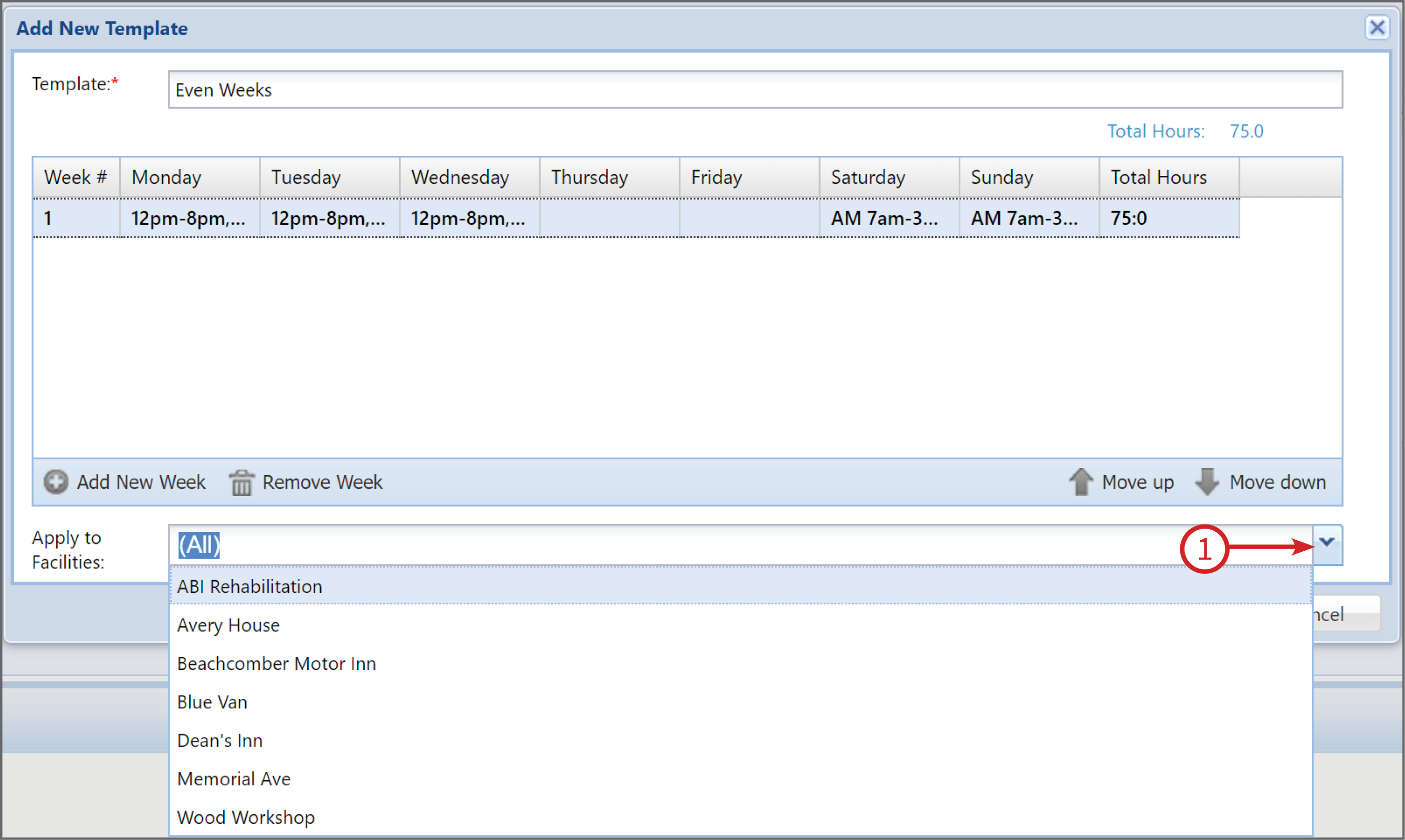
Once you have selected all or the specific facilities, click on Save (1)