
Access Facility Information
Once you are signed in (with the username and supplied password providing by your organisation), you will be directed to the home page. At the top of the homepage portal, is a menu bar (What is the homepage portal?). Clicking FACILITY on the menu bar will open up a list of all houses.
The facility list page will provide you a list of all of you houses in your organisation and an overview of SOME of the relevant information (you can edit the "view" you see here and/or how you see the information if you so choose).
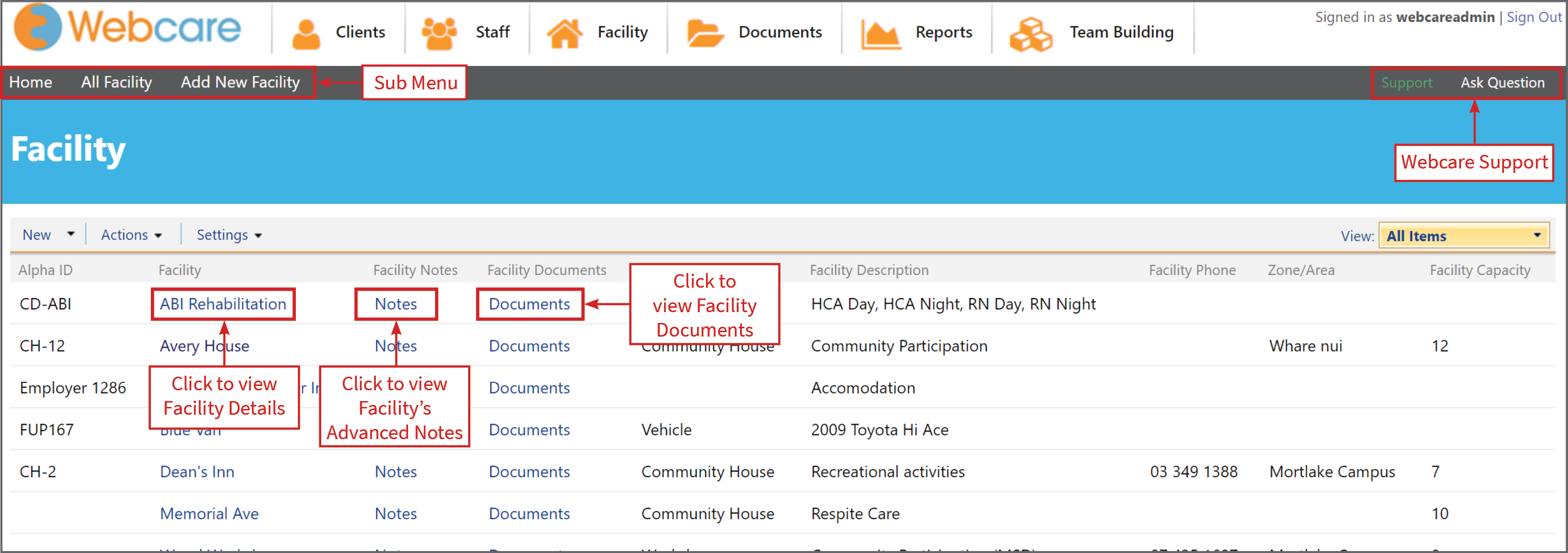
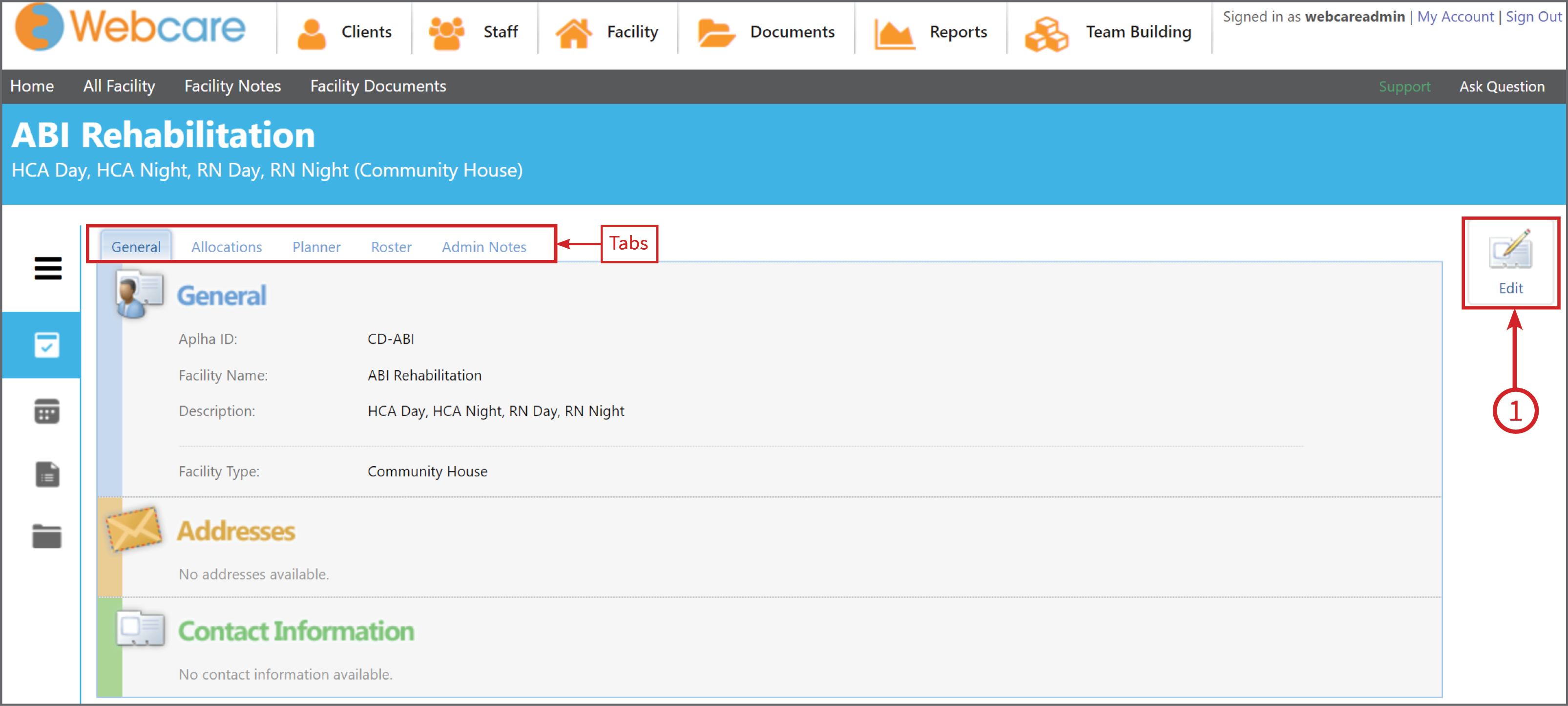
Facility Tabs - "Facility Details"
Clicking on the name of the facility will bring up the facility's details, including the general information, planner information and Roster information. Clicking on Edit (1) will allow you to change the information.
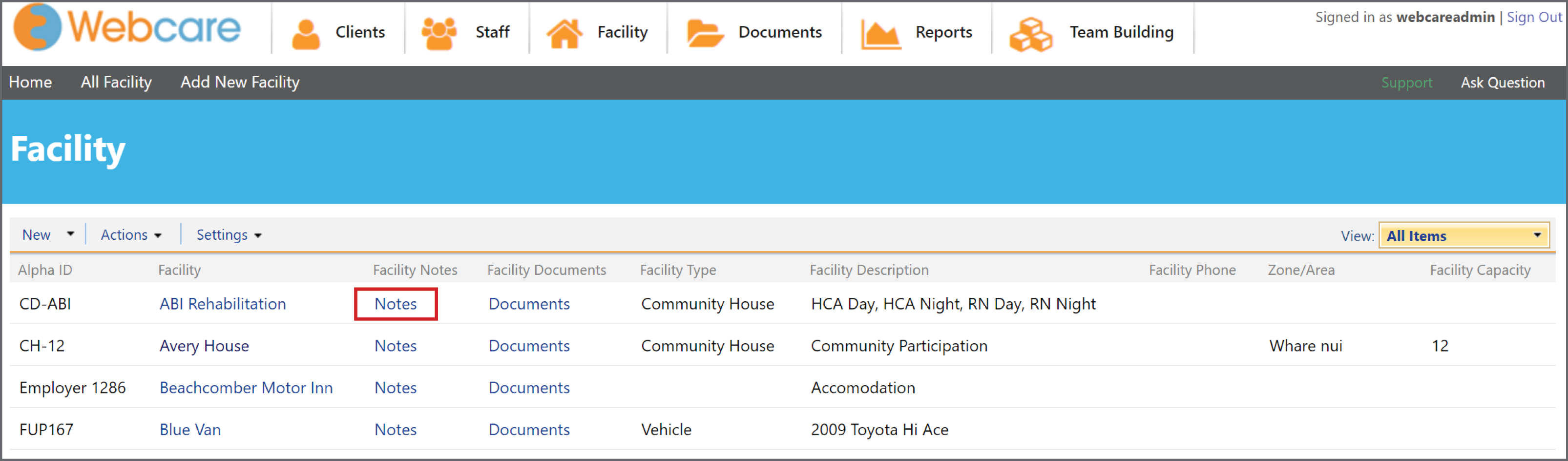
Facility Notes - "Notes"
In the Facility List Page, select Notes to access the notes on the facility you have chosen.
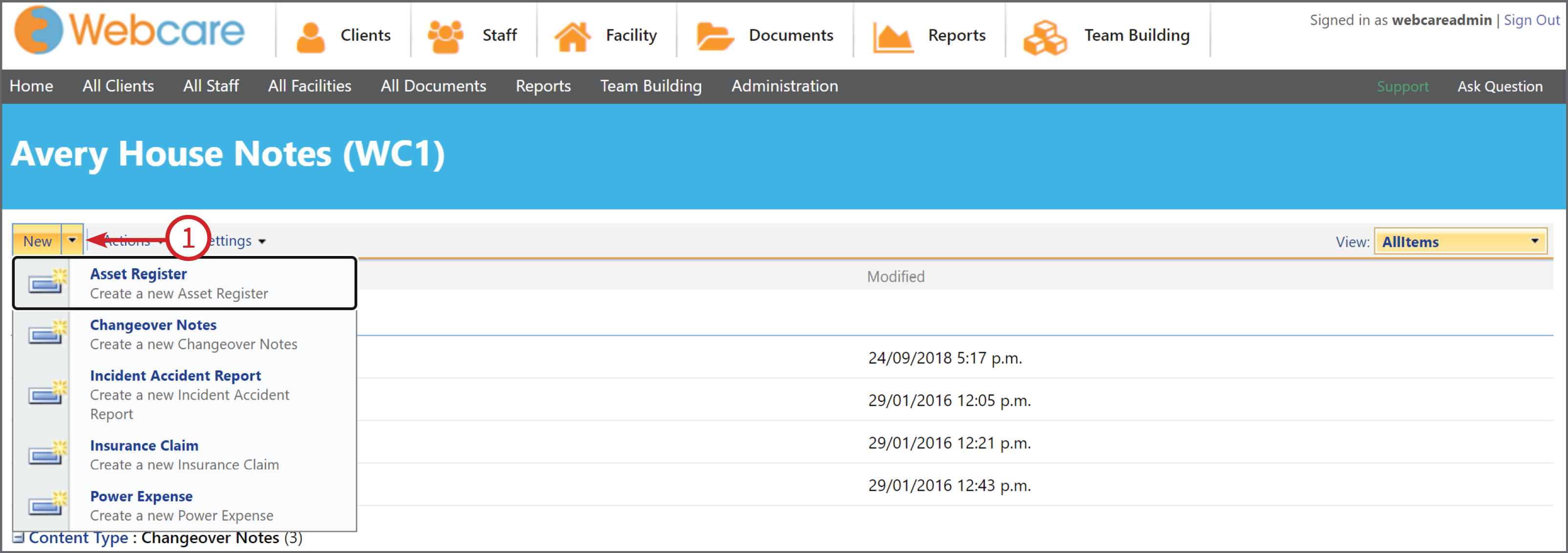
This will bring up a list of all of the forms that have been completed for this particular facility.
To fill in a new Note or Form click on the arrow besides the word New (1). Select the form which you need by clicking on the name of the form.
You can view only the notes for a particular form by selecting the arrow besides View (1), then select the form which you want to categorize the information for (2).
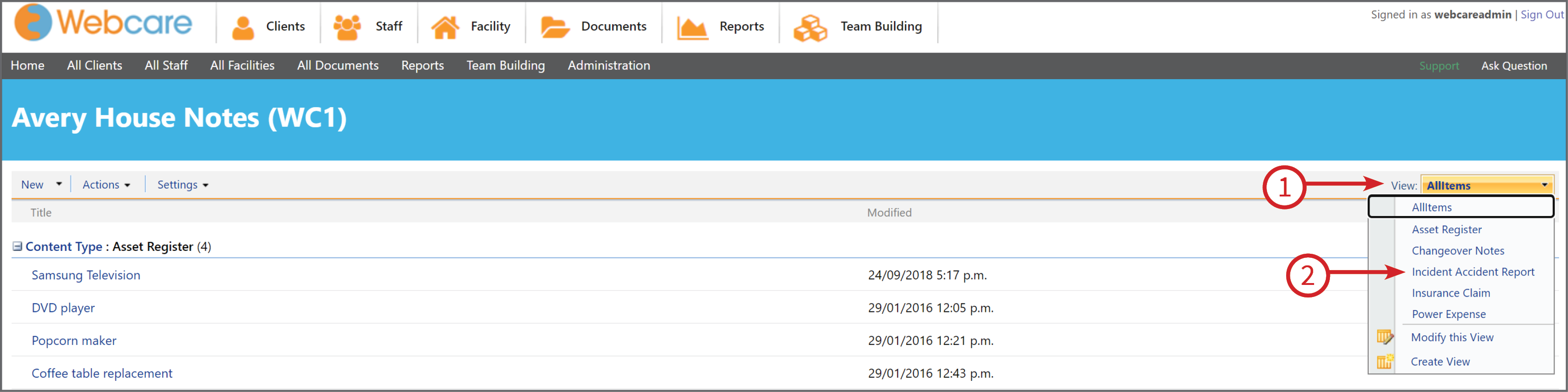
If the filter you would like to group the forms by is not there, you can add a new filter. To learn how, click here.