This article contains information about:
Permissions | Accessing the Roster | Roster Reconciliation |Advanced Filtering Options
Permissions
If you are a facility administrator, to enable someone to have access, click on Administration (1) in the submenu page of the home screen.

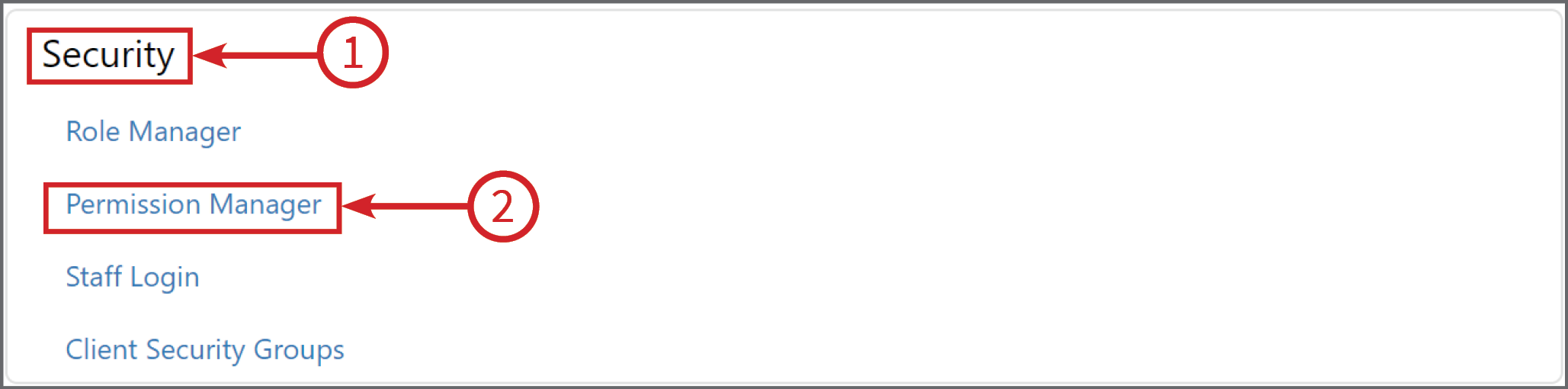
Then under the Security (1) section, click on Permissions Manager (2)
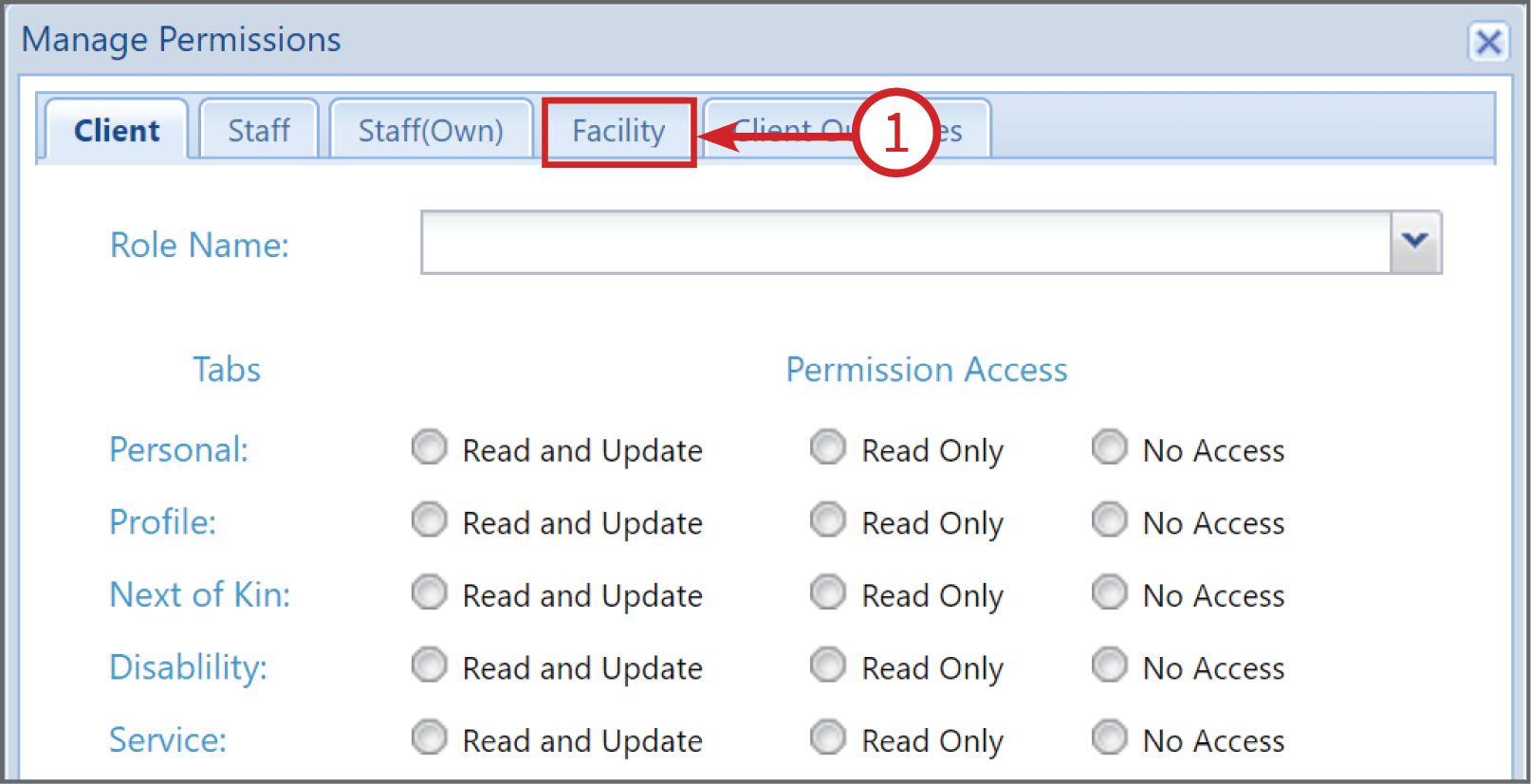
In Permissions Manager pop up box, click on the Facility Tab (1)
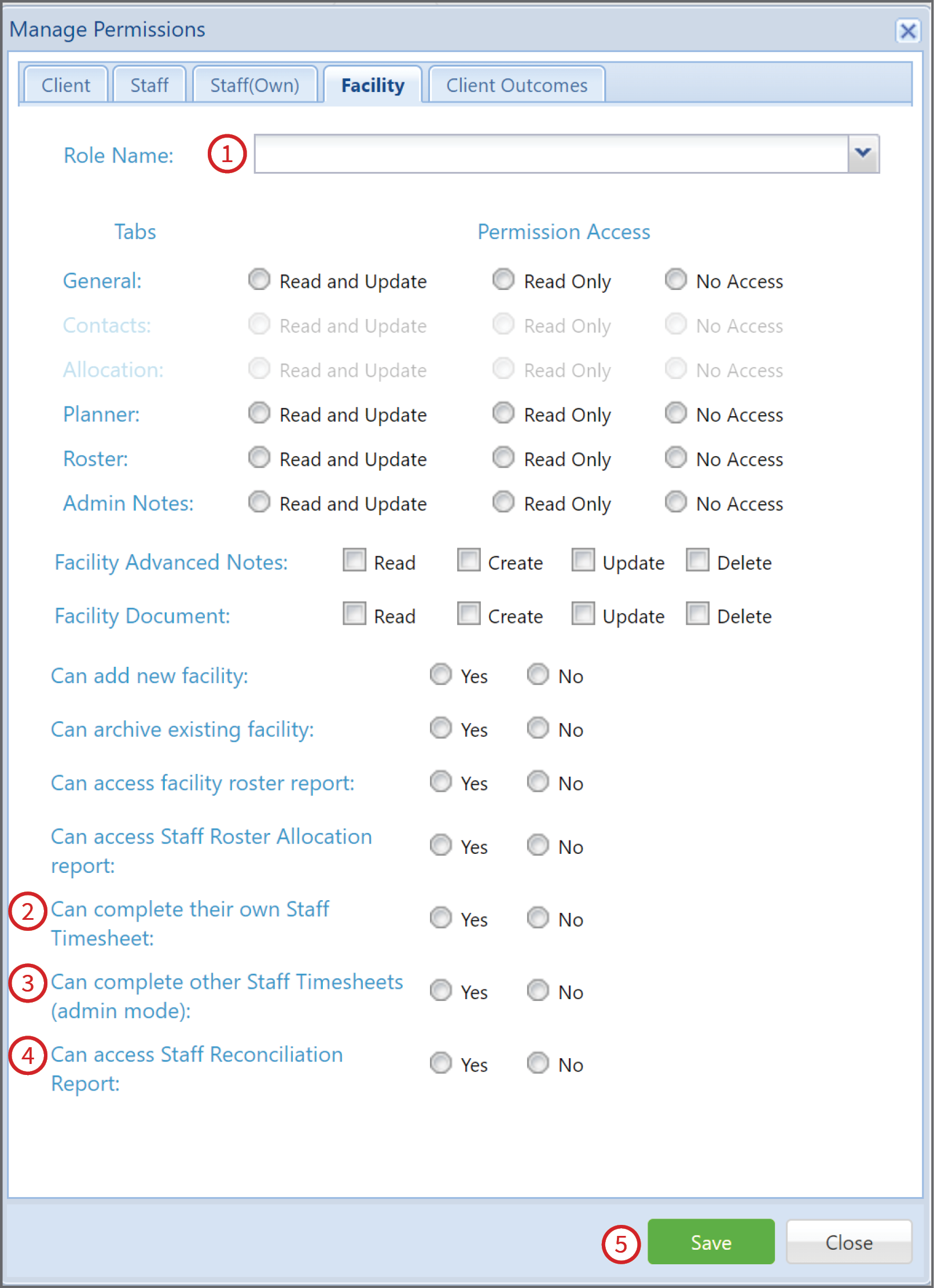
In the Facility Tab, the permissions pertaining to the Roster are as below.
To give permission or access to staff members, first click on the down arrow next to the Role Name (1) and select the positions you would like to give access to.
Secondly click on Yes or No next to the different types of permission access, these will depend on who should have certain access.
(2) - Can complete their own Staff Timesheet - This relates to whether or not the staff member is allowed to access and effectively confirm that they completed the shift or not or advise if it was different in some way.
(3) - Can complete other Staff Timesheets - This is usually reserved for an Administrator and is used for example if a staff does not have access to a computer or is away sick or on leave etc.
(4) - Can access Staff Reconciliation Report - This is reserved usually for Payroll. This setting enables the staff member to confirm and reconcile the staff members shifts .
Then click Save (5)
Accessing the Roster
To access the roster click on Reports in from the menubar (what is menubar?).

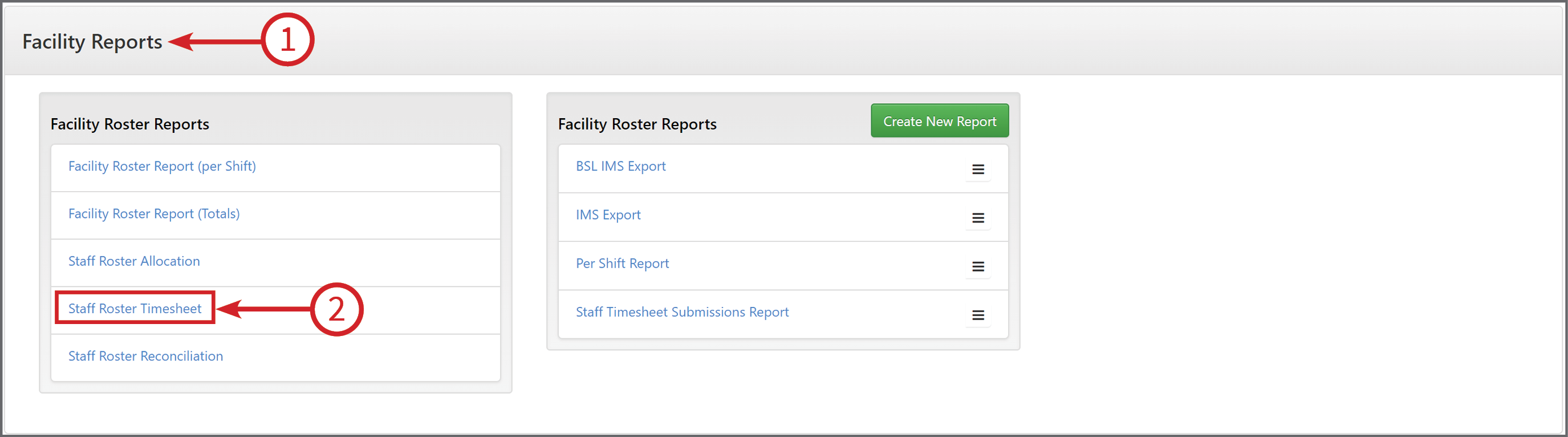
Then to access your timesheet go to the Facility Reports (1) section, then click on Staff Roster Timesheet (2)
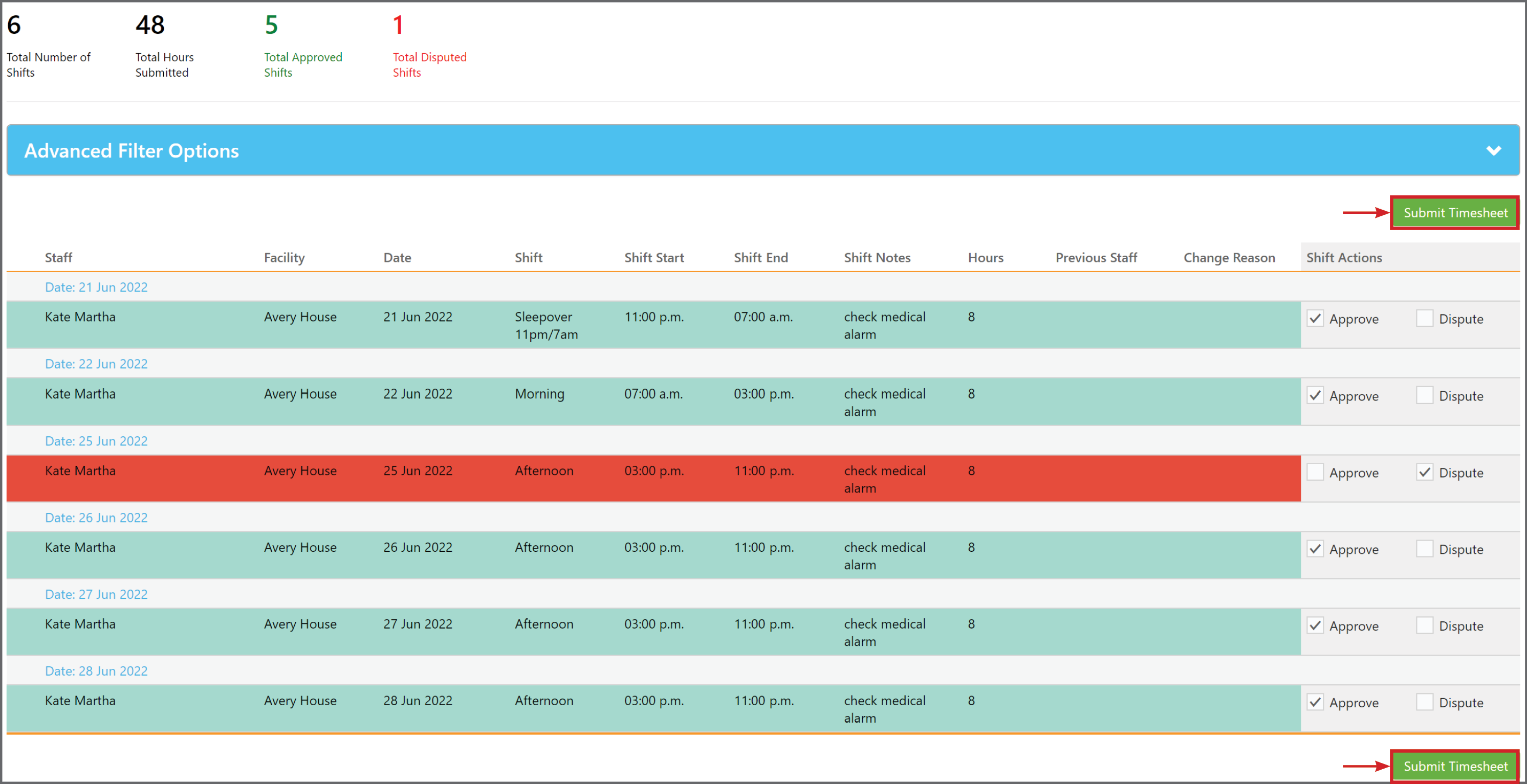
Once you have accessed your timesheet, it will look similar to this:
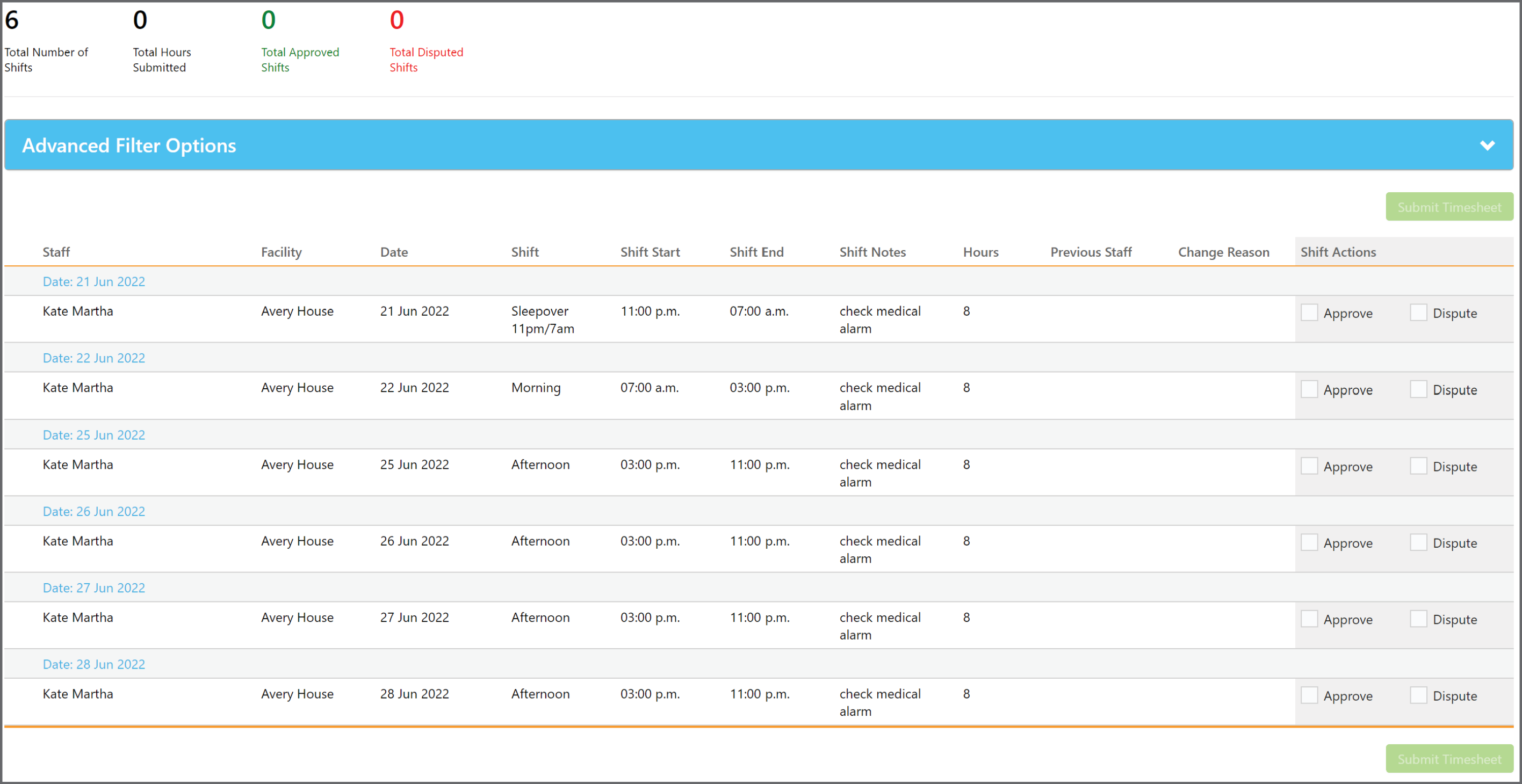
It will by default come up with the past fortnights shifts. You can select a different date range by clicking on the "Date From" and "Date To" and then pressing "Apply Filter".
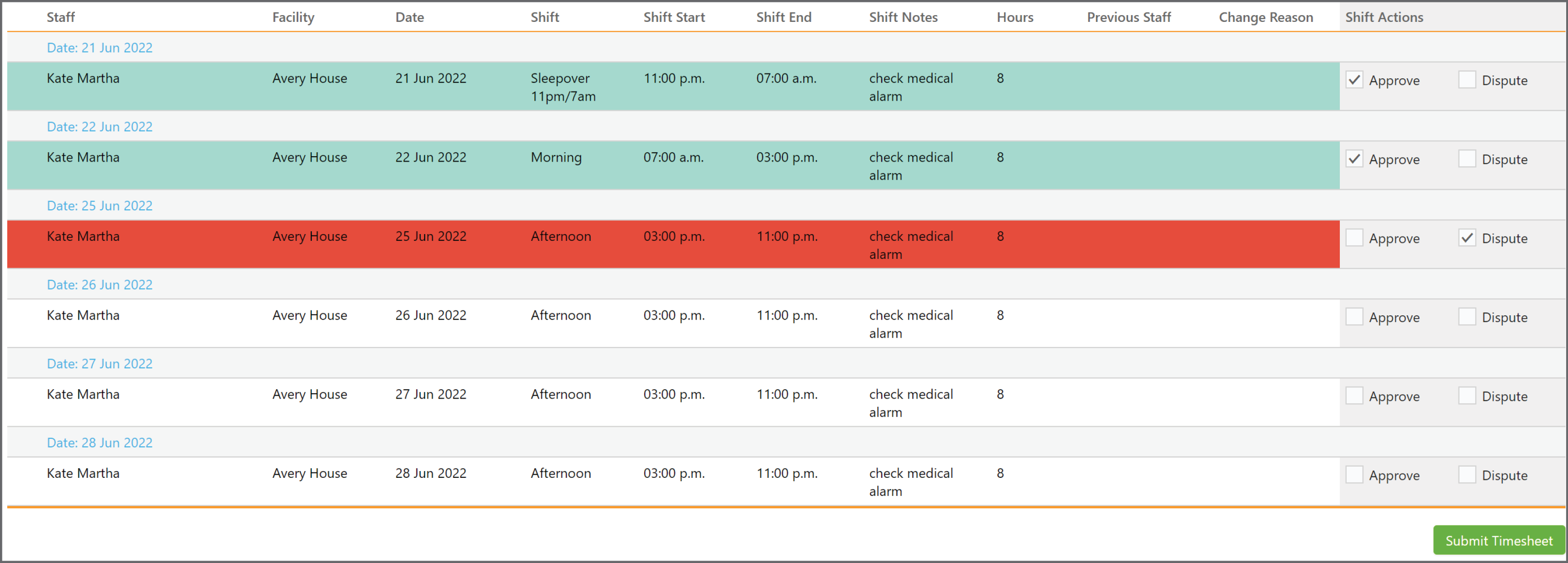
From here you can confirm or dispute your shifts by selecting the "Approve" or "Dispute" buttons next to each shift.
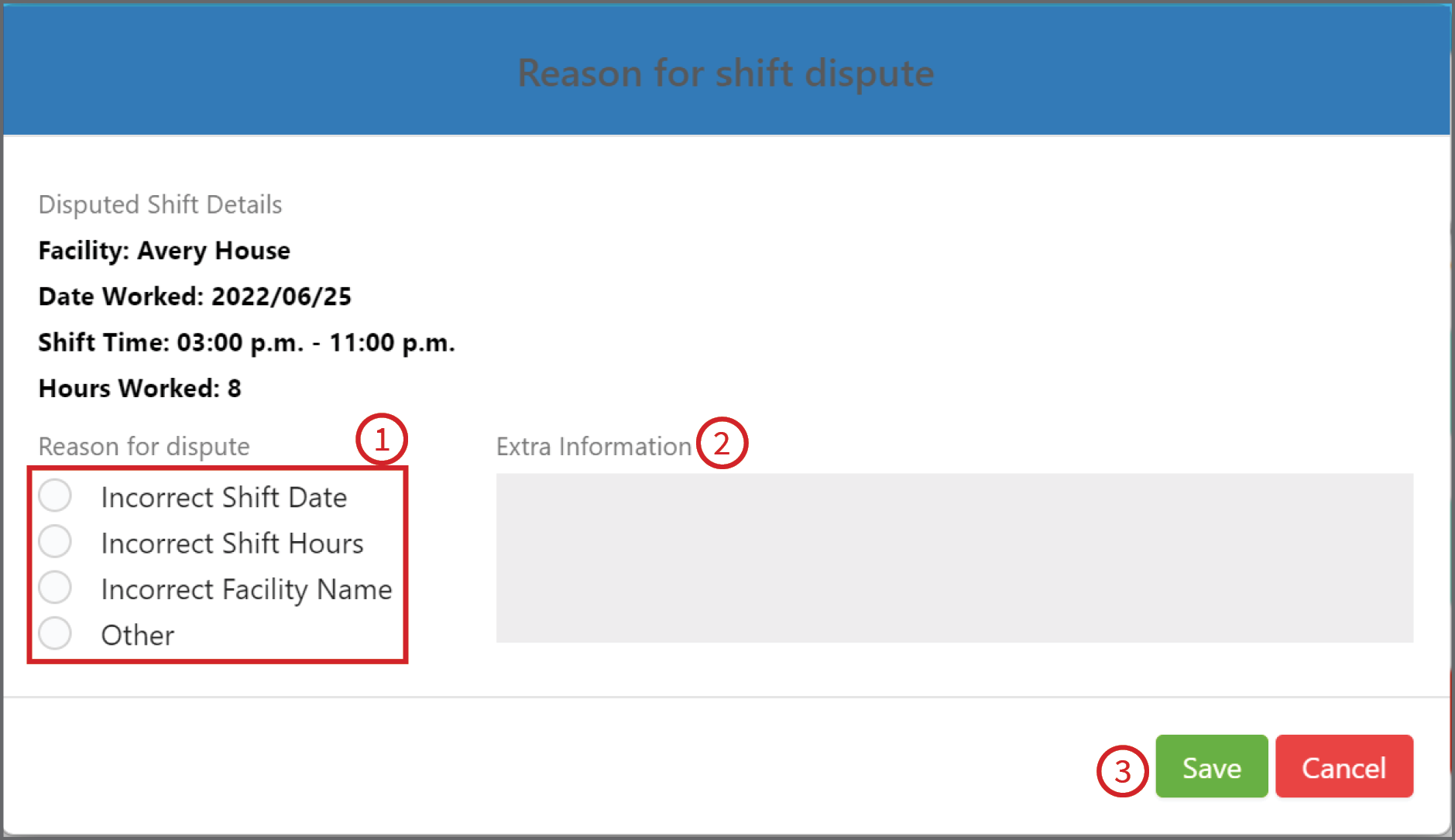
If you click on Dispute, it will ask you to list a reason, select a Reason for Dispute from the list or select Other (1).
You will be asked for Extra Information (2) (e.g switched shifts with 'staff member') before you Save (3)
Once you have completed your timesheet, review all of the details and then click Submit Timesheet
Roster Reconciliation
To do the roster reconciliation click on Reports on the menu bar of the home screen.
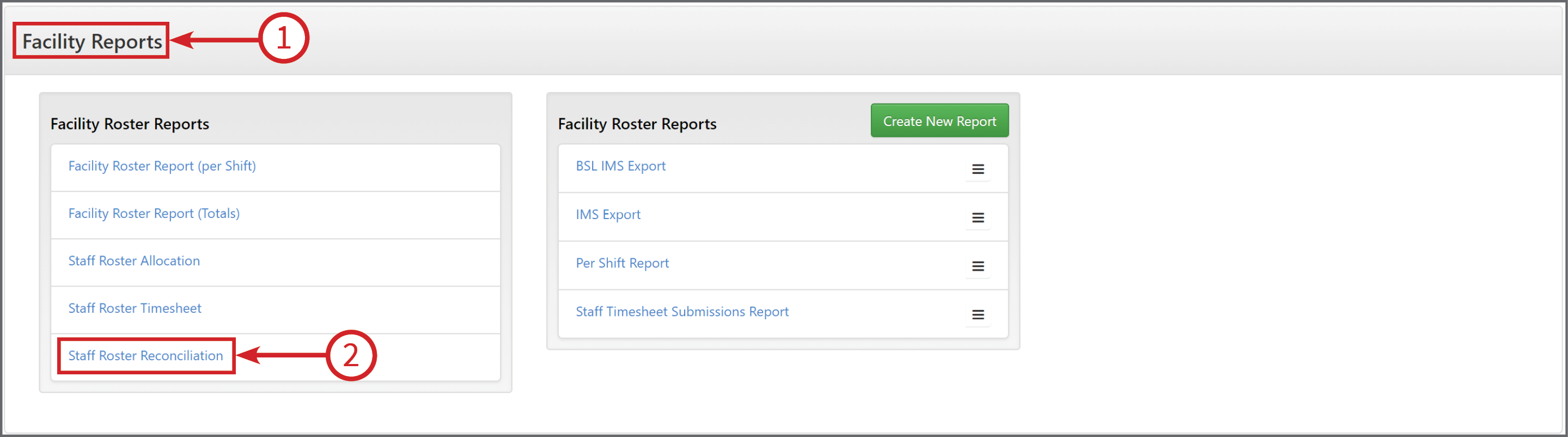
Find the Facility Reports (1) section, then click on Staff Roster Reconciliation (2)
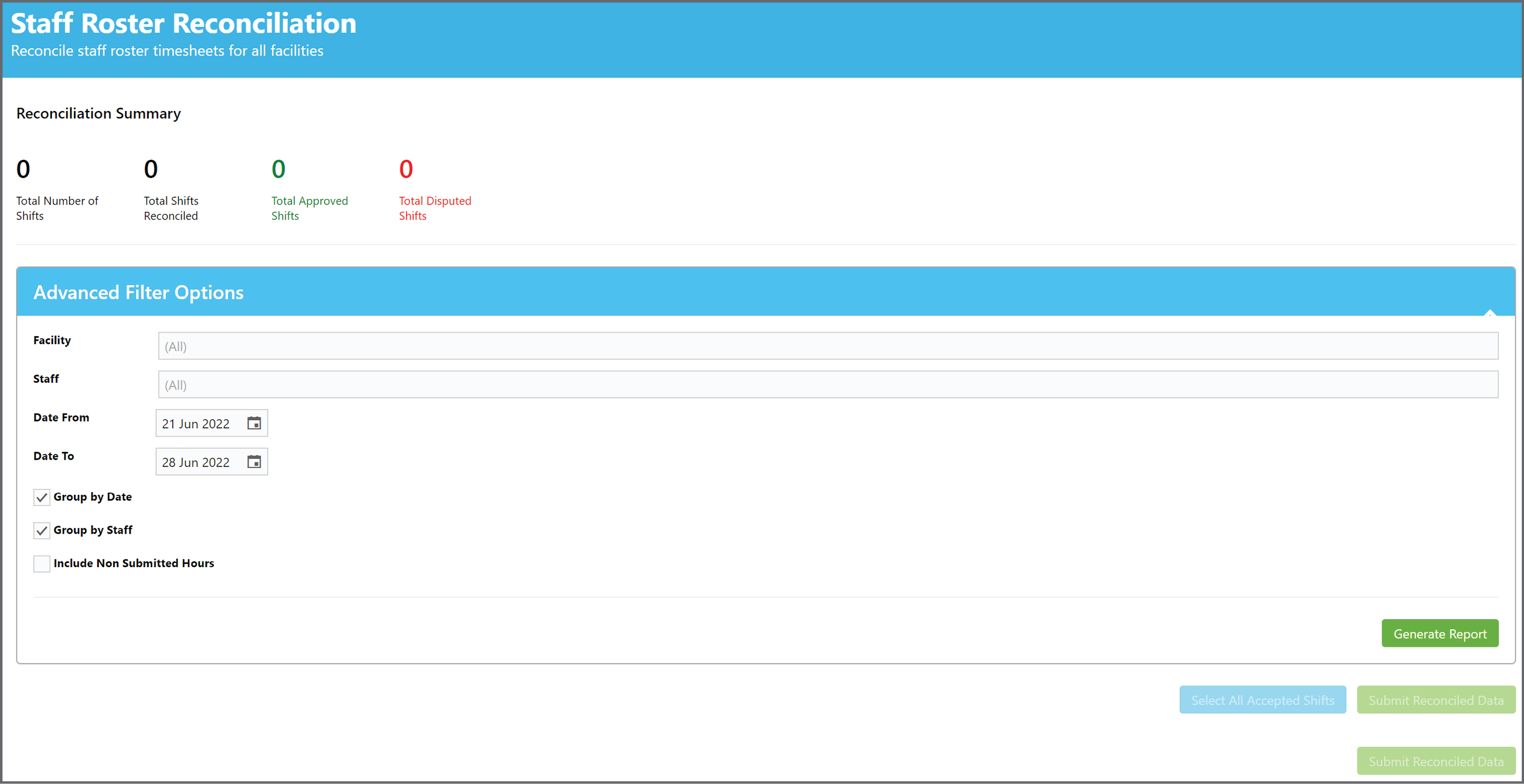
Once you have selected Staff Roster Reconciliation, this will display a Staff Roster Reconciliation Page.
The period displayed will automatically be for the previous week. You can filter the information displayed by using any of the Advanced Filters Options below.
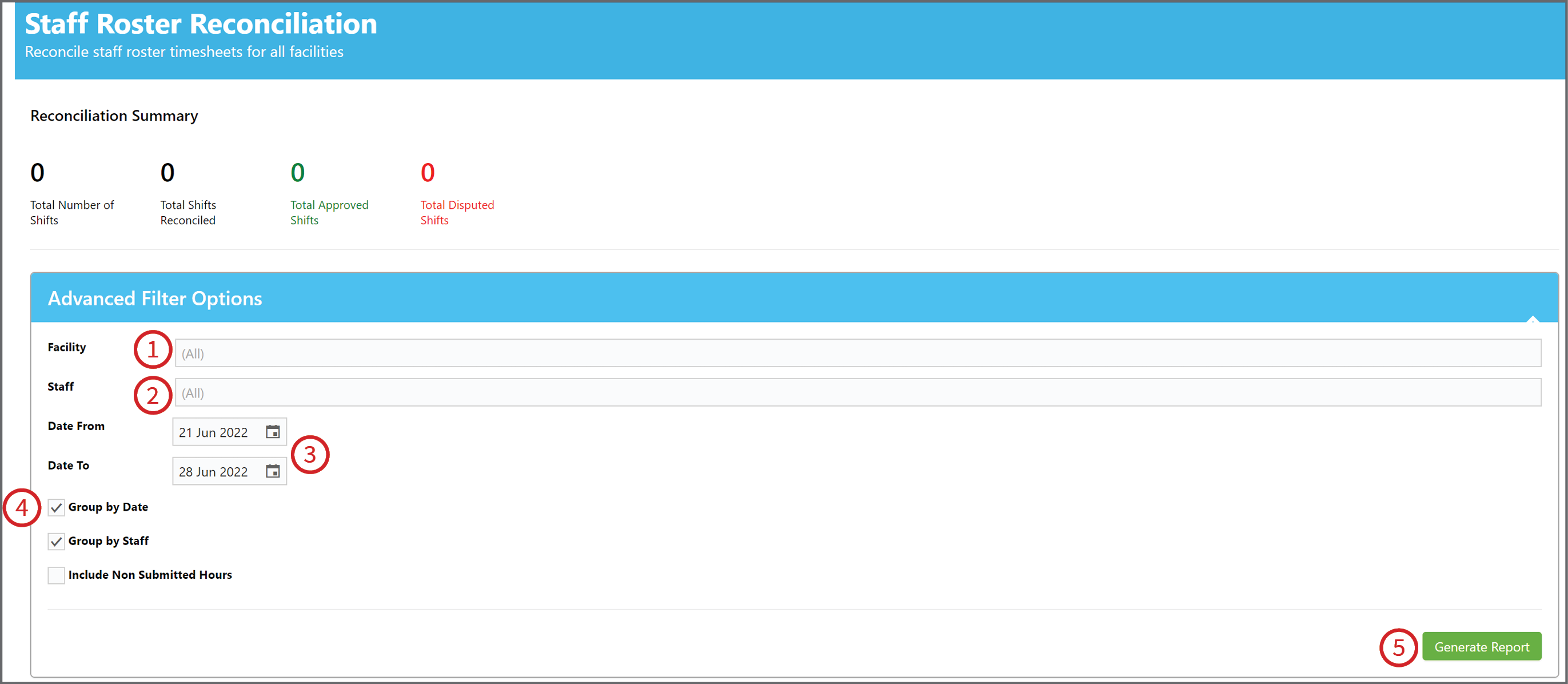
Advanced Filtering Options
- To filter by facility click on the box next to Filter by Facility and this will bring up a list of all of the facilities within your company. Click on the box or boxes next to the facility you would like to reconcile or select all.
- To filter by staff member click on the box next to Filter by Staff then select the staff or staff members or click on Select All.
- To change the Date Range click on the calendar icon or type in the text box and select the date range you would like to reconcile.
- You can choose to group the information based on date or staff. You can also include Non Submitted hours and authorize or decline hours for a period that the staff member has not completed their timesheets for.
- Once you have selected the options you require, click on Generate Report.
Once the report is generated you are then free to Accept, Dispute and then Reconcile the timesheet.

To approve or dispute the shift click on either the approve or dispute box and a tick should appear and the box will either turn red if disputed or green if accepted.
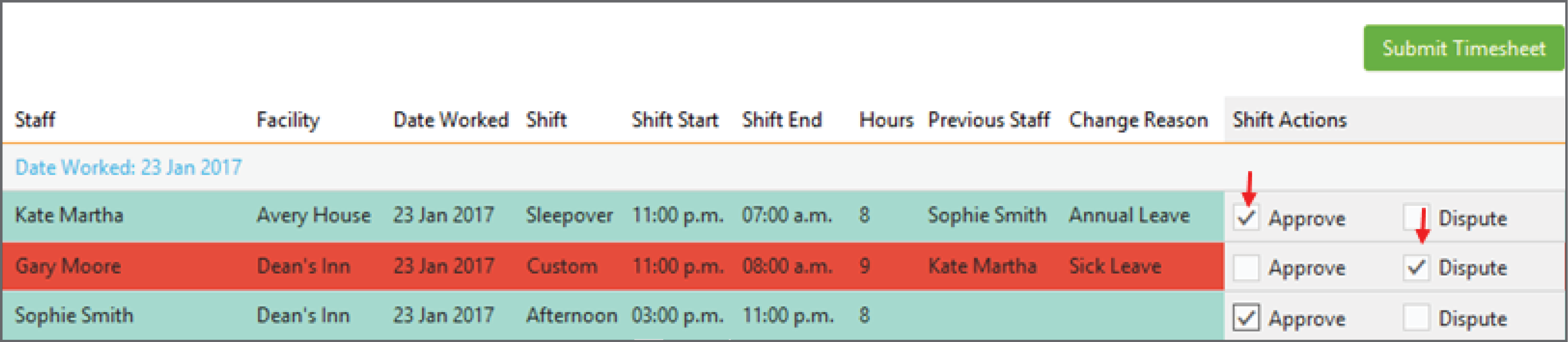
If you select the dispute shift button then you will be asked for a reason for the dispute. Type the reason for the dispute in the dialogue box that appears and select "Save" button.
Next click on the Reconcile box and then select Submit Timesheet
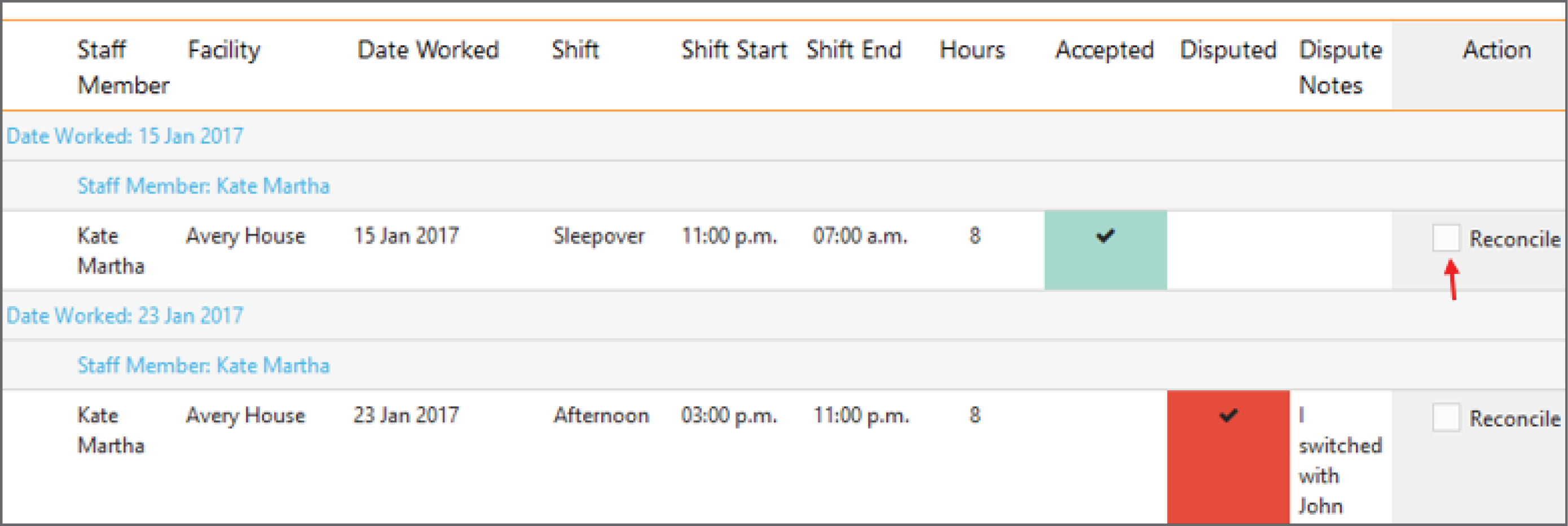
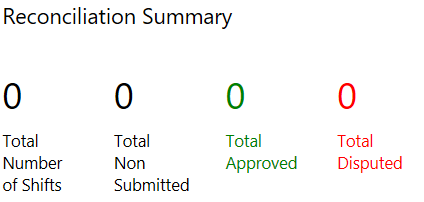
Once you have submitted the timesheets, the Reconciliation Summary at the top will display the updated summary.