
To access Webcare, a staff will need an active login.
A staff login requires:
- A unique Email address - this email address is used to send alerts to the staff;
- A unique Username - this username is used to Sign-In to Webcare; and
- A strong password.
In this article we will go over:
Setting up a Staff Login | Enable Staff Login (Staff Locked Out) | Change Password
Important Notes
- The registered email address will be used to send alerts from Webcare to the staff and cannot be changed once registered. It is recommended that this email address is of the organisation's own domain (e.g. @yourcompany.co.nz).
- A conventional username is in the format of firstname.lastname (i.e. first-name(dot)last-name format). This username needs to be unique and cannot be changed once created.
- A strong password must be at least 8 characters long with at least two upper case characters, two numbers and a special character. Please use "Generate Password" option to generate strong passwords.
Setting up a Staff Login
To create a staff login, access staff details and click on the Login (1) tab.
If they do not have a login setup, click on the Add Login (1) button.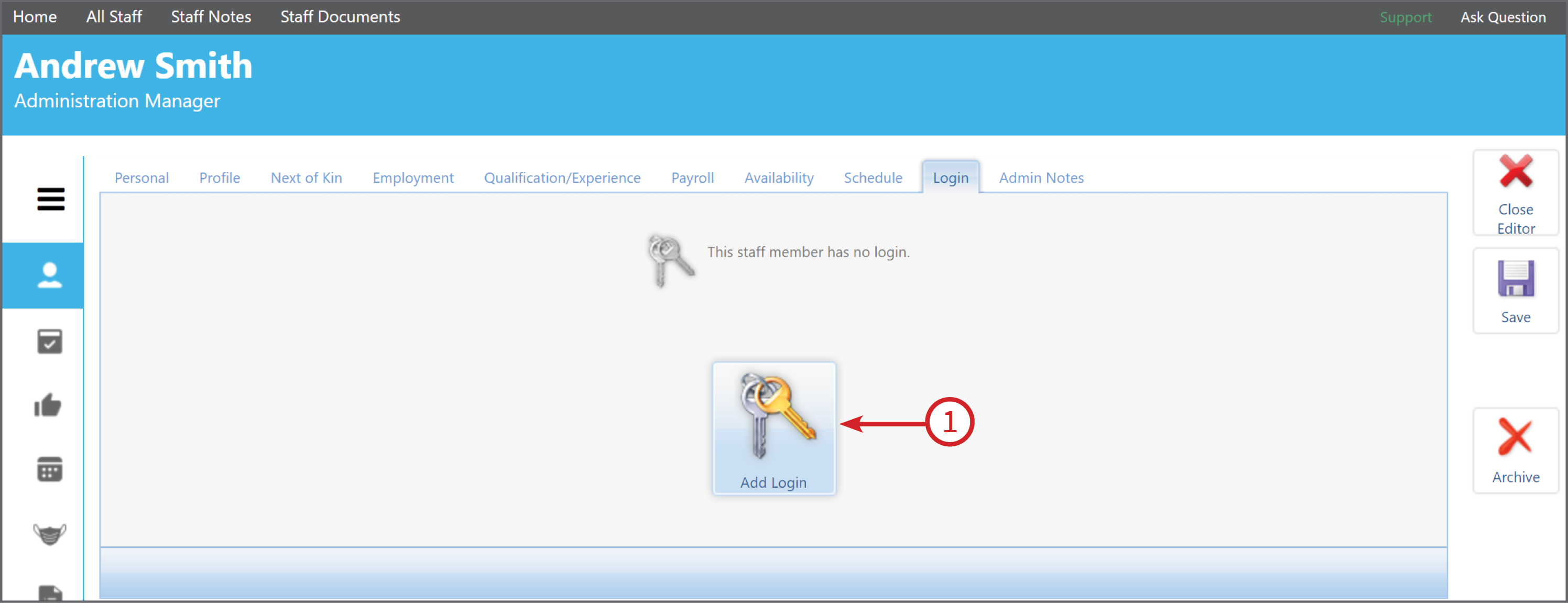
Each numbered bullet point refers to the screen shot below:
1. Enter the Email Address of the staff member you are setting up the login for.
2. Enter the Username (i.e. first-name(dot)last-name format. This username needs to be unique and cannot be changed once created.)
3. Create a Password, you can either make one up yourself or we strongly recommend clicking on Generate Password to create a completely unique password.
4. Tick the Enable Login box.
5. If your organisation is using the Webcare App, here is also where you enable the App access. Tick the box to Enable App login and add the mobile number the staff member will be using the App on.
6. Select the Role for this staff member. This automatically gives the staff member the security access that has been pre-determined for the selected role in permissions manager.
Administration - Security box/Permissions Manager - Staff - Role Name - Select Permission Access
Find the help article for this here.
7. There are two Save buttons, ensure you save before exiting.
8. Click on Close Editor to exit.
9. Click on Archive if the staff member is no longer associated with the organisation. This automatically revokes the staff from all roles.
Once the login is setup and saved, a Revoke button will come up next time you Edit the login. Click on Revoke if the staff member is no longer associated to any roles. It will cancel all access.
Enable Staff Login (Staff Locked Out)
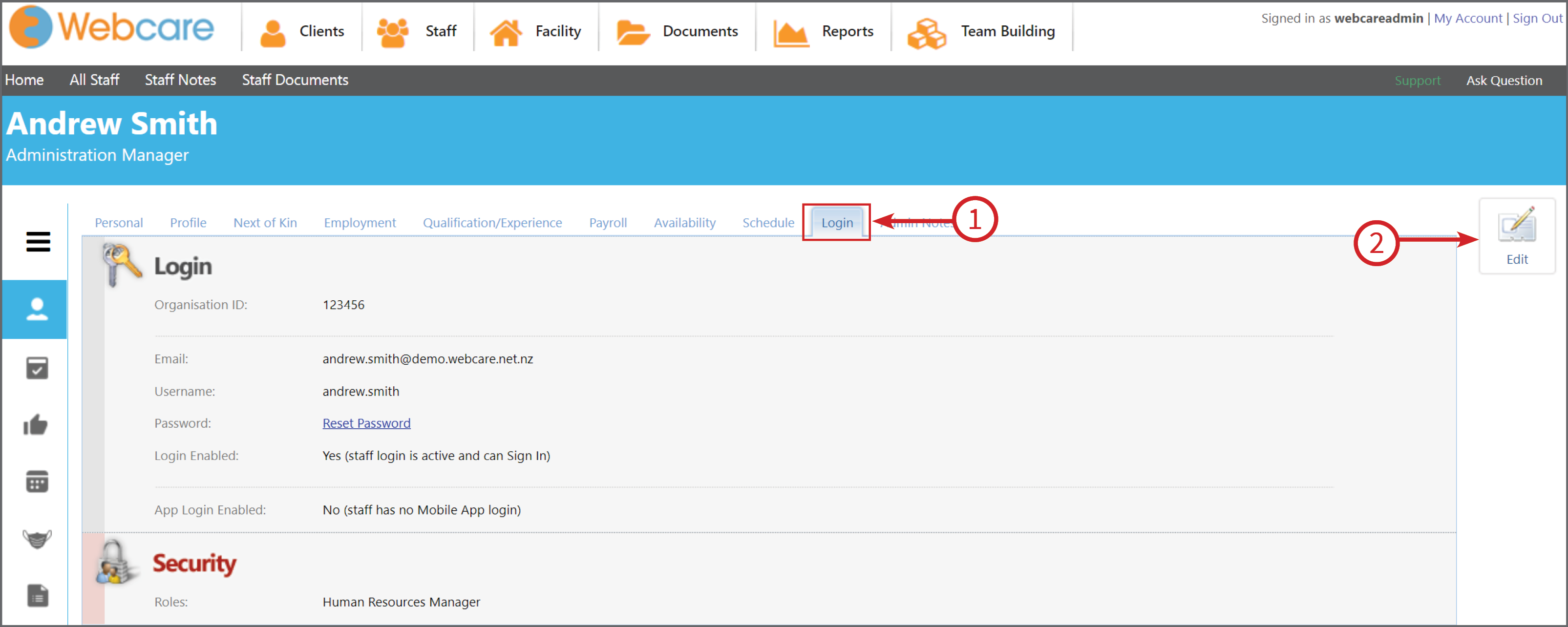
In the staff Login tab (1), click on the Edit (2) button.
Under the login section there is a tick box called Login Enabled (1). Click on this tick box to enable the staff to login and/or for the App Login (2)
If the staff member is enabled there will be a tick/s in this box. Click on Save (3).
Change Password
It is recommended that the staff passwords are changed every 3-6 months.
To change the Password - on the Login tab of the Staff members profile, you can click on Reset Password (1).
Once you have clicked on Reset Password, you can change the password. Webcare offers an option to Generate Passwords (1). To reset or change a login password for staff, click Generate Password (1), and then press Save (2). You can cancel out of the screen by clicking on Cancel (3).